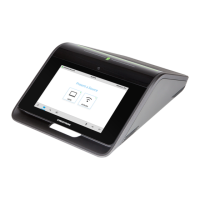
Product Manual – DOC. 7844M CCS-UC-1: Crestron Mercury Tabletop Conference System • 65
• Tap (Present) to view presentation options. For details, refer to “Present
Content” on page 70.
• Tap to view phone call options. For details, refer to “Answer a Phone Call” on
page 79 and “Make a Phone Call” on page 80.
• Tap to share whiteboard content using the Crestron AirBoard Whiteboard
Capture System.
• Tap to run a web conference. For details, refer to “Crestron AirBoard
Whiteboard Capture” on page 93.
• Tap to view information about the device.
• Tap to mute the built-in microphone and (optional) connected CCS-UCA-MIC
microphone pods. When muted, the button is framed in red and the microphone
icons on the tops of the CCS-UC-1 and connected CCS-UCA-MIC microphone
pods turn red. To unmute, tap (or the mute bar on top of the device).
• Tap to return to the previous screen.
• Tap or to raise or lower the volume.
Join or Schedule a Meeting
The Home screen is used to join a scheduled event or to reserve the conference room.
Tap to display the Home screen. The Home screen displays the current status of the
room.
Reserved (Join a Skype for Business Meeting)
If the room is in use, the display on the device indicates as such.
Home Screen, Room In Use



 To Next Page
 Loading...