Operating modes
The unit's DVD drive is configured to read
the r
e
gional code for the region in which the
vehicle was originally sold.
Starting the DVD mode
●
Insert a compatible DVD in the DVD drive.
The reading of DVD data may take a few sec-
onds.
The DVD's “intro” (short initial sequence) is
played. Next, the different DVD menus are
displayed.
Controlling a DVD menu
●
Briefly touch the screen to activate the
function buttons in the DVD mode main
menu
›››
Fig. 158.
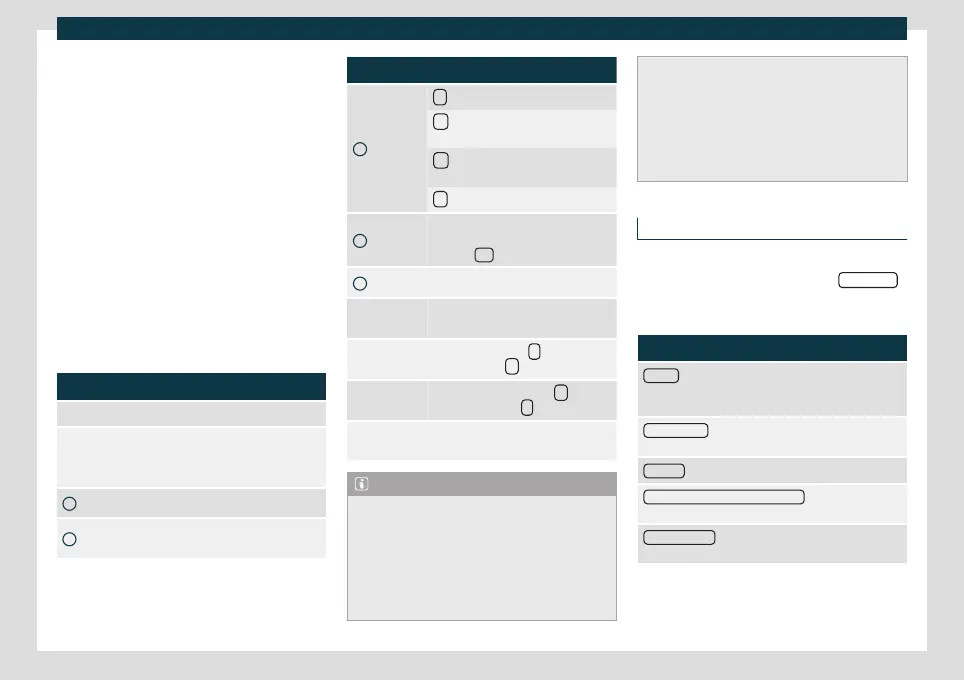
Function button: function
SOURCE Display and selection of the source.
DVD MENU
To display the control menu and re-
turn to the main DVD screen
›››
Fig. 159.
A
Chapter display.
B
Displays play time duration and re-
maining play time.
Function button: function
C
: Move the control menu window.
: Minimise the control menu win-
dow.
: Maximise the control menu win-
dow.
: Close the control menu.
D
Use the arrow buttons to browse the
DVD menu. Confirm the selection by
pressing OK
.
E
Press to open the DVD main menu.
/
To move to the next or previous
chapter.
Playback stops. The
function but-
ton changes to
.
Playback is resumed. The
function
button changes to
.
SETTINGS
This menu contains the Video (DVD)
settings.
Note
●
The visual appearance of the DVD film
menus and the menu options which it of-
fers are the responsibility of the DVD man-
ufacturer.
●
The difference in behaviour of some films
when using the same mode is the responsi-
bility of the DVD manufacturer.
●
You ma
y not be able to play video DVDs
which you have burned yourself.
●
The Infotainment system screen only dis-
plays the image when the vehicle is stop-
ped. Whilst in motion, the screen discon-
nects (the image), but the audio remains
active.
Video settings (DVD)
3 Only available for the model: Navi System Plus
While in the
DVD mode press the SETTINGS
function button and then select the Video
settings (D
VD) option.
Function button: function
Format
: To select the screen format. If Automatic is
selected, the optimal format for the screen is set auto-
matically.
Audio channel
: To select the language of the voice in-
structions.
Subtitles
: To select the subtitle language.
Enter/change PIN for parental settings
: Parental settings
password.
Child protection
: To select the level of protection you
want to associate with DVD playback.
The options within the Video Settings (DVD)
menu ma
y v
ary depending on the DVD or
the chapter that is playing.
»
193



 To Next Page