22
3.1.2 Device Map
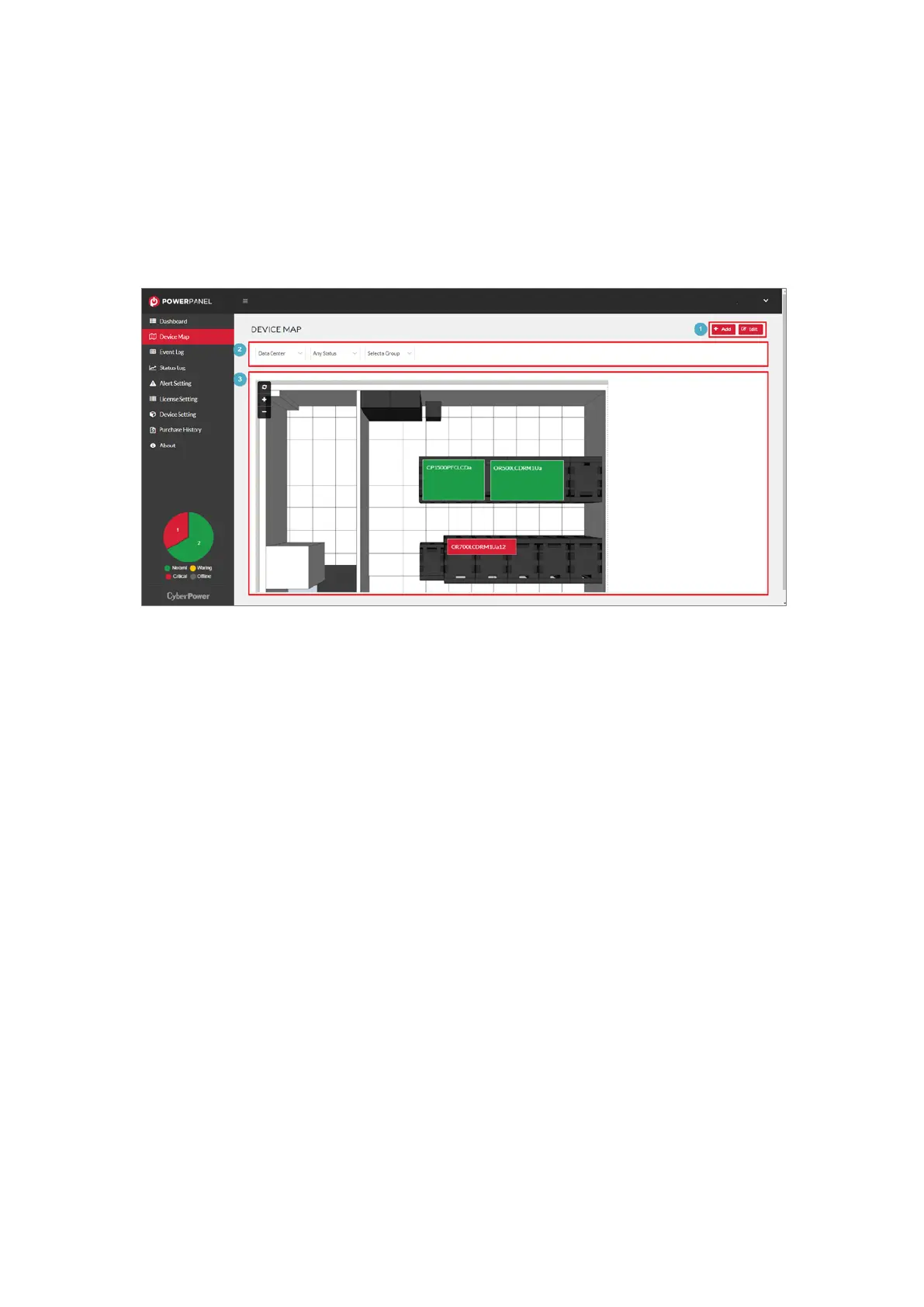
The Device Map provides the Map View to monitor the status and
real-time information of all devices.
Figure 3.6 Device Map
At the top-right corner, users can click to edit the details of the map or
add a new one (❶ in Figure 3.6). The functions are described in Tab l e
3.2. The method of adding a new map is described in Figure 3.7 ~
Figure 3.9 and Tab l e 3.3. To o p e n a device map, select the device map
in the filter (❷ in Figure 3.6). After opening the device map, users can
view the device distribution in the map. The device is displayed as a
color block in the map, and changes the color in real time according to
its status. Click the color block to view the detailed information of the
device on the right side of the page (Figure 3.10
).This feature is only
available in Level 2, Level 3 and Level 4.




 To Next Page