35
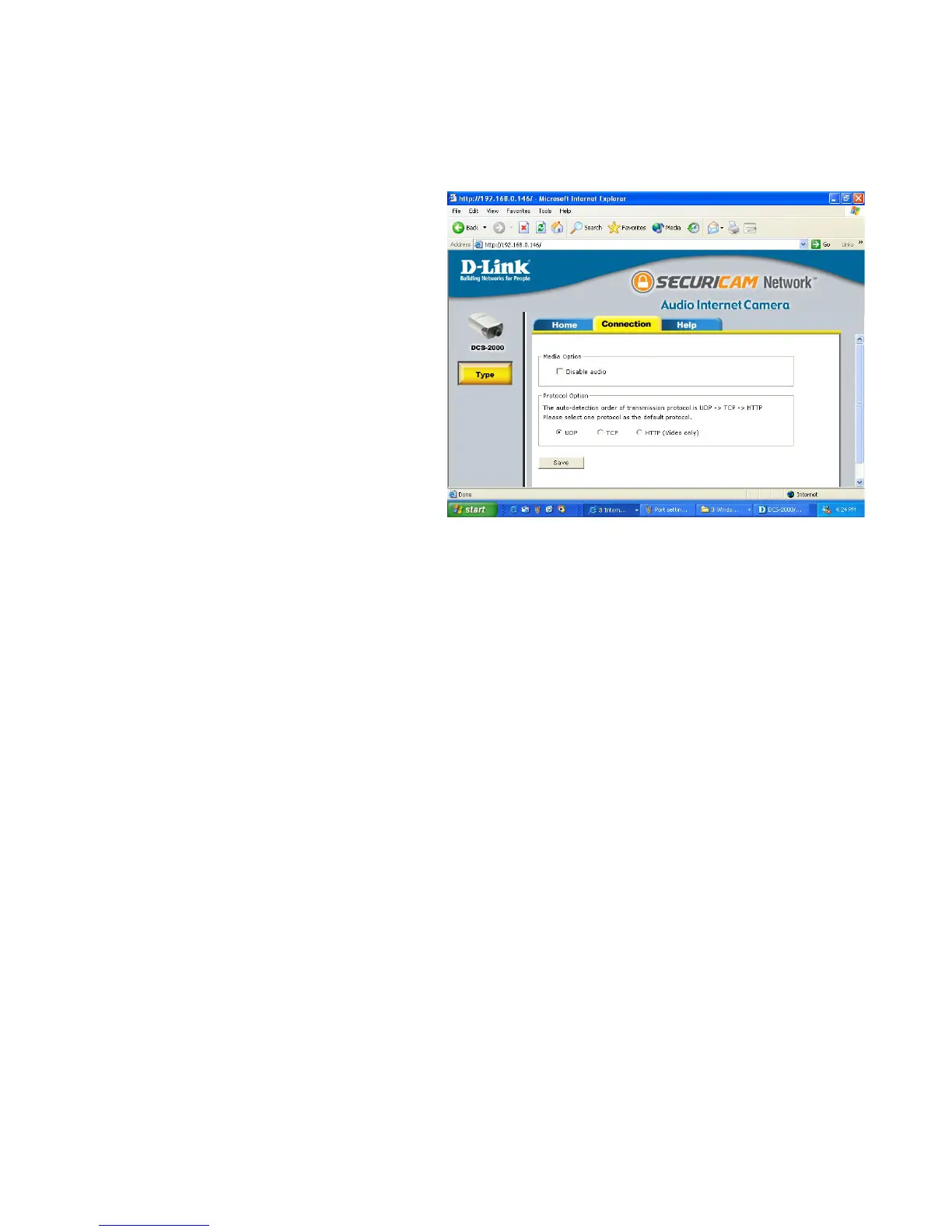
Home > Connections Screen
Click the Home tab to return to the DCS-2000 Home page.
Protocol Option
The UDP Protocol should be
chosen for the most users.
Generally the client computer will
automatically try these protocols
in the following order, UDP -> TCP
-> HTTP.
After the client connects to the DCS-2000 successfully, the working protocol
will be displayed in “Protocol Option.” The chosen protocol will be recorded in
the user’s PC and used for the next connection. If the network environment is
changed or users want to let the Web browser automatically detect the protocol,
select UDP manually and click Save to change the setting and return Home to
reconnect with the new setting.
Media Option:
Option for users to disable or
enable audio when viewing video.
The following options are available
from the Connections settings
screen:
Using the DCS-2000 with an Internet browser
(continued)
Options:
UDP Protocol - Offers the highest image and video quality.
However, packet losses will diminish image quality when bandwidth
becomes restricted.
TCP Protocol - Packet loss is less likely to occur compared to UDP
when bandwidth is restricted.
HTTP Protocol - If the network is protected by a firewall and it opens
HTTP port (80) only, HTTP protocol must be selected. In this mode,
audio is disabled and only video can be viewed. TCP and UDP
connections will not be available to remote users if all four ports have
not been forwarded (as shown on page 30). Only the HTTP port must
be forwarded for remote users to make an HTTP connection (video
only).




 To Next Page