46
Recording settings for clear identification for each image
To have the best video quality, you should set Fix quality to detailed or excellent
and tune the Maximum frame rate to suit your network bandwidth. If you get
some broken pictures in a slow network, you can choose TCP protocol in
Connection type for more accurate transmission but the received image may
have lags. Note that any slow connection with multiple users will impair
performance.
Recommendations for setting video for the best
performance (continued):
Recording settings to compromise between real-time and clear
images
If you have a broadband network, set Fix quality to Good, or better, rather than
setting the Bit rate. Otherwise fix the bandwidth to accommodate your actual
network speed and set the frame rate to 30. If the images quality is low, select
the lower frame rate above 15. If the image is still not improved, select a lower
bit rate.
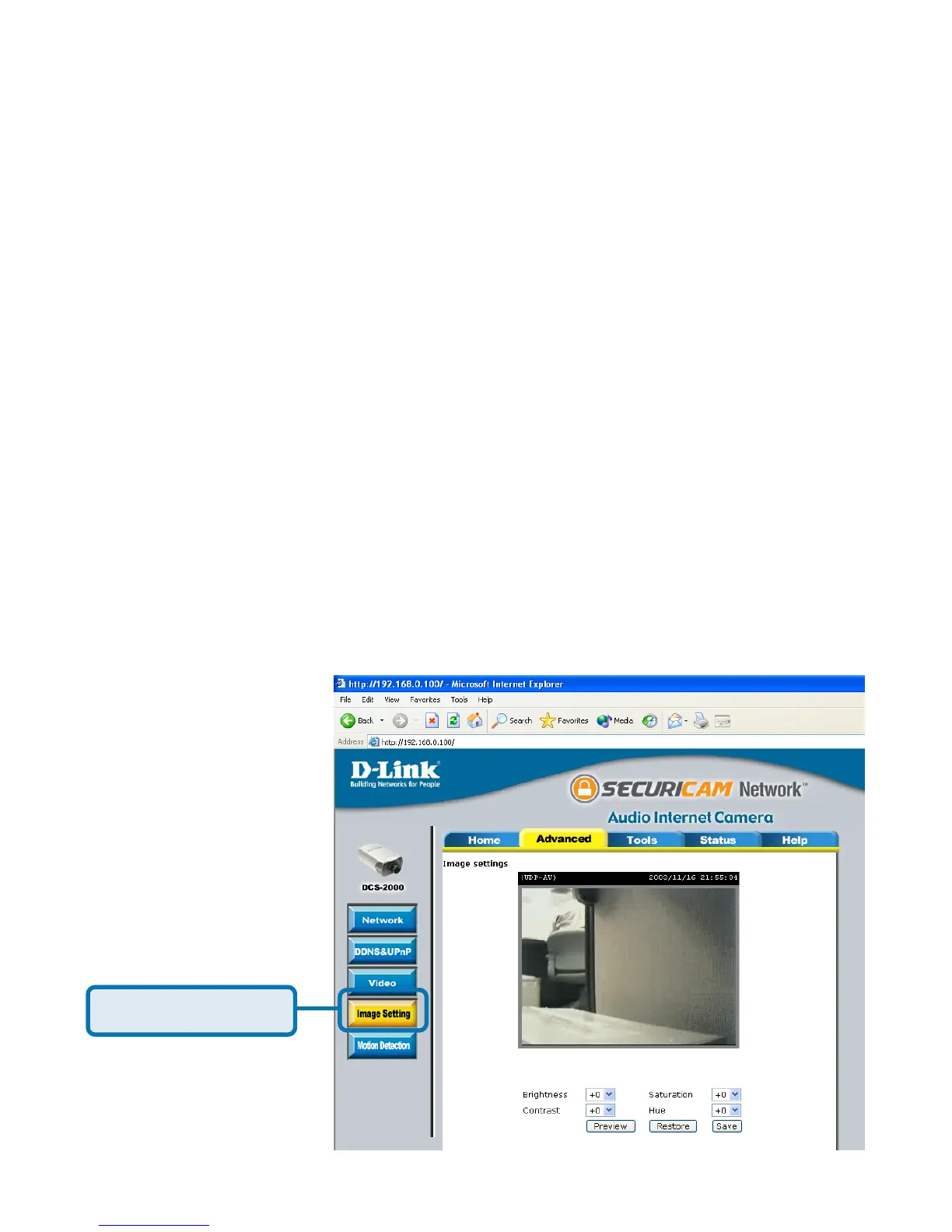
Configuration > Advanced > Image Setting
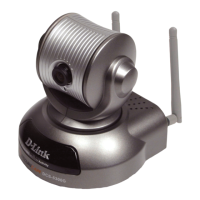
Using the DCS-2000 with an Internet browser
(continued)
Click Image Setting



 To Next Page