ENGLISH
51
12.3. Operation
Once the electropump is primed, the system starts regular operation according to the configured parameters: it starts automatically
when the tap is turned on, supplies water at the set pressure (SP), keeps the pressure constant even when other taps are turned on,
stops automatically after time T2 once the switching off conditions are reached (T2 can be set by the user).
13. CONTROL PANEL
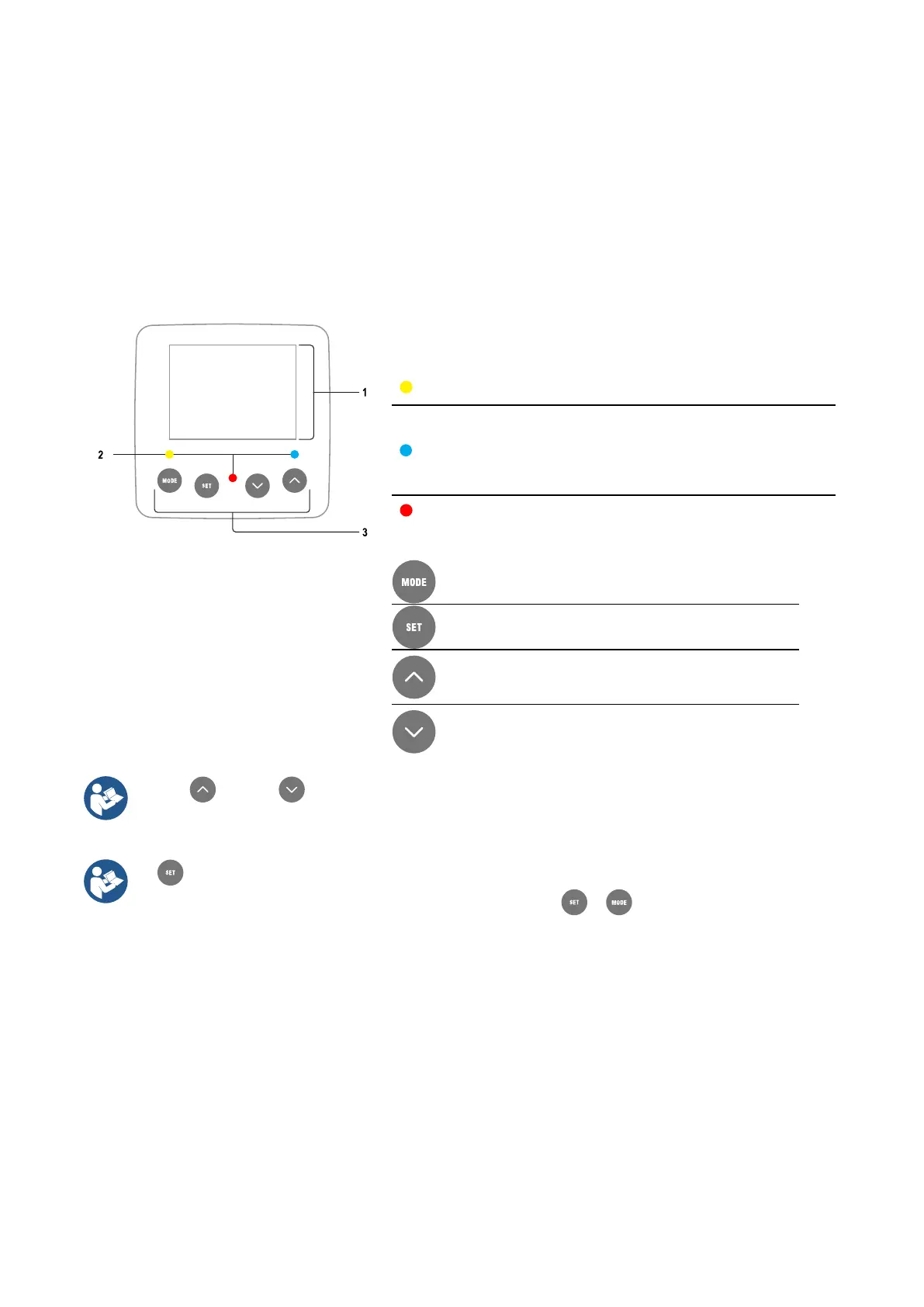
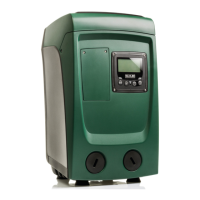
The user interface is composed of a keypad with 320x240 pixel LCD display and with POWER, COMM, ALARM warning leds,
respectively white, blue and red.
The display shows the values and the statuses of the device, with indications on the functionality of the various parameters.
The functions of the keys are summed up below:
Fig. 18
Lit with a fixed light when the machine is powered.
Blinking when the machine is disabled
Lit with a fixed light when communication wireless is used and is working
correctly.
Blinking with a slow frequency
when communication is not available.
frequency during association with other wireless devices.
Off if communication is not used.
Lit with a fixed light when the machine is blocked by an error
The key allows you to move on to the next items in the same
menu.
Holding it down allows you to skip to previous menu item.
The key allows you to leave the current menu
Press to browse the menu.
Press to increment the selected parameter.
Press and hold to increase the increment speed.
Press to browse the menu.
Press to decrement the selected parameter.
Press and hold to increase the decrement speed.
key or the
key is pressed the selected value is modified and saved immediately in the permanent memory
(EEprom).
If the machine is switched off, even accidentally, in this phase it does not cause the loss of the parameter that has
just been set.
key is only for leaving the current menu and is not necessary for saving the changes made. Only in particular cases
described in the following paragraphs are some values updated by pressing or .
13.1. Menu
The complete structure of all the menus and of all the items of which they are composed is shown in Table 5.
Access to the menus
The various menus can be accessed from the main menu in two ways:
• Direct access with a combination of keys;
• Access by name with a drop-down menu.



 To Next Page