Dakewe (Shenzhen) Medical Equipment Co., Ltd
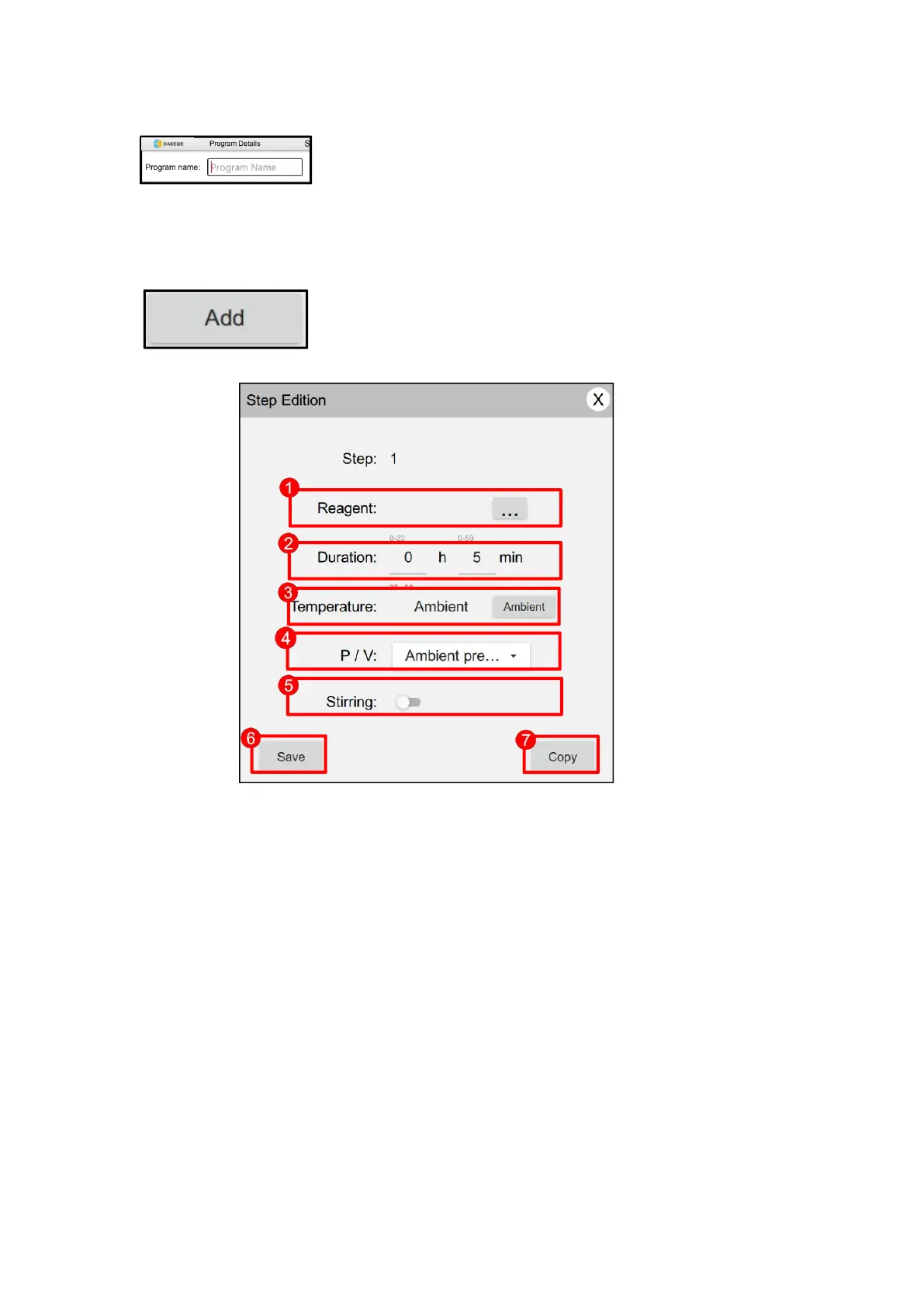
Enter the program name
Click the “Program Name” column. A soft keyboard
pops up to name the new program: Multiple characters
can be entered (can include Chinese, English and
figures, up to 24 characters).
Add a program step
Click “Add Step” to edit the dialog window. The
window lists the items that must be set in the step line.
Figure 36-1: Click the button on the right side of the “Reagent” option box. The default
reagent list of the system pops up. Touch to select the desired reagent.
Figure 36-2: Touch the pop-up soft keyboard to set the time required for the reagents to soak
in each step.
Figure 36-3: Touch the pop-up soft keyboard to set the desired temperature for each step.
Figure 36-4: Click the triangle on the right side of the “P/V” item bar to pop up a drop-down
box. The default pressure setting list of the system pops up. Touch to select it.
Figure 36-5: Set whether stirring is required in the program step. If stirring is not activated, it
will be in gray state. If stirring is activated, it will be in red state.
Figure 36-6: Click the “Save” button to complete the creation of the step line and return to
the creation interface.
Figure 36-7: Click “Copy A Line”, and the system will automatically save this step line and
quickly copy a new line, allowing users to quickly create step lines.


 To Next Page