EASYSENSE Q3+ and Q5+ DO185 (2)
Snapshot
Snapshot mode enables you to capture sensor readings every time the green button is
pressed, rather than at regular time intervals. The readings are stored as a data set in
EASYSENSE Q’s memory.
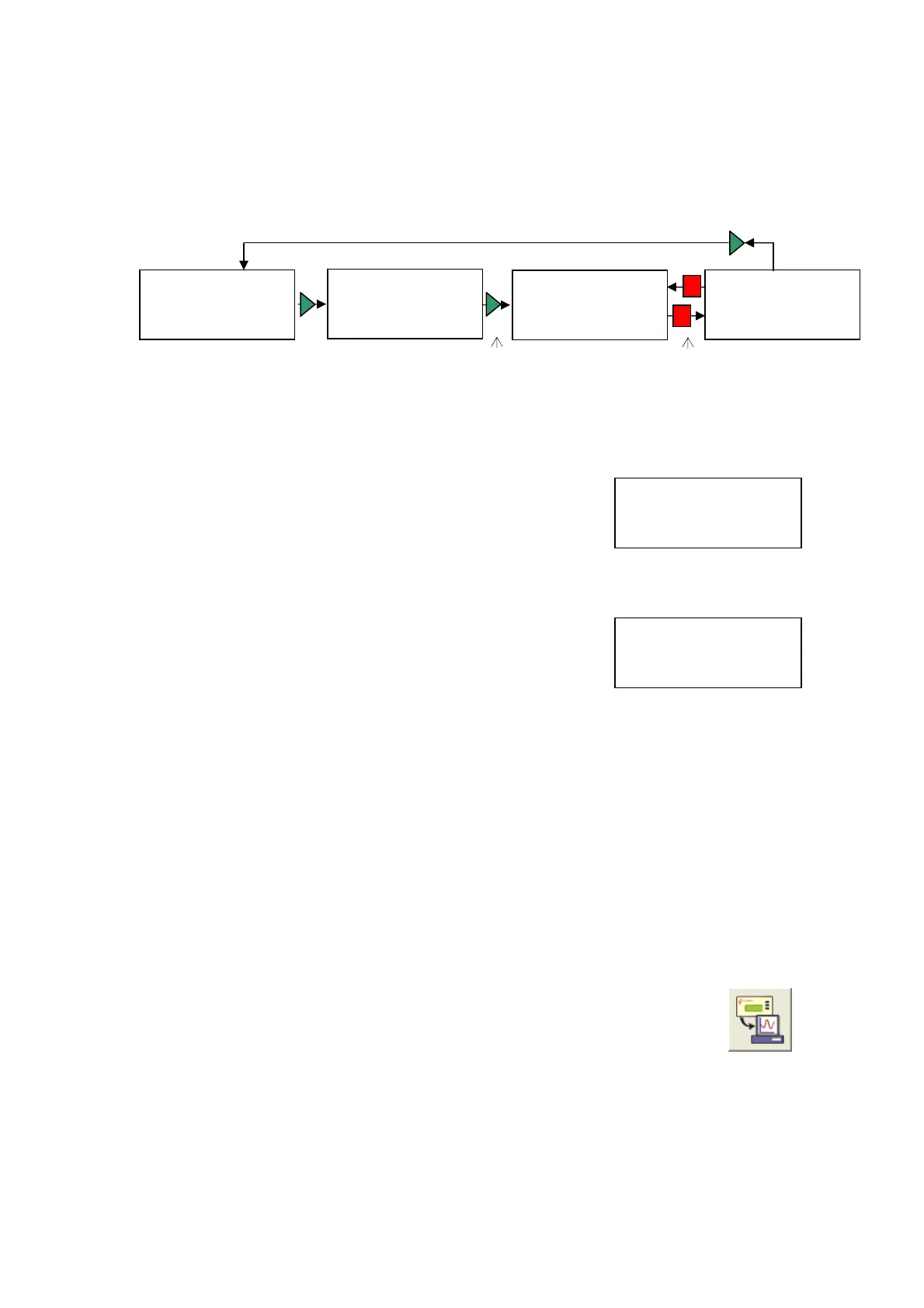
Press red to stop when you’ve
taken enough samples
Samples taken: 1
1) 57.2 dBA
2) 185 lx
3) 2.5 C
Samples taken: 0
1) 57.2 dBA
2) 185 lx
3) 2.5 C
Stop recording?
Press ► for yes
Press █ for no
Press the green button to
take a sample
Meter
► Snapshot
Easy Log
Timing
• Connect any plug-in sensors if required. If the display is turned off, press any button
to wake up EASYSENSE Q.
Meter
► Snapshot
Easy Log
Timing
•
Use the blue buttons (▲▼) to scroll the list until the
pointer is pointing at Snapshot.
• Press the green button ► to select Snapshot.
•
Each time you press the green button ► on
EASYSENSE Q a reading will be taken from all the
sensors (built-in and any plug-in).
Samples taken: 2
3) 55.7 dBA
4) 146 lx
5) 26.8 ˚C
EASYSENSE Q will display the number of samples
taken so far and the current value from the sensors.
The blue buttons (▲▼) can be used to scroll and view data from the list of
sensors.
Note: If EASYSENSE Q goes into ‘sleep’ mode during logging, press any button to wake up
the logger and then press ► to take a reading.
•
When you have finished sampling press the red button to close the data set, then
green
► to confirm your choice and return to the main menu.
The readings will be stored as a data set. At least 700 readings can be stored
in one data set (the limit is dependant on the number of sensors).
The data set can be downloaded to the computer for display and analysis by
selecting Retrieve remote from the Home page in the EASYSENSE
software program.
© Data Harvest Group Ltd.
11


 To Next Page