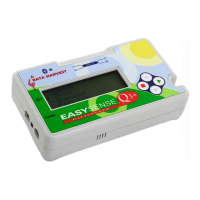
EASYSENSE Q3+ and Q5+ DO185 (2)
Trigger on Digital Condition – the recording will start when a digital sensor
connected to 1:A or 2:B is On, Off, rising to On or falling to Off.
Trigger on Time – the recording will start at the time and date specified. This
trigger is useful for recording at a time when a logger is unattended or to start
multiple loggers at the same time.
• When the selection has been made, click on Finish. The settings will be
downloaded to EASYSENSE Q and a message on the computer will inform ‘The
logger is now set up for remote logging’. Click on OK.
EASYSENSE Q can now be disconnected from the computer and placed in its
recording position. The recording will start when the start condition you have selected
is met. The recording will stop when the selected time span has passed.
If EASYSENSE Q is waiting for a start condition to be met an ‘Awaiting trigger’
message will be displayed. Press the green ► button to check for the start condition,
press the green button again to return to the recording screen.
Notes:
• If you want to stop a recording before it has finished, press the red button and follow the
instructions on the display.
• Set up Remote is not available when the User level is set to Level 1.
Retrieve Remote
Use this option to retrieve a data set stored in EASYSENSE Q logger’s
memory for display and analysis.
• Connect EASYSENSE Q to the computer and open the EASYSENSE program.
• Select Retrieve remote from the Home page.
• A dialogue box will open showing a list of data sets (maximum of 8) currently
stored in EASYSENSE Q+. The most recent data set is first in the list. Select the
required set of data and click on the Retrieve button.
• With EasyLog or Analogue data deselect the tick next to any sensors from which
readings are not required.
• With Timing data, the Timing Wizard will open. Select how you want the
retrieve the collected time data, the type of interrupter that was used and any
measurements required for the calculation of this data.
Notes:
• When the maximum of 8 data sets is exceeded, the next set of data will replace the oldest set.
• If the Erase data box is ticked, the set of data selected will be erased from the logger after retrieval.
Technical information for EASYSENSE Q 3+ or 5+
Selecting the sensor range
Some of the internal sensors in EASYSENSE Q and some plug-in Smart Q Sensors have
more than one range. The range of a sensor can be altered either in Meters on
EASYSENSE Q or by using Sensor Config in the EASYSENSE software (Settings
menu). Once a range has been selected it will be used until reselected.
© Data Harvest Group Ltd.
24


 To Next Page