EASYSENSE Q3+ and Q5+ DO185 (2)
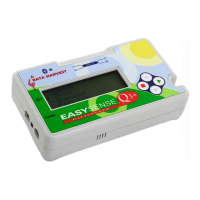
If EASYSENSE Q is connected to a mains power supply it will not auto switch off and
will stay ‘awake’ at all times.
If EASYSENSE Q is operating on battery power with Bluetooth on and is not being used
(e.g. not logging data, no buttons being pressed), it will automatically switch itself off
after nine minutes (LCD display blank).
If EASYSENSE Q is off (LCD display blank), Bluetooth communication will cease and
connection to the EASYSENSE software will be lost. Press any button to wake up the
logger before re-establishing connection.
Installing the Bluetooth USB adapter
Microsoft’s Service Pack 2 for Windows XP includes its own Bluetooth stack. To install
the Bluetooth USB adapter, simply plug the adapter into a spare USB port (preferably a
port that the adapter can be left in). Windows will identify the adapter and load the drivers;
the process is automatic and requires no input from the user.
EASYSENSE Q is a Bluetooth 1.1 standard device, and as such should operate with any
Version 1.1 or higher Bluetooth adapters/dongles; however Data Harvest cannot guarantee
full operation with all makes of adapter.
Initial use (pairing EASYSENSE Q to the PC)
To prevent EASYSENSE Q switching off during the pairing process we recommend
connecting Q to its mains power supply.
To use the EASYSENSE Q with a PC via Bluetooth, an initial pairing must be created.
This pairing allows the logger to automatically re-connect to the PC in the future, and
ensures that it will not talk to or interfere with any other Bluetooth to PC connections
running nearby.
EASYSENSE Q will attempt to pair with another Bluetooth device for 2 minutes, giving
time for the PC Bluetooth services to be started
Note: The following screen shots are based on a PC using the standard Windows XP Bluetooth software
stack. Other Bluetooth adapters/dongles may use different software, and screens may appear different.
However, the principles described for ‘discovery & pairing’ are the same.
This initial set up is a three step process:
Bluetooth icon
Step 1: Discover devices
Connect the Bluetooth USB adapter to the PC.
Open the Bluetooth Devices manager either via Control Panel
from the Start menu or the Bluetooth device icon on the taskbar
Step 2: Pair the devices
1. Select the Devices tab (A).
2. Click Add (B) and the ‘Add
Bluetooth Device Wizard’ will
launch.
© Data Harvest Group Ltd.
32
B
A


 To Next Page