EASYSENSE Q3+ and Q5+ DO185 (2)
Hard Reset
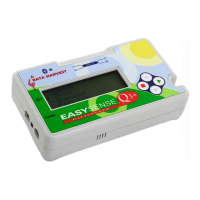
Should EASYSENSE Q fail to respond to the computer or a button press, carry out a
Hard Reset.
1. If necessary attach EASYSENSE Q to power.
2. Hold the red and both blue buttons down (at the
same time) for a second and then release.
If the hard reset has been done correctly, the LCD
will momentarily display the version number of
EASYSENSE Q’s operating system before resetting
and returning to the main menu
A Hard Reset:
• Will switch all sensors On. See page 17.
• Will return the built-in sensors to their default range (Light - Indoor 1,000 lx,
Temperature - Celsius 0 to 110˚C, Barometric Pressure - 85 to 110 kPa). See page 10
for altering the selected range.
• It does not erase any stored data sets but if a recording is interrupted by a reset, then
the data being captured will not be stored.
If you are still experiencing a problem, please contact Technical Support at Data Harvest.
Please provide details of:
• The computer platform it is being used with.
• The software version number
• A description of the problem being encountered
If possible, telephone from a location where you can operate EASYSENSE Q with the
computer.
© Data Harvest Group Ltd.
39


 To Next Page