EASYSENSE Q3+ and Q5+ DO185 (2)
Alter the range in Meters:
• Use the blue buttons (▼▲) to scroll the list until the
pointer is pointing at Meter.
• Press the green button ►to select Meter.
• Whilst in Meter mode use the blue (▼▲) buttons to
move the list until the pointer is pointing at the
appropriate sensor.
• Press the green ► button to view the ranges available.
Note: If there isn’t a choice of range available for a sensor then pressing this button will make the
name of the sensor momentarily display.
► 4) 576 lx
5) 23.5 °C
6) 100.2 kPa
7) 48.6 %RH
System
► Meter
Snapshot
Easy Log
Light:
*Indoor 1000 lx
► In/Out 10k lx
Outdoor 100k lx
• An asterisk * will indicate the present range selected.
Use the blue (▼▲) buttons to scroll the list until the
pointer is pointing at the required range.
• Press the green ► button to select the range and return to Meter mode.
• Press the red button twice to exit Meter mode and return to the Main Menu.
Hard Reset
If EASYSENSE Q fails to respond to the computer or a button press, carry out a Hard
Reset.
1. If necessary attach EASYSENSE Q to power.
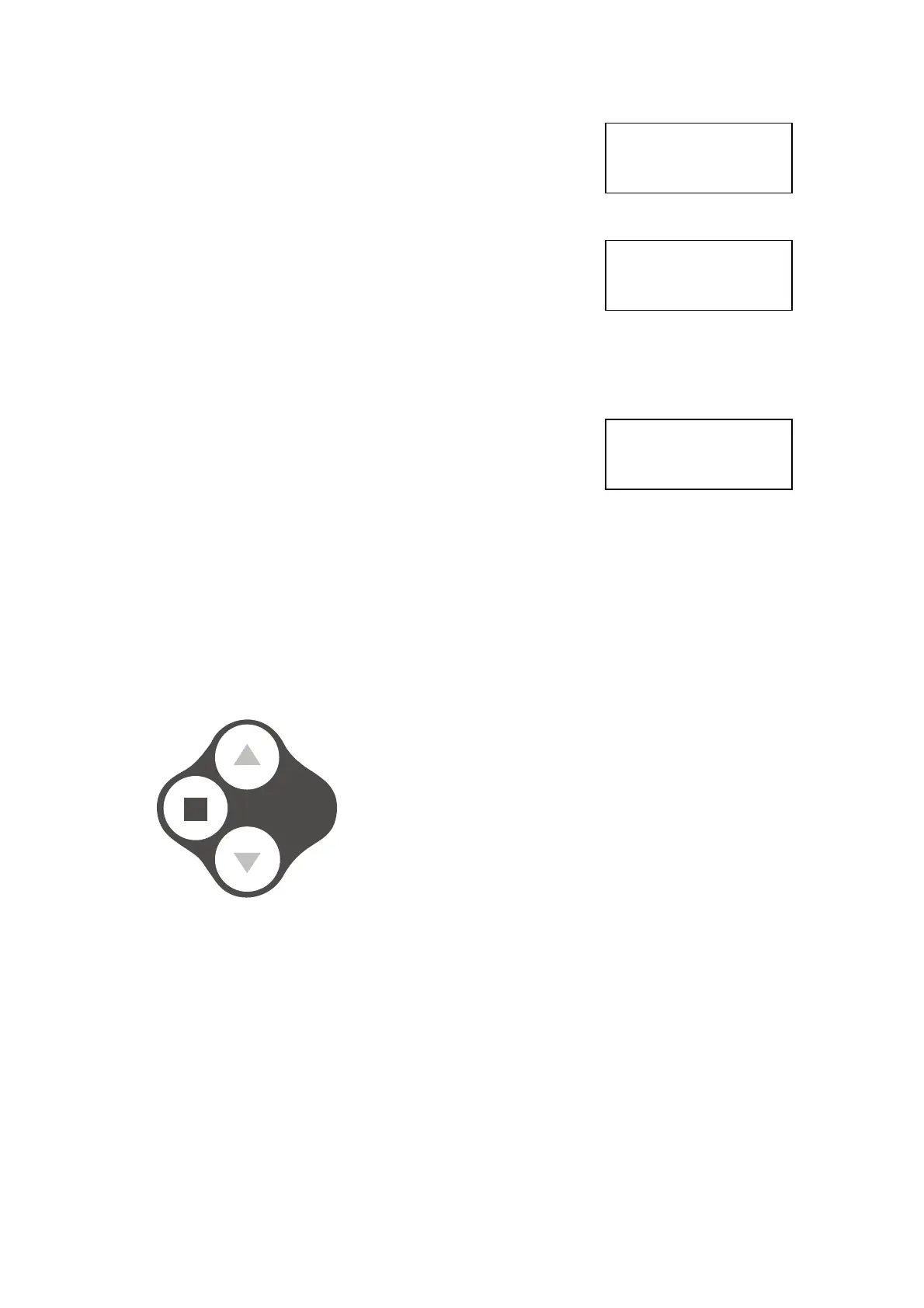
2. Hold the red and both blue buttons down (at the
same time) for a second and then release.
If the hard reset has been done correctly, the LCD
will display EASYSENSE Q and the version number
of its operating system before resetting and returning
to the main menu
If EASYSENSE Q still fails to respond, please contact Data Harvest.
A Hard Reset:
• Will switch all sensors On. See page 17.
• Will return the built-in sensors to their default range (Light - Indoor 1,000 lx,
Temperature - Celsius 0 to 110˚C, Barometric Pressure - 85 to 110 kPa). See page 10
for altering the selected range.
• It does not erase any stored data sets but if a recording is interrupted by a reset, then
the data being captured will not be stored.
© Data Harvest Group Ltd.
25


 To Next Page