EASYSENSE Q3+ and Q5+ DO185 (2)
Using EASYSENSE Q 3+ or 5+ connected to a computer for
the first time
Step 1
Do NOT connect EASYSENSE Q to the USB port before the EASYSENSE software is
installed.
Install the EASYSENSE software, if it is not already on your computer. For details of
how to install and operate this program, please refer to the instructions provided with the
EASYSENSE software.
EASYSENSE Q3+ and 5+ requires version 2.7 or above of the EASYSENSE software.
(The version number can be verified in About from the Help menu).
Step 2:
a) If EASYSENSE Q is to be connected via the USB port:
• Connect the ‘square’ USB plug of the USB cable to the USB input on the side of
EASYSENSE Q. Connect the ‘flat’’ USB plug to a USB port on your computer.
• Windows will automatically detect a new device and install the drivers
b) If EASYSENSE Q is to be ‘connected’ via Bluetooth™ use the instructions provided
on page 31.
Notes:
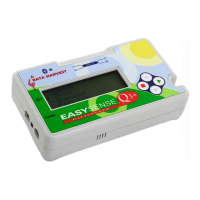
• To ‘connect’ via Bluetooth EASYSENSE Q must have Bluetooth built-in. This will be
indicated by a Bluetooth symbol above the Data Harvest logo.
• If you wish to add Bluetooth functionality to an EASYSENSE Q logger, please contact Data Harvest
for information about a Bluetooth upgrade.
Step 3
System
► Meter
Snapshot
Eas
Lo
• Check that the LCD display on EASYSENSE Q is
displaying the main menu.
EASYSENSE
’s main menu
Note: In most circumstances EASYSENSE Q will not
communicate with the PC if it is taking samples. If the LCD
screen shows samples being taken, press the red button to
finish the recording.
• Open the EASYSENSE software program.
Step 4:
The first time the EASYSENSE program is opened a ‘Select Program Level’ window will
automatically open. Select a suitable user’s level.
• Level 1 is aimed at ‘start’ level (e.g. up to 9 years old).
• Level 2 is aimed at ‘mid’ level (e.g. 9 – 15 years old)
• Level 3 is aimed at ‘exam’ level (e.g.15 years plus).
Note: The program level can be altered at anytime using the Level icon once a logging
option has been opened.
© Data Harvest Group Ltd.
19


 To Next Page