EASYSENSE Q3+ and Q5+ DO185 (2)
Trouble shooting
Questions
Question 1: The LCD screen on the logger is blank and when I press a button it doesn’t
wake it up.
Connect EASYSENSE Q to power and leave it on charge for at least 5 minutes then Hard
Reset the logger (hold the red and both blue buttons down at the same time for a second and
then release).
Question 2: I am having problems establishing a connection between EASYSENSE Q
and the EASYSENSE software when connected via the USB port.
1. Check the LCD screen on EASYSENSE Q shows the main menu. E.g. System, Meter,
Snapshot, Easy Log, etc.
2. Check that the USB lead is plugged in at each end.
3. If Bluetooth is fitted check that it’s switched Off (the Bluetooth LED should not be lit when
the logger is awake).
4. Open the EASYSENSE software. Select Interface from the unable to connect message (or
from the File menu). Check the interface is set to ‘EasySense Range’ and that the method of
connection is USB port.
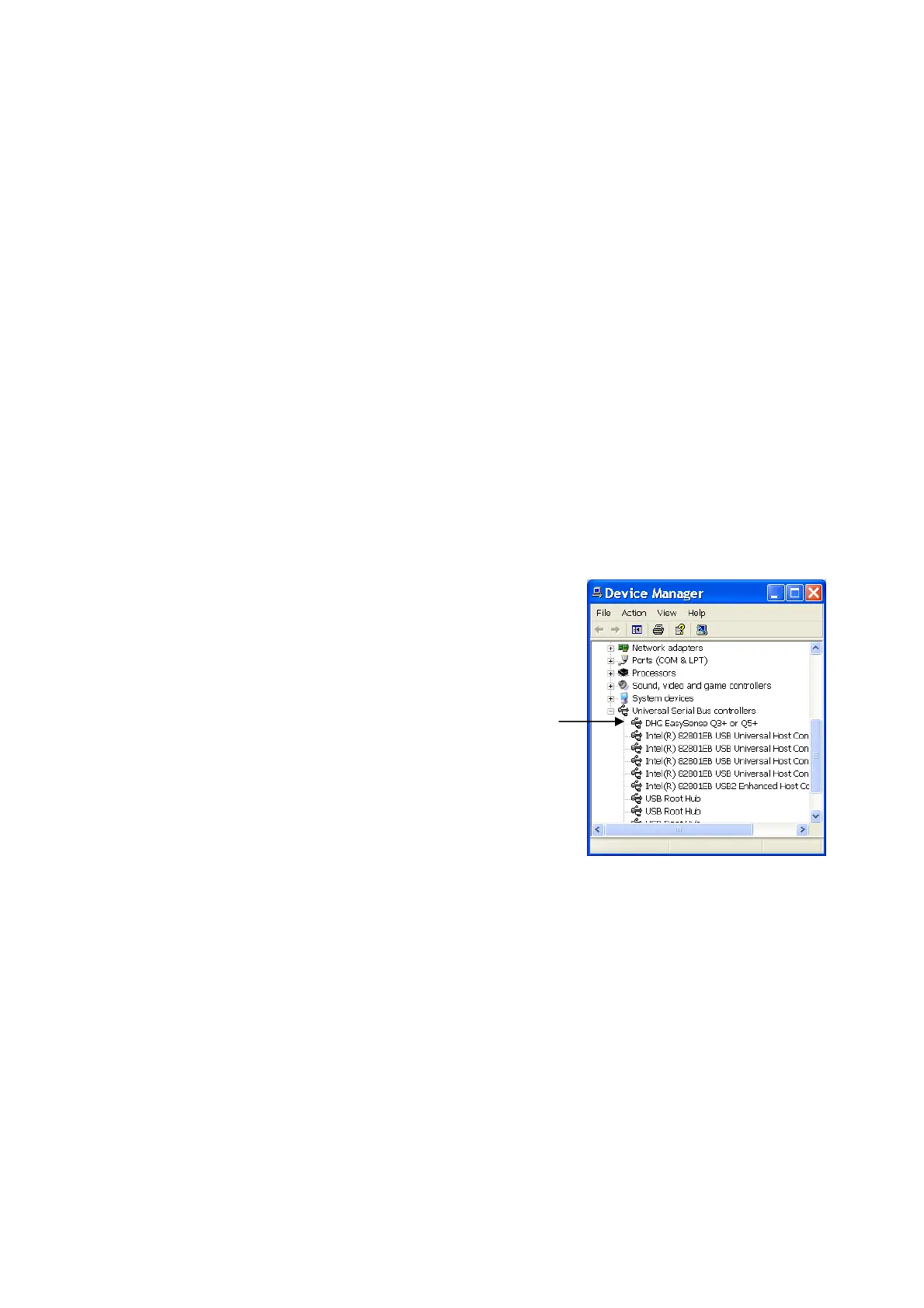
5. If there is still a problem, check in Device manager that the USB drivers have installed
correctly.
Windows XP Users: Go to Start → Control Panel → (if
necessary switch to Classic view) → System →
Hardware tab → Device Manager.
Vista Users: Go to Start → Control Panel → (if
necessary switch to Classic view) → Device Manager.
Check a DHG EasySense Q 3+ or Q5+ device is listed
in the Universal Serial Bus controller’s list. If there are
any question marks or exclamation marks then the
drivers haven't installed correctly. Delete the drivers.
Disconnect EASYSENSE from the USB port. Plug
back in so the drivers re-install.
Question 3: I am having problems establishing a connection between EASYSENSE Q and
the EASYSENSE software when connected via Bluetooth.
1. Check the LCD screen on EASYSENSE Q shows the main menu E.g. System, Meter,
Snapshot, Easy Log, etc.
2. If EASYSENSE Q is asleep, press any button to wake up the logger.
3. Check the Bluetooth LED is lit (Bluetooth On). If not, select Bluetooth On/Off from the
System menu, and select On.
Note: If the only option is Off then Bluetooth is not currently paired with a computer/Bluetooth USB
adapter. See page 32 for pairing information.
4. If possible connect EASYSENSE Q to its main power supply to exclude problems caused a
low battery charge level and to prevent the logger going to sleep.
© Data Harvest Group Ltd.
36


 To Next Page