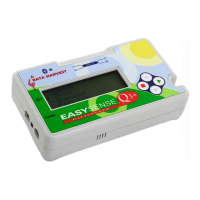
EASYSENSE Q3+ and Q5+ DO185 (2)
Step 5:
An Interface option window will open.
1. Select the Interface as EasySense Range.
2. Select the method of connection
• If you are connecting via the USB port select
‘USB port’.
• If you are using Bluetooth, select Serial port and
then the serial (COM) port configured for
Bluetooth from the drop down menu.
Note: If you use different interfaces or methods of connection, tick the ‘Show at startup’ option
so you can check your current selection and make adjustments as necessary when EASYSENSE
opens.
3. Click on OK. The program will save your selection so it will be automatically
configured when next used.
When a connection is established the Home window will open. Select one of the
experiment modes i.e. EasyLog, Graph, Meters, Scope, Snapshot or Timing.
Using EASYSENSE Q 3+ or 5+ after the initial setup
• USB users: Use the USB cable to connect EASYSENSE Q to the computer.
Bluetooth users: If the display is turned off, press any button to wake up
EASYSENSE Q. If the blue LED doesn’t light up check that Bluetooth is On
(System menu ► Bluetooth ► Bluetooth On/Off).
• Open the EASYSENSE software program.
• Select one of the recording modes e.g. EasyLog from the Home window.
Bluetooth users: If EASYSENSE Q is operating on battery power, it will automatically
switch itself off (LCD display goes blank) if idle (not logging or no button presses) for
more than nine minutes. If EASYSENSE Q is off Bluetooth communication will cease
and connection to the EASYSENSE software will be lost. Press any button to wake up
the logger before selecting Retry from the unable to connect message to re-establish
connection.
Note: Auto switch off can be prevented by connecting EASYSENSE Q to its mains power supply.
© Data Harvest Group Ltd.
20


 To Next Page