EasyManua.ls Logo

DataCard 150i - User Manual

DataCard 150i
36 pages
Print Icon
To Next Page IconTo Next Page
Loading...
Datacard
®
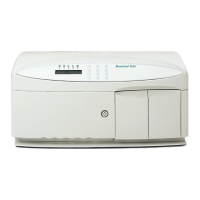
150i Desktop
Card Personalization System
Owner’s Manual
February 2008
Part No. 539782-001, Rev A

Other manuals for DataCard 150i

Questions and Answers

  • T
    Tamara BraunAug 21, 2025
    What to do if my DataCard 150i Printer says 'Card Supply Empty'?
    • S
      schneidervirginiaAug 22, 2025
      If your DataCard Printer indicates 'Card Supply Empty', this means no cards are loaded in the input hopper. To resolve this, simply load cards into the input hopper.
  • J
    john61Sep 4, 2025
    What to do if my DataCard Printer shows 'Check Output Tray'?
    • N
      Nicole YoungSep 4, 2025
      If your DataCard Printer displays 'Check Output Tray', it means the output door is open. To fix this, close the output door.
  • J
    John SmithSep 2, 2025
    What to do if my DataCard 150i shows 'Interlock Seen'?
    • A
      Angela GriffinSep 3, 2025
      If your DataCard Printer displays 'Interlock Seen', it means the top cover was opened during card processing. To resolve this, close the top cover.
  • X
    xjohnsonSep 1, 2025
    What to do if my DataCard 150i Printer displays 'Too many single cards inserted'?
    • J
      Jillian WillisSep 1, 2025
      If your DataCard Printer displays 'Too many single cards inserted', remove all cards from the input hopper and remove any jammed or protruding cards. Reinitialize the system. Try sending the card data again.
  • K
    Kelsey ChenAug 30, 2025
    What to do if my DataCard Printer displays 'Feed error – cards stuck together'?
    • S
      samanthamillerAug 31, 2025
      If your DataCard Printer displays a 'Feed error – cards stuck together', remove all cards from the input hopper and remove any jammed or protruding cards. Reinitialize the system. Fan the cards before loading them to remove the static. Try sending the card data again.
  • L
    Laura AndersonAug 29, 2025
    What to do if DataCard Printer displays 'Embossing Error'?
    • K
      Kayla NicholsonAug 29, 2025
      An 'Embossing Error' on your DataCard Printer can occur if there are two cards in the card carriage, or if there is excessive variation in card stiffness or thickness. To resolve this, remove any cards from the carriage or any loose cards in the system. If the issue persists, reinitialize the system and try sending the card data again.
  • J
    Jeff MarshallAug 27, 2025
    How to fix 'Indent Ribbon Error' on DataCard 150i Printer?
    • E
      elizabethgonzalezAug 28, 2025
      An 'Indent Ribbon Error' on your DataCard Printer can occur due to several reasons: The indent ribbon has reached its end. Install a new indent ribbon. The ribbon is not installed correctly. Install the indent ribbon correctly, ensuring it is under the emboss card guide. The ribbon is broken. Thread the broken indent ribbon onto the take-up spool.
  • C
    Cory NewmanAug 27, 2025
    What to do if my DataCard Printer displays 'Card Feed Error'?
    • C
      Caitlin PattersonAug 27, 2025
      A 'Card Feed Error' on your DataCard Printer can occur due to several reasons. Possible causes include: No cards in the input hopper or the card weight being installed backward. Remove and reload the cards, ensuring the card weight is correctly installed. Cards stuck together. Fan the cards before loading them to remove static, then reload the cards. The card weight is not installed. Remove and reload the cards, then install the weight. Electrical or mechanical failure. Reinitialize the system, send the card data again, and call for service.
  • N
    Nathan RangelAug 25, 2025
    Why does my DataCard 150i Printer show a 'Transport Error'?
    • W
      William ChavezAug 25, 2025
      A 'Transport Error' on your DataCard Printer can occur for several reasons. It may be due to a loose card obstructing the card carriage transport. Open the top cover to check for and remove any obstructions, including loose cards. Then try sending the card again. Alternatively, the input hopper gears might be out of sync. In this case, remove the weight and all cards from the input hopper, open the output door, lift the bracket holding the throat gap motor, pull down on the O-ring belt to move the hopper to the home position, release the motor bracket, reinitialize the system, and try sending the card data again.
  • M
    michelle41Aug 23, 2025
    What to do if my DataCard 150i Printer displays a 'Reject Tray Full' error?
    • S
      Stephanie PetersAug 23, 2025
      If your DataCard Printer shows a 'Reject Tray Full' error, this means the reject tray contains too many cards. To fix this, empty the reject tray.

Summary

Regulatory Compliance

Safety Guidelines

Chapter 2: Procedures

Powering On the 150 i System

Step-by-step instructions for connecting power and turning the 150i system on.

Loading Blank Cards in Input Hopper

Detailed steps for loading blank cards into the input hopper.

Loading a Single Card

Procedure for manually loading a single card into the single card track.

Loading a Pre-Embossed Card

Steps to load a pre-embossed card into the single card track.

Chapter 3: Troubleshooting

Identifying Errors Using Indicators

Explains how to use front panel indicators to identify system status and errors.

Identifying Errors Using Error Codes

Details the structure and meaning of error codes for diagnosing system malfunctions.

General System Errors

Lists general system errors, their possible causes, and operator corrective actions.

Magnetic Stripe Errors

Details errors related to magnetic stripe encoding, including causes and solutions.

Communication Errors

Lists communication-related errors, their causes, and corrective actions.

DataCard 150i Specifications

General IconGeneral
BrandDataCard
Model150i
CategoryPrinter
LanguageEnglish

Related product manuals