System Installation and Configuration
96-30051-001 Rev. D3 DDN SFA12K (SFA OS 2.3.1) Hardware Installation & Configuration Guide | 35
14.3 Email, SNMP, Syslog, and API Agents Setup
1. Select Subsystem > Set User Interface Attributes. The User Interface Set
Attributes screen displays.
2. Make the desired changes and click Update to save the changes.
If the email, SNMP trap, and/or syslog agents are enabled, the corresponding addresses
and ports must also be configured. Both IPv4 and IPv6 addresses are supported.
14.4 Set Controller Names
1. From the Controllers menu, select Set Controller Attributes. The Set Controller
Attributes screen displays.
2. Click to select a controller and enter a name for the controller. The name may contain
up to 31 characters of alpha numerics (including special characters) in any order. Each
controller name needs to be unique in the subsystem.
3. Click Update to save the changes.
15. Accessing the Virtual Machines on E-Platforms
The SFA12KXE/12K-20E initial subsystem configuration is complete at this point.
The procedures given in the rest of this document can be skipped.
Refer to the SF A OS User Guide (Accessing VMs on SF A12KXE/12K-20E) for information on
accessing the virtual machines.
The default password (Authorization Key) for encryption operation can be found in the SED
Default Password document attached to the enclosure covers.
16. Set Channel Modes
It is recommended that the channel mode setting for the host ports be made at configuration
time prior to pool creation. After setting the channel mode, the controllers require a reboot
in order for the new channel mode to take effect.
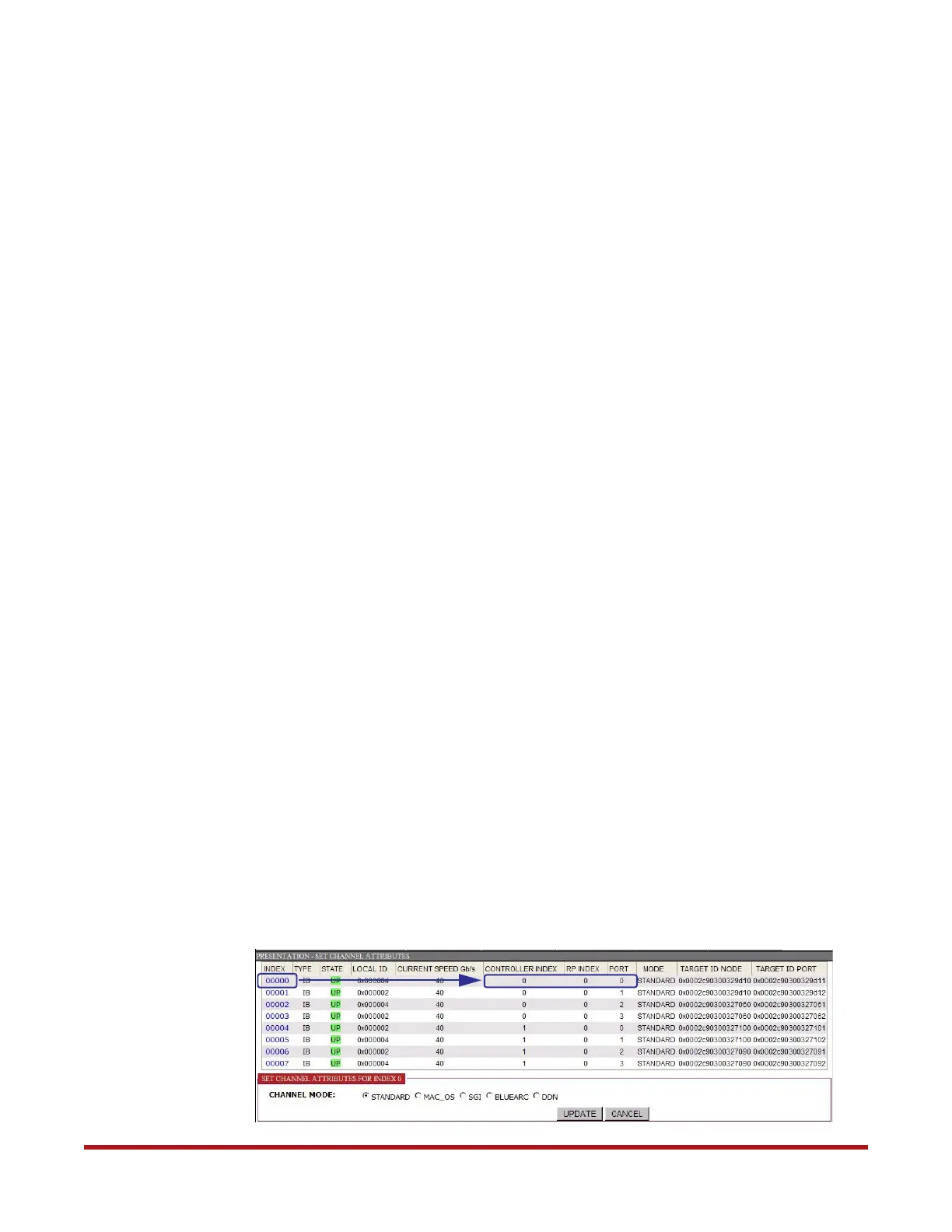
1. Select Application > Set Channel Attributes. The Set Channel Attributes screen
displays (Figure 32).
Figure 32. Show Host Channel Attributes Screen (IB Host Option Example)


 To Next Page