EasyManua.ls Logo

DaVinci Resolve Advanced Panel - Page 28

Default Icon
62 pages
Print Icon
To Next Page IconTo Next Page
To Previous Page IconTo Previous Page
Loading...
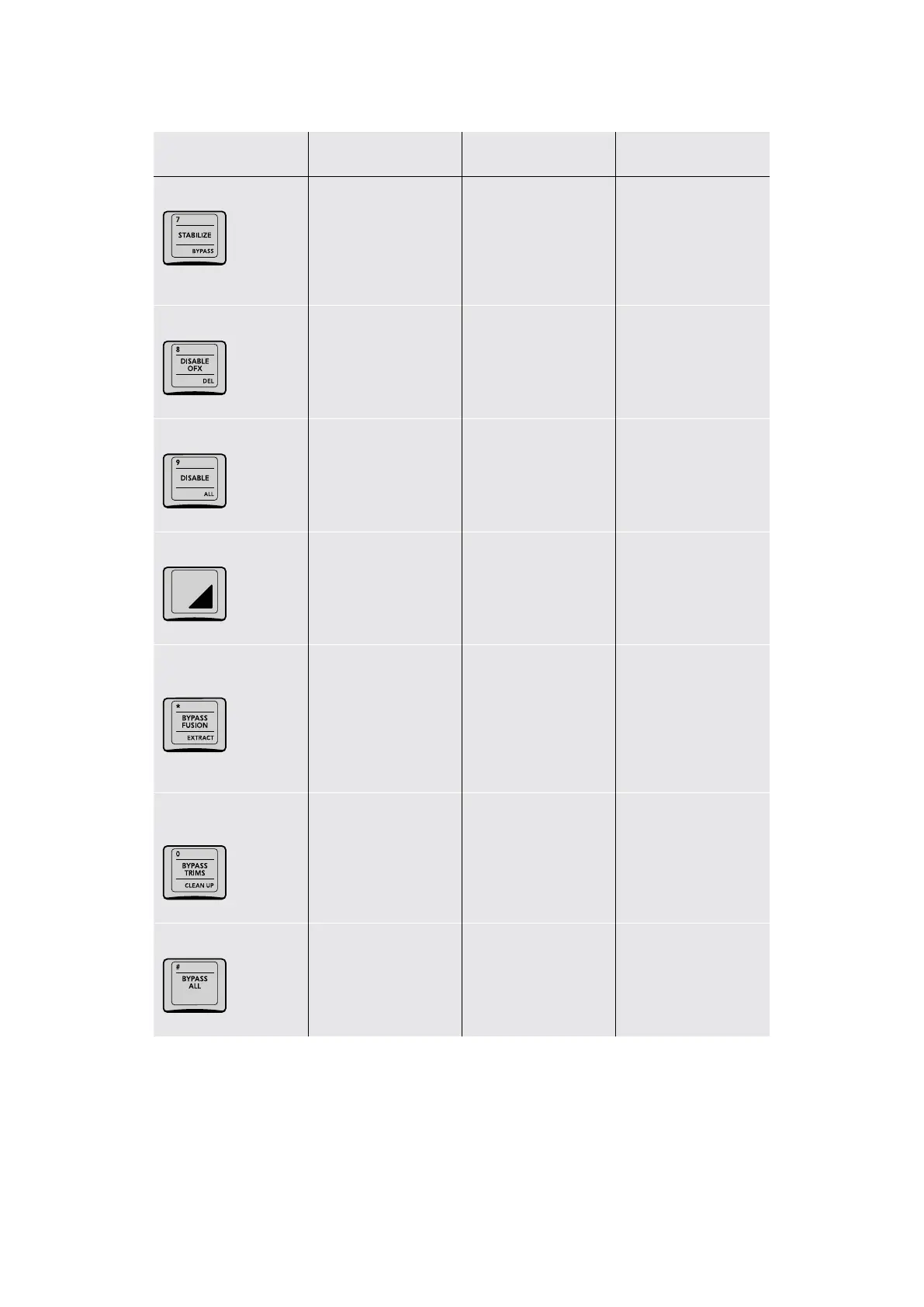
Key Shift Up Primary Function Shift Down
7/STABILIZE/BYPASS
(7) The seven key; can
be used in conjunction
with SELECT NODE to
jump to a particular node
(STABILIZE) Initiates
image stabilization for
the current clip, using
the current settings in
the Tracking palette’s
Stabilizer mode
(BYPASS) Toggles image
stabilization off and then
on again, so you can
compare the stabilized
image to the original
8/DISABLE OFX/DEL
(8) The eight key; can be
used in conjunction with
SELECT NODE to jump
to a particular node
(DISABLE OFX) Toggles
OFX on and off if one
has been applied to the
current node
(DEL) Removes an OFX
effect that’s been added
to a node
9/DISABLE ALL/–
(9) The nine key; can be
used in conjunction with
SELECT NODE to jump
to a particular node
(DISABLE ALL) Toggles
all nodes for the current
clip off and then on
SHIFT DOWN
(SHIFT DOWN) Enables
use of any of the
SHIFT DOWN key
functions at the bottom
of various keys
*/BYPASS FUSION/
EXTRACT
(*) The Asterisk key (BYPASS FUSION)
Toggles all Fusion page
effects off and then on
for the current clip
(EXTRACT) Disconnects
the selected node
from the node graph,
but leaves it in the
Node Editor, ready
to be reconnected
somewhere else
0/BYPASS TRIMS/
CLEAN UP
(0) The zero key; can be
used in conjunction with
SELECT NODE to jump
to a particular node
(BYPASS TRIMS)
Toggles all Color page
effects off and then on
for the current clip
(CLEAN UP) Cleans up
unruly node graphs to
be more ruly
#/BYPASS ALL/–
(#) The Hash key
(or Pound sign)
(BYPASS ALL) Toggles
both Color and
Fusion page effects
off and then on for the
current clip
28The T-bar Panel

Table of Contents