Key Shift Up Primary Function Shift Down
OFX/SCOPES/INFO
(OFX) Opens and closes
the OFX Library/Settings
panel on the Color
page; when an effect is
applied to the current
node, toggles between
the Library (list of OFX)
and Settings (for the
currently applied OFX)
(SCOPES) Opens and
closes the Video Scopes
window
(INFO) Opens the
Clip Info palette
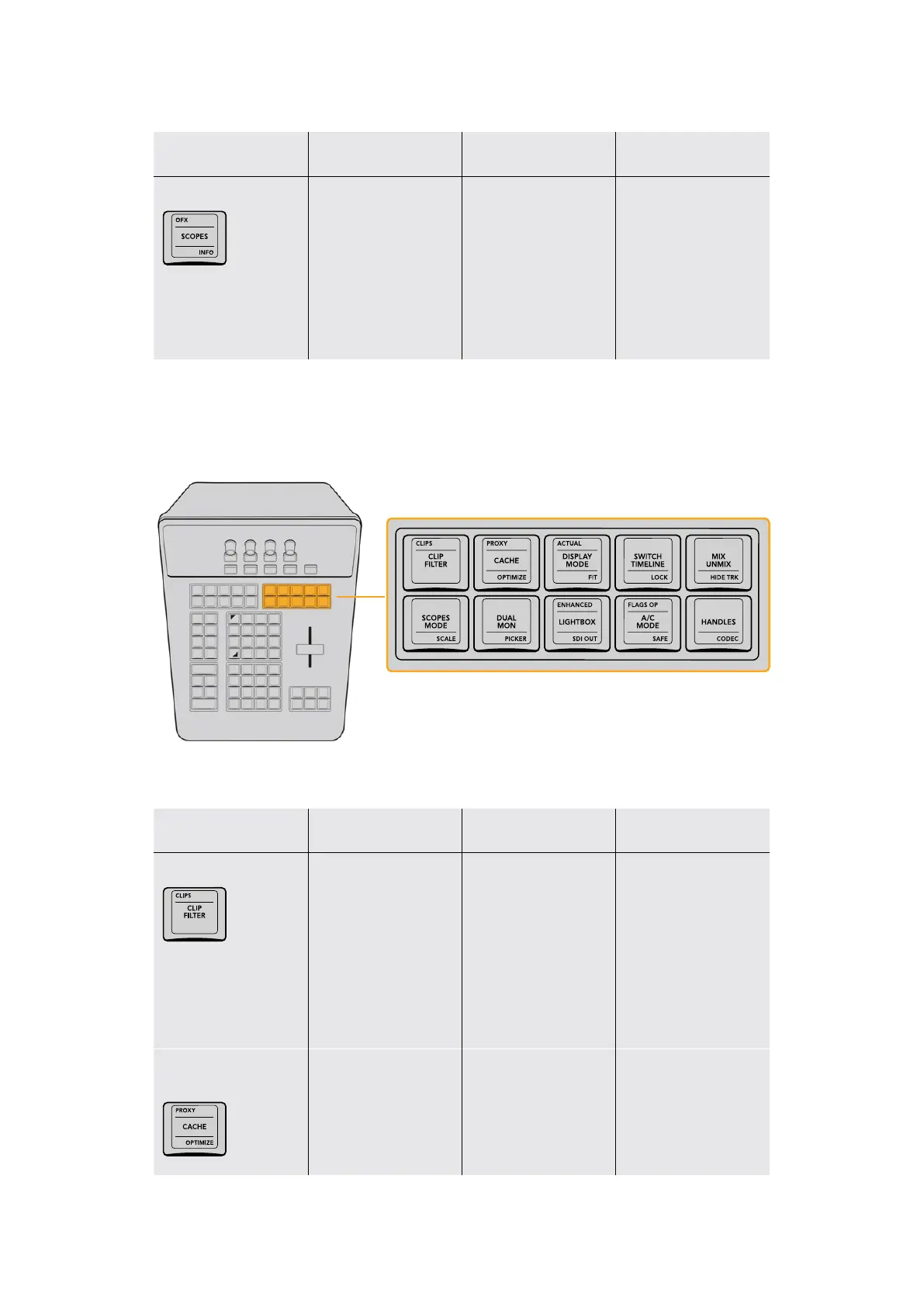
Layout and Modes Group
The Layout and Modes control group at right provides access to additional ways of customizing
the UI and toggling different modes of functionality while you work.
The Layout and Modes keys give quick
access to specialized Color page functions.
Key Shift Up Primary Function Shift Down
CLIPS/CLIP FILTER/–
(CLIPS) Turns the
Thumbnail Timeline on
and off in the Color page
(CLIP FILTER) Toggles
the Thumbnail Timeline’s
clip filtering between
All Clips and whichever
filter is currently
selected; for example, if
you choose “Selected
Clips,” this toggles
between All Clips and
Selected Clips
–
PROXY/CACHE/
OPTIMIZE
(PROXY) Toggles “Use
proxy media if available”
off and on
(CACHE) Toggles the
effects cache among
Smart Cache, User
Cache, and Off
(OPTIMIZE) Toggles
“Use optimized media if
available” off and on
20The T-bar Panel



 To Next Page