Using the DaVinci Resolve
Advanced Panel
The DaVinci Resolve Advanced Panels make it easier to make more adjustments in the same
amount of time than using a mouse, pen, or trackpad with the on‑screen interface.
This is the ultimate grading panel to give you the speed for long and complex grading sessions
and to make a lasting impact on clients visiting your suite or looking in on you as they’re
videoconferencing during a remote grading session. The DaVinci Resolve Advanced Panels
features dozens of fixed palette keys and menu‑driven soft knobs and buttons, so most grading
operations are just a keystroke or two away. High resolution liquid crystal displays (LCDs) and
backlit keys accommodate a typical darkened grading environment, with LCD panel and key
color and intensity being user customizable, so each colorist can set up their preferred panel
configuration.
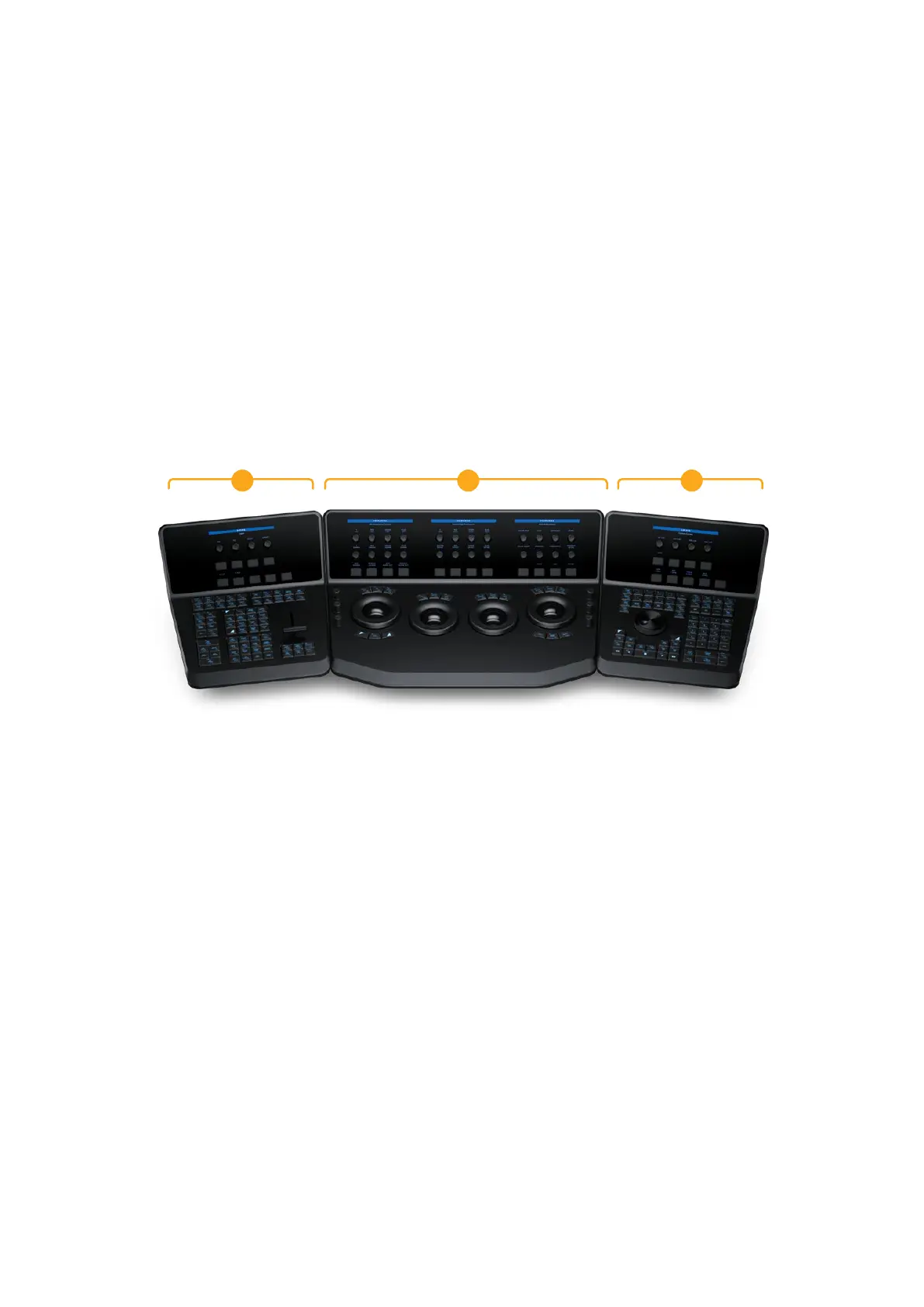
All three panels have LCDs that display menus for the soft knobs and buttons.
1 2 3
1. T‑bar panel 2. Trackball panel 3. Search Dial panel
Three Panels Working Together
The Advanced Panel set consists of three modular panels that work together to provide full
functionality. The biggest panel with the trackballs is meant to sit in the center, while the two
smaller panels are interchangeable depending on operator preference. These three panels are:
Trackball panel
This central panel is where the majority of controls for the colorist are found. In addition to
the trackballs, fixed keys, and fixed rotary knobs on the bottom portion, there are soft keys
and rotary knobs on the top angled portion. The Trackball panel also includes a slide‑out
keyboard underneath.
T-bar panel
Shown at the left, this smaller panel has a greater concentration of fixed keys and a T‑bar Mix/
Wipe control that can be used for a variety of different functions on the bottom portion, and a
smaller set of soft keys and rotary knobs on the top angled portion.
4Three Panels Working Together



 To Next Page