Key Shift Up Primary Function Shift Down
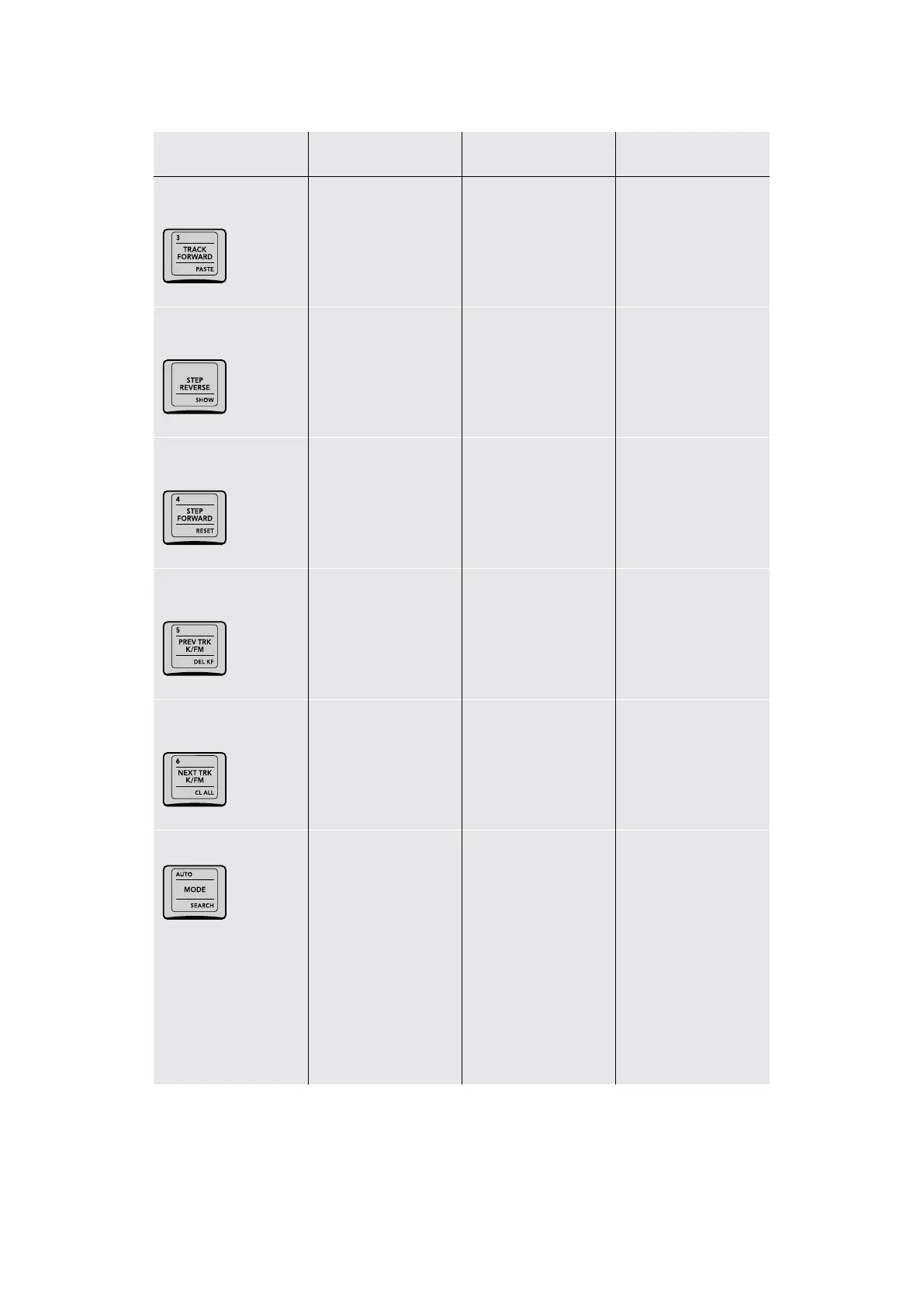
3/TRACK FORWARD/
PASTE
(3) The three key; can be
used in conjunction with
SELECT NODE to jump
to a particular node
(TRACK FORWARD)
Initiates motion tracking
forward for the currently
selected window
(PASTE) Copies track
data to the currently
selected window
–/STEP REVERSE/
SHOW
– (STEP REVERSE)
Initiates window
tracking in reverse by
one frame and then
stops, giving you time to
evaluate the result
(SHOW) Toggles Show
Track on and off; shows
the motion path of
the currently selected
motion tracking data in
the Viewer
4/STEP FORWARD/
RESET
(4) The four key; can be
used in conjunction with
SELECT NODE to jump
to a particular node
(STEP FORWARD)
Initiates window
tracking forward by
one frame and then
stops, giving you time to
evaluate the result
(RESET) Resets all
motion tracking in the
Tracking graph
5/PREV TRK K/FM/
DEL KF
(5) The five key; can be
used in conjunction with
SELECT NODE to jump
to a particular node
(PREV TRK K/FM) Moves
the playhead to the
previous keyframe in the
Tracker graph
(DEL KF) Deletes the
keyframe at the position
of the playhead in the
Tracker graph
6/NEXT TRK K/FM/CL
ALL
(6) The six key; can be
used in conjunction with
SELECT NODE to jump
to a particular node
(NEXT TRK K/FM) Moves
the playhead to the
next keyframe in the
Tracker graph
(CL ALL) Deletes all
keyframes in the
Tracker palette
AUTO/MODE/SEARCH
(AUTO) Performs an
Auto Balance function in
the Primaries palette
(MODE) Turns on the
Modes soft menu on the
Trackball panel, so you
can choose different
functions including
OBJECT TRACKING,
PROXY ON/OFF,
POTS, RIPPLE mode,
WIPE mode, SWITCH
SESSION, SAFE AREA,
CACHE mode, CUE
mode, SCROLL mode,
and 3D
(SEARCH) Not yet
implemented at the time
of this writing
27The T-bar Panel



 To Next Page