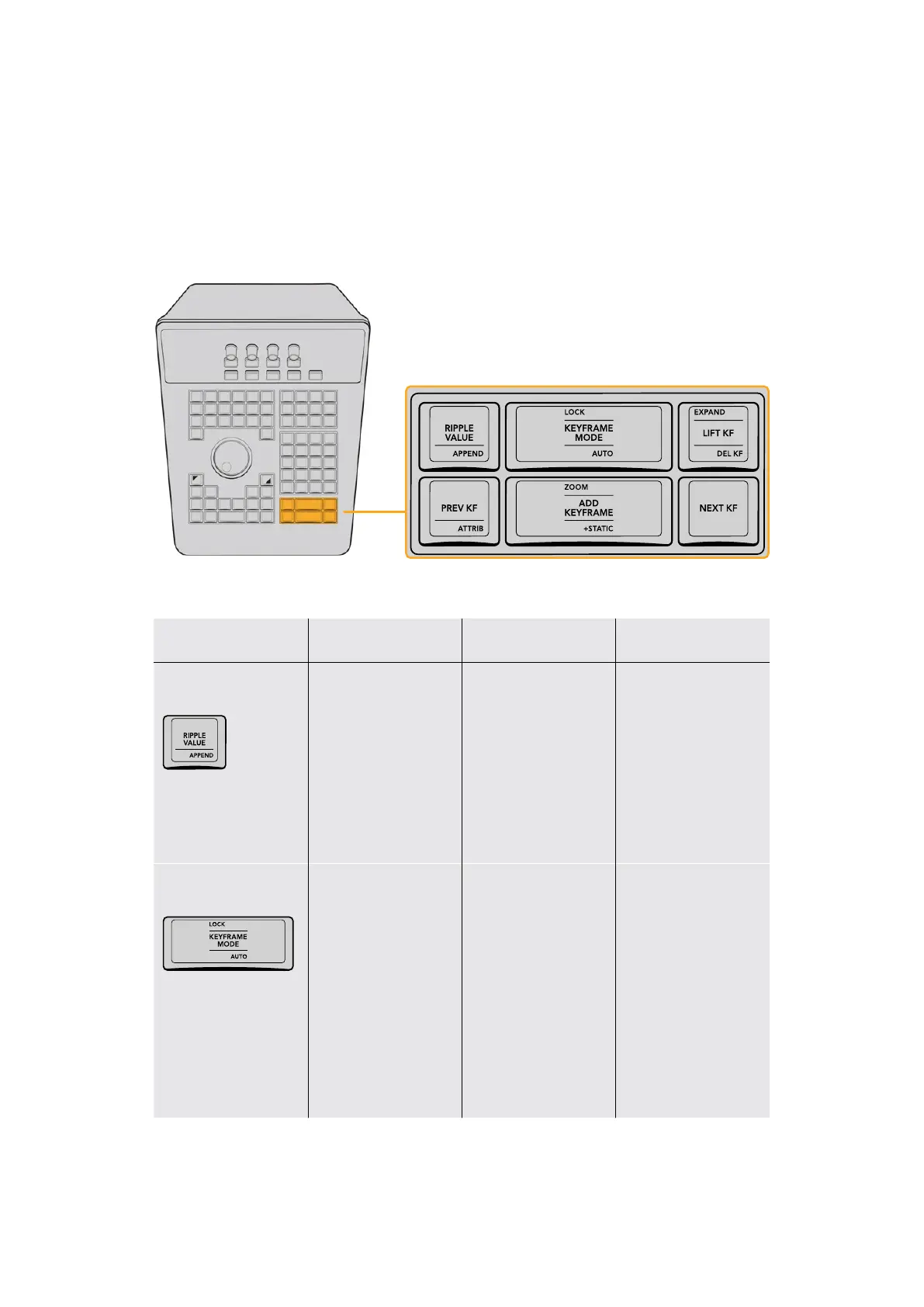
Keyframing Group
The Keyframe keys are on the bottom right‑hand side of the Search Dial panel. The functions
are replicated on the T‑bar panel. On the bottom right of the Color page is the Keyframe
timeline for the current clip in the Timeline. The Keyframe group of keys is used in association
with the Keyframe timeline and controls the selection of keyframes for the start and end of
dynamic transitions of the grade.
The number keys group provides access to multiple overlapping functions,
including Printer Points adjustment when the P/LITE mode is enabled.
Key Shift Up Primary Function Shift Down
–/RIPPLE VALUE/
APPEND
– (RIPPLE VALUE) Lets
you ripple a change
made to the currently
selected node to the
same node within a
specified range of clips;
for more information see
“Rippling Changes Using
the Advanced Panel”
later in this chapter
(APPEND) Lets you
ripple a change made to
the currently selected
node as an appended
node to a specified
range of clips; for
more information see
“Rippling Changes Using
the Advanced Panel”
later in this chapter
LOCK/KEYFRAME
MODE/AUTO
(LOCK) Locks the
keyframe track of the
currently selected node
(KEYFRAMEMODE)
Toggles among
restricting keyframing
to All (every keyframe
track in a grade), Color
(the currently selected
Corrector node), or
Sizing (sizing only).
The Keyframe mode
also determines which
adjustments are copied
when you copy grades
from one clip to another.
(AUTO) Toggles Auto
Keyframing on and
off for the keyframe
track of the currently
selected node
48The Search Dial Panel



 To Next Page