50
When selected a pop-up message will appear on-screen. The message will
show the Channel (Camera) and event type.
When selected this system will send any alarms detected to an additional alarm
monitoring system (ex: alarm monitoring company).
When selected the system will trigger an email alert (based on the Email
settings).
Click the checkbox and the Channels (Cameras) to include the schedule.
When selected the PTZ action is enabled when disconnection is detected.
Click to select the PTZ actions for each Channel (Camera).
Enter the number of seconds the system will continue to record after disconnection
is detected.
When selected a tour of all selected PTZ cameras will start and automatically
scan the viewing area. Select the cameras to include in the tour.
When selected the system will take a snapshot when disconnection is detected
on the selected Channel (Camera). Click the Channels (Cameras) that will take a
snapshot when disconnection is detected on this Channel (Camera).
When selected the disconnection event will appear in the Log.
See Main Menu:
INFO > LOG
When selected the system buzzer will be enabled when disconnection is
detected.
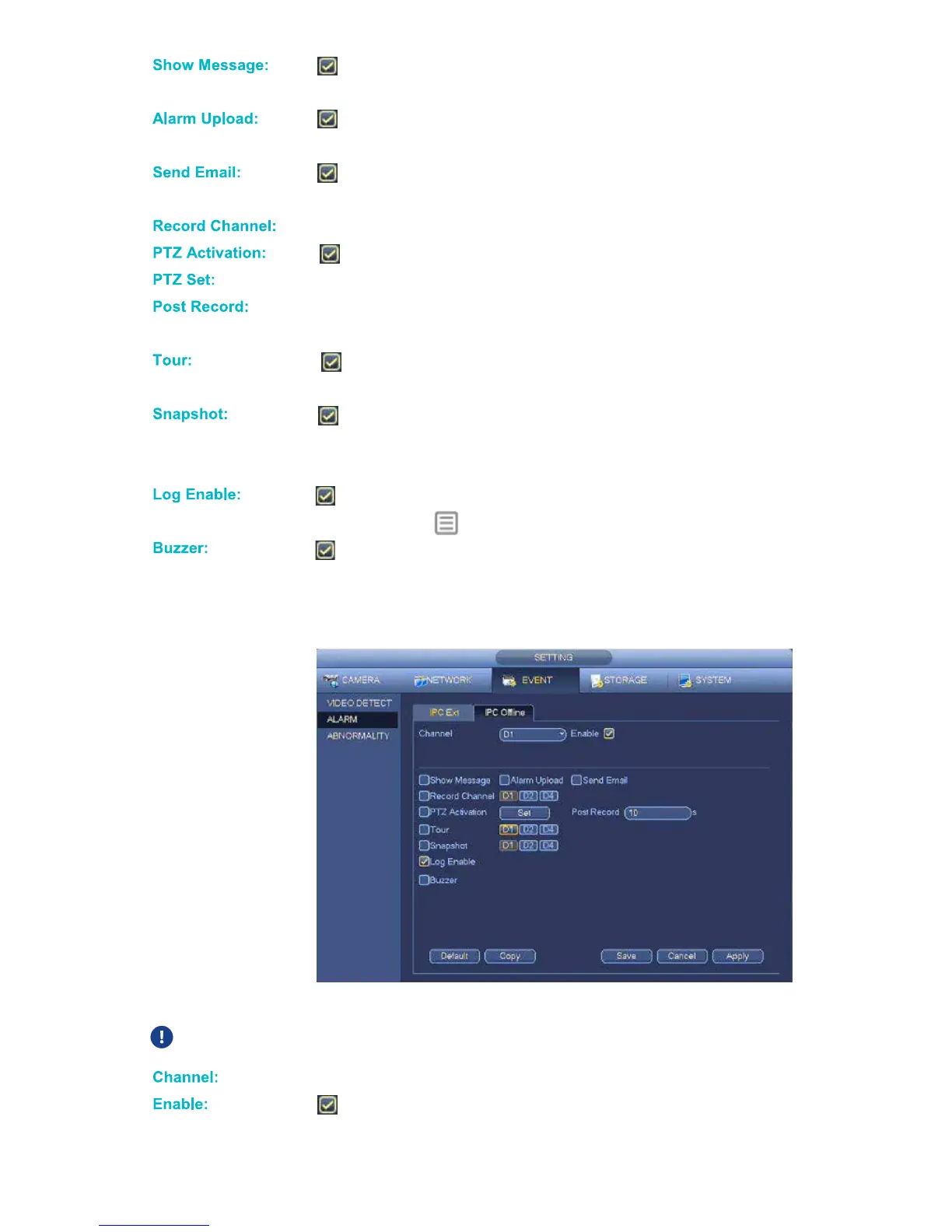
IPC Online Tab
IPC Offline settings allow you to select how the system will react when a Channel (Camera) goes offline.
PTZ and Tour features require a PTZ camera – not included in Defender® kits.
Click to select the Channel (Camera) for setup.
When selected motion detection is enabled on the selected Channel (Camera).



 To Next Page