60
All users will be listed on this screen. Details shown are from the Add User/Modify
screens
Click the Modify icon to open the User information screen – this is the same
as the Add User screen. Click Save when all changes have been made.
Click the Delete icon to remove the User from the system.
Click to add additional users to the system.
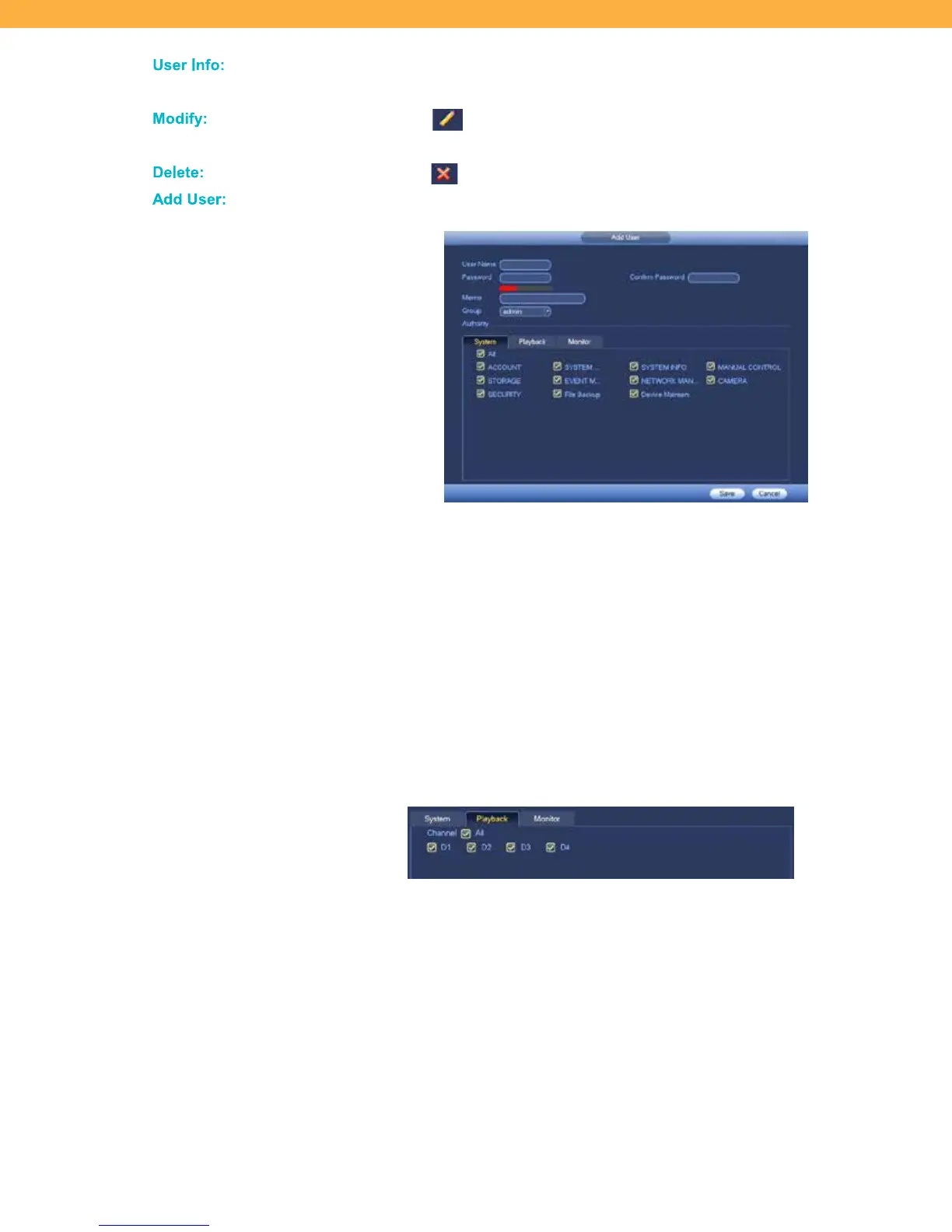
User Name: Enter the name the user will use to login to the system.
Password: Create a password for the user – they can change their password
depending on the authority level setup.
Confirm Password: Re-enter to confirm their password.
Memo: Enter a description of the User
Group: Select a Group to add this user.
Authority Levels: Select the on-screen options to allow the user access to the
system and features.
Playback & Monitor: Select Channels (Cameras) the new us
er will be able to
access for Playback and Monitoring.
Click All or select individual Channels (Cameras) – the options are the same for
both the Playback and Monitor tabs.



 To Next Page