32
4. Click the File Type drop-down to narrow the amount of footage to a specific type (example: select
locked if you only want to export footage you have locked on the Playback screen) or select All to
include all file types.
5. Click the calendar icons to select a date range in the Start Time/End Time fields. This allows you to
export only the footage recorded between the dates selected.
6. Click the time icons to select a time frame for the dates selected in the Start Time/End Time fields.
Enter the Hour : Minutes : Seconds using the up/down arrows. This allows you to export only the
footage recorded during the time frame selected (example: you may only want to export footage
recorded after 5 PM and before 7 AM).
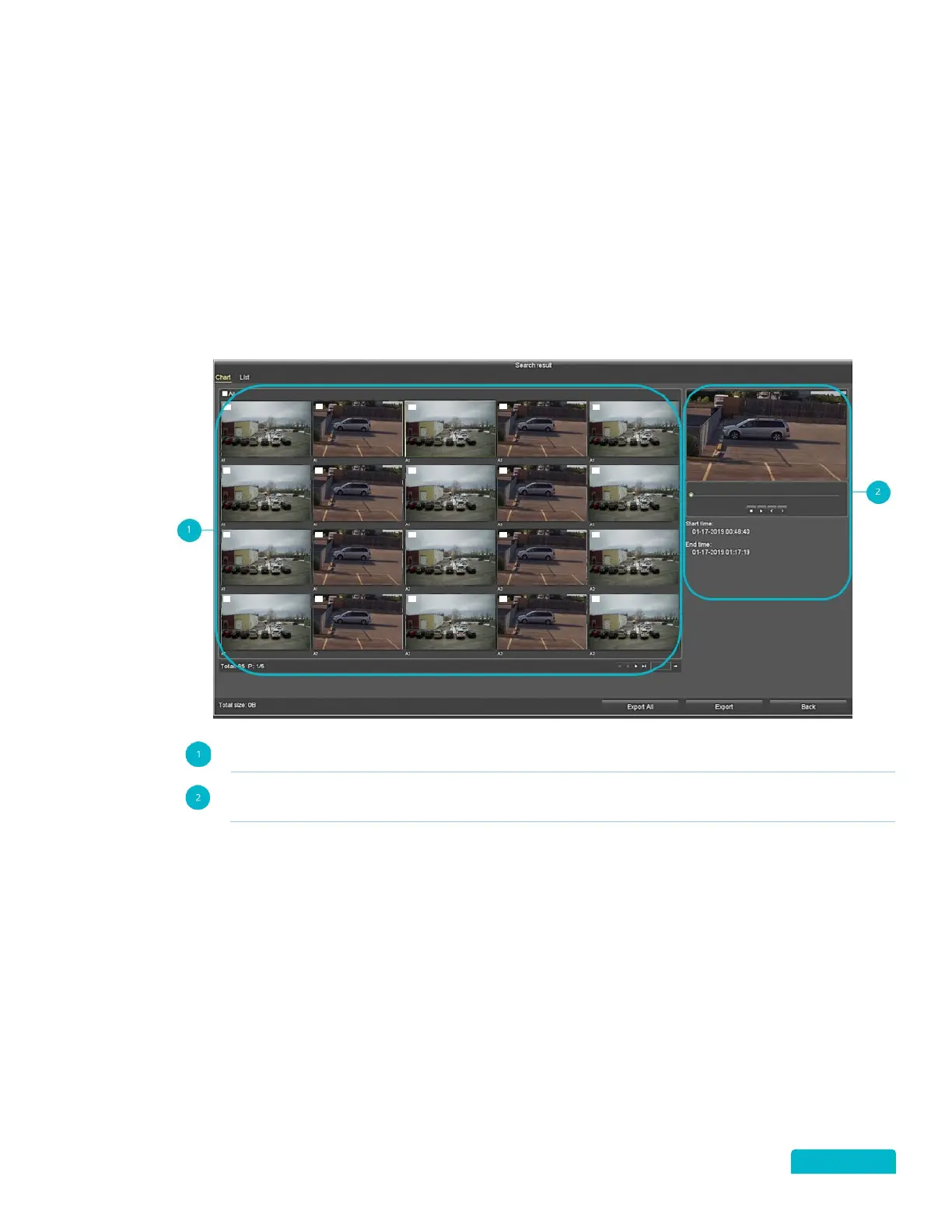
7. Click Search to view the list of available footage to export.
File List: Click the checkbox beside each recorded file to select it for export.
Preview Section: Click on a file to view it in the preview window. Use the Preview Controls
to view the footage to Stop/Play/Show Previous/Show Next.
Select the List tab at the top of the screen to show a list of the recorded footage. This view also
shows the file details.
8. Select Export All to export all files listed.
9. Select Export to export the selected files only.
10. Select Cancel to exit the screen without exporting files.



 To Next Page