55
14.3.2 View
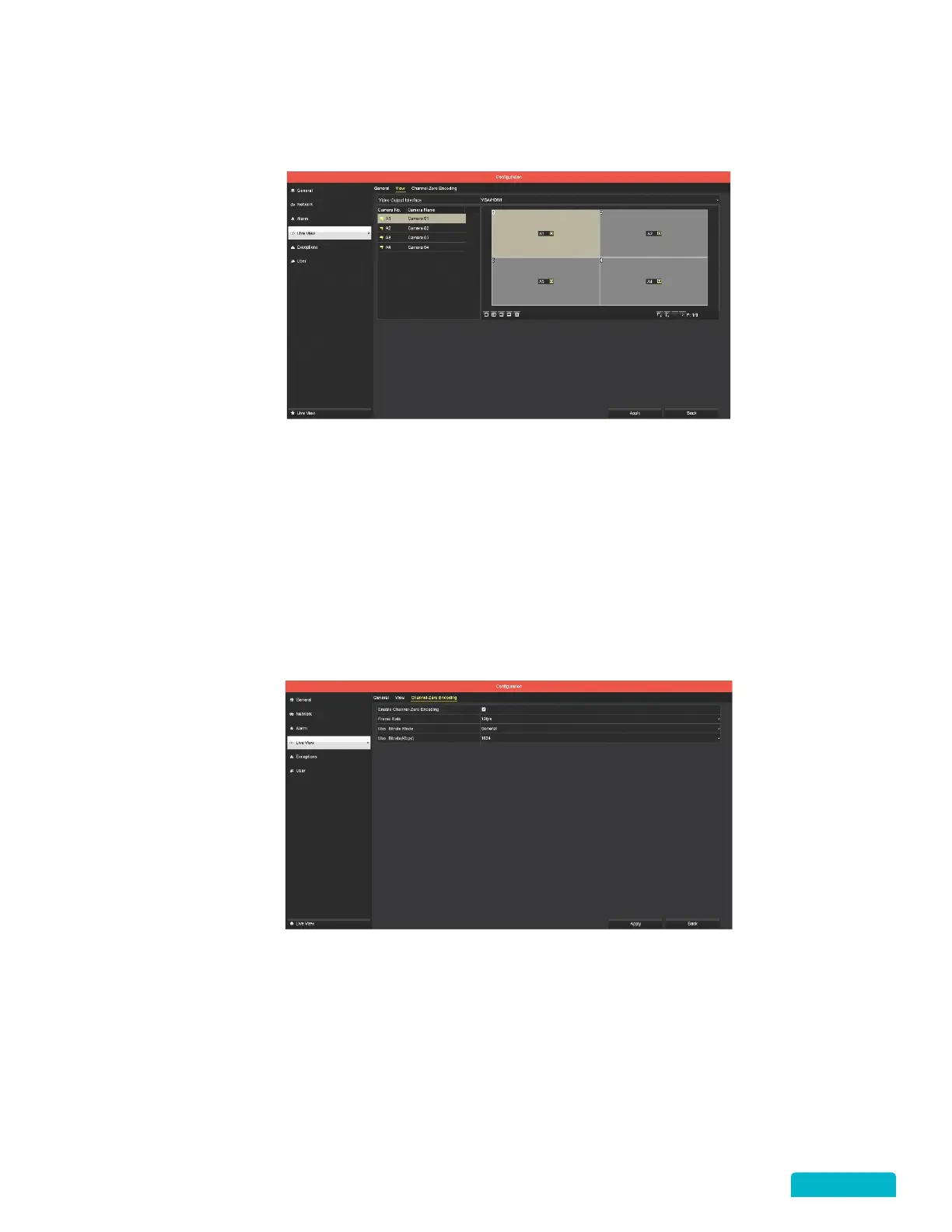
View allows you to set up the default position of the cameras on the Live View screen. This option can be
changed from the Live View screen using the Right Click Menu > Multi-screen or Single Screen.
1. Use the Video Output Interface drop-down to select VGA/HDMI (DVR monitor) or Channel-Zero
(App).
2. Click one of the Screen Layout options from the Toolbar below the preview screens.
3. Click and drag a Camera from the list to the widow it should appear in.
4. Click Apply to save these settings.
14.3.3 Channel-Zero Encoding
Click the Enable Channel-Zero Encoding checkbox to allow the remote viewing of many camera views
(channels) in real-time on the app to decrease the bandwidth requirements without affecting the image
quality.
The defaults on this screen should not be changed for regular use of the system. The Enable Channel-
Zero Encoding checkbox should be checked.



 To Next Page