37
12 VIDEO RECORD SETTINGS
Video settings allow you to setup recording schedules, parameters, and holiday recording schedules.
12.1 SCHEDULE
RIGHT CLICK MENU > DEFENDER 4K MENU > VIDEO SETTINGS
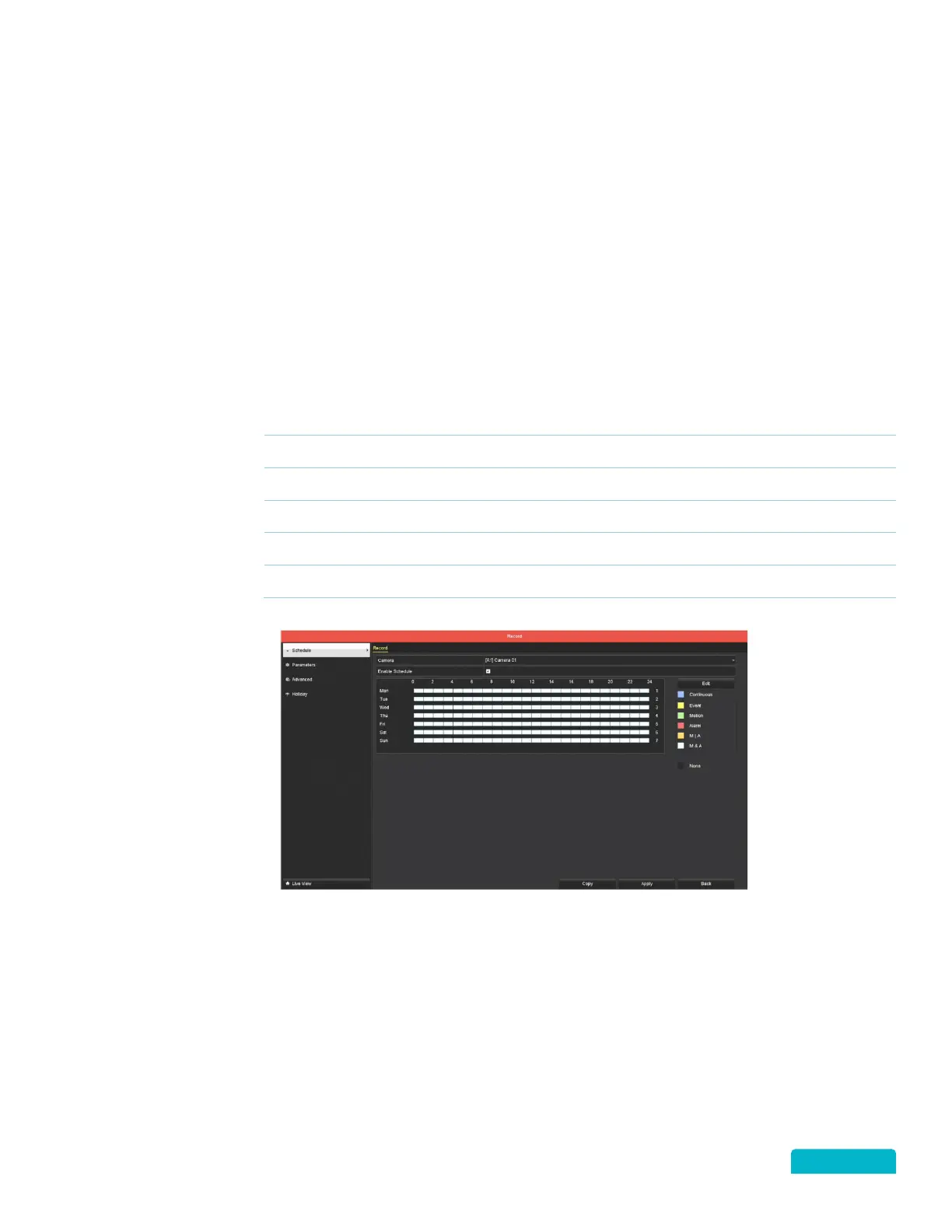
View the current recording schedule by camera. You can see when (day/time) all types of recordings are
scheduled for the selected camera.
Schedule Types
Set to record footage always on the selected camera. When set this overrides Motion
and Alarm settings.
EVENT Set to record footage only when an event occurs.
MOTION Set to record footage only when motion is detected.
ALARM Set to record footage only when an alarm is activated.
M | A Set to record footage only when motion OR alarms are detected.
Set to record footage only when motion AND alarms are detected.
1. Use the Camera drop-down to select a camera from the list.
This will show the current schedule
for the selected camera. Changes made to the schedule will apply to the camera selected only.
2. Click the Recording Type and click a time block (or click and drag to select multiple time blocks) or
Click the Enable Schedule checkbox to apply the schedule.
3. Click Edit to change the current schedule.



 To Next Page