58
15 MANUAL CAMERA SETTINGS
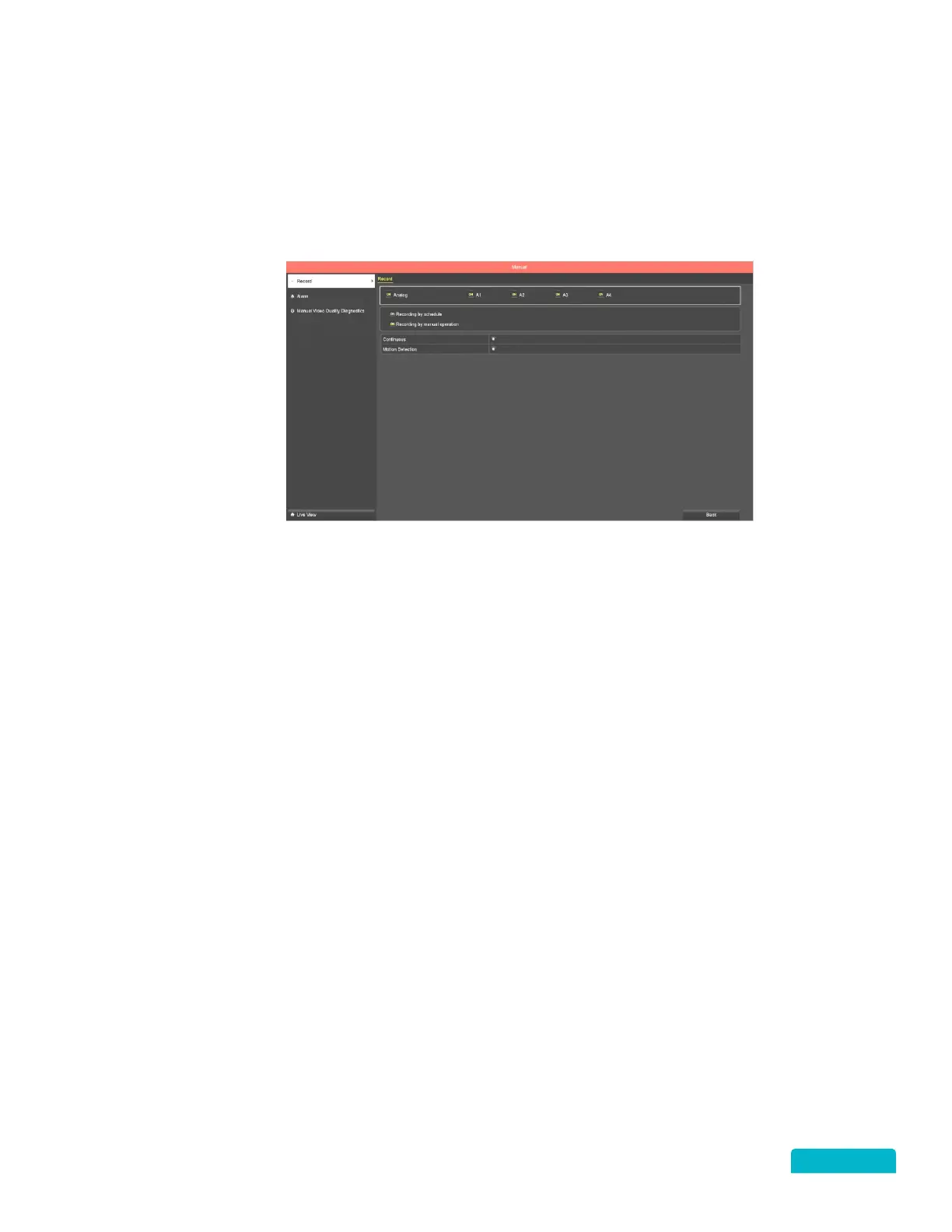
This section allows you to manually adjust recording options and perform a diagnostic on the video quality. The
Alarm section will not work on this system because the DVR is not equipped to allow for an alarm to be attached.
15.1 RECORD
RIGHT CLICK MENU > DEFENDER 4K MENU > MANUAL CAMERA SETTINGS
1. Click the ON icon beside Analog (all cameras) or beside each camera to turn off recording – click
again to turn recording back on.
2. Click the ON icon beside Recording by schedule to disable the ability to record based on the
schedule on the selected cameras – click again to turn this feature back on.
3. Click the ON icon beside Recording by manual operation to disable the ability to select record
(manually from the Live View screen) on the selected cameras – click again to turn this feature back
on.
4. Click the Continuous icon to select to record all the time on the selected cameras – this will
override scheduled recording if set up for the selected cameras.
5. Click the Motion Detection icon to select to record only when motion is detected on the selected
cameras.



 To Next Page