38
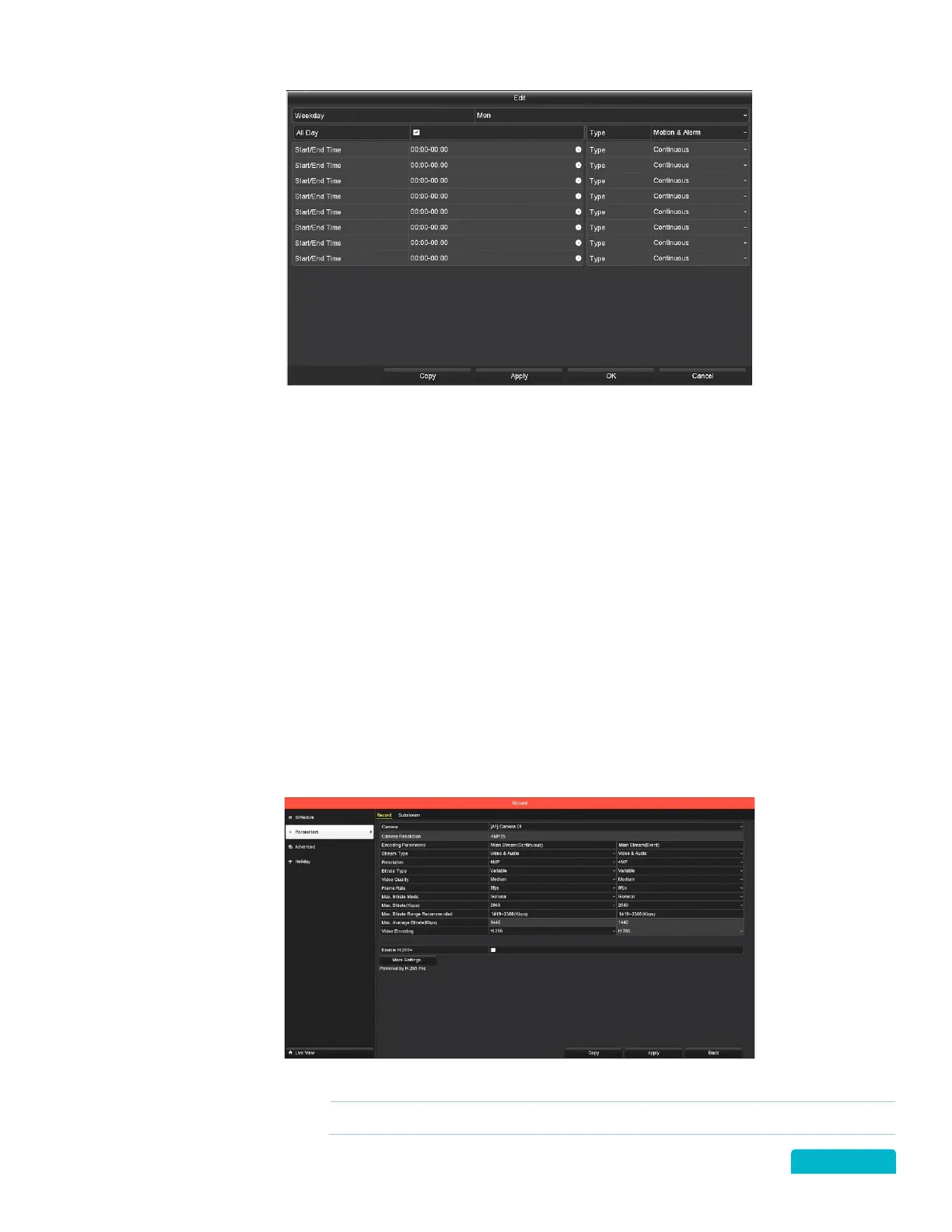
A. Use the Weekday drop-down to select a day of the week.
You can use the Copy function to
select the same schedule for multiple or all days of the week.
B. Click the All Day checkbox to apply the schedule to all times of the day or click the Time icon
and enter the Hour : Minutes : Seconds using the up/down arrows.
C. Use the Type drop-down to select the type of recording.
You can select different recording
types for different times of the day.
D. Click Apply to save your settings.
E. Click OK to save all changes and exit the Edit screen.
4. You can select Copy (on the Schedule screen) to apply this schedule to other cameras.
5. Click Apply to save the new schedule settings.
12.2 PARAMETERS
RIGHT CLICK MENU > DEFENDER 4K MENU > VIDEO SETTINGS
The settings on the Record and Sub stream tabs are set to default values and do not need to be changed
for regular option of your system.
These setting apply to the camera selected.
Adjusts the video resolution and frame rate on the camera.



 To Next Page