14
PIP Mode
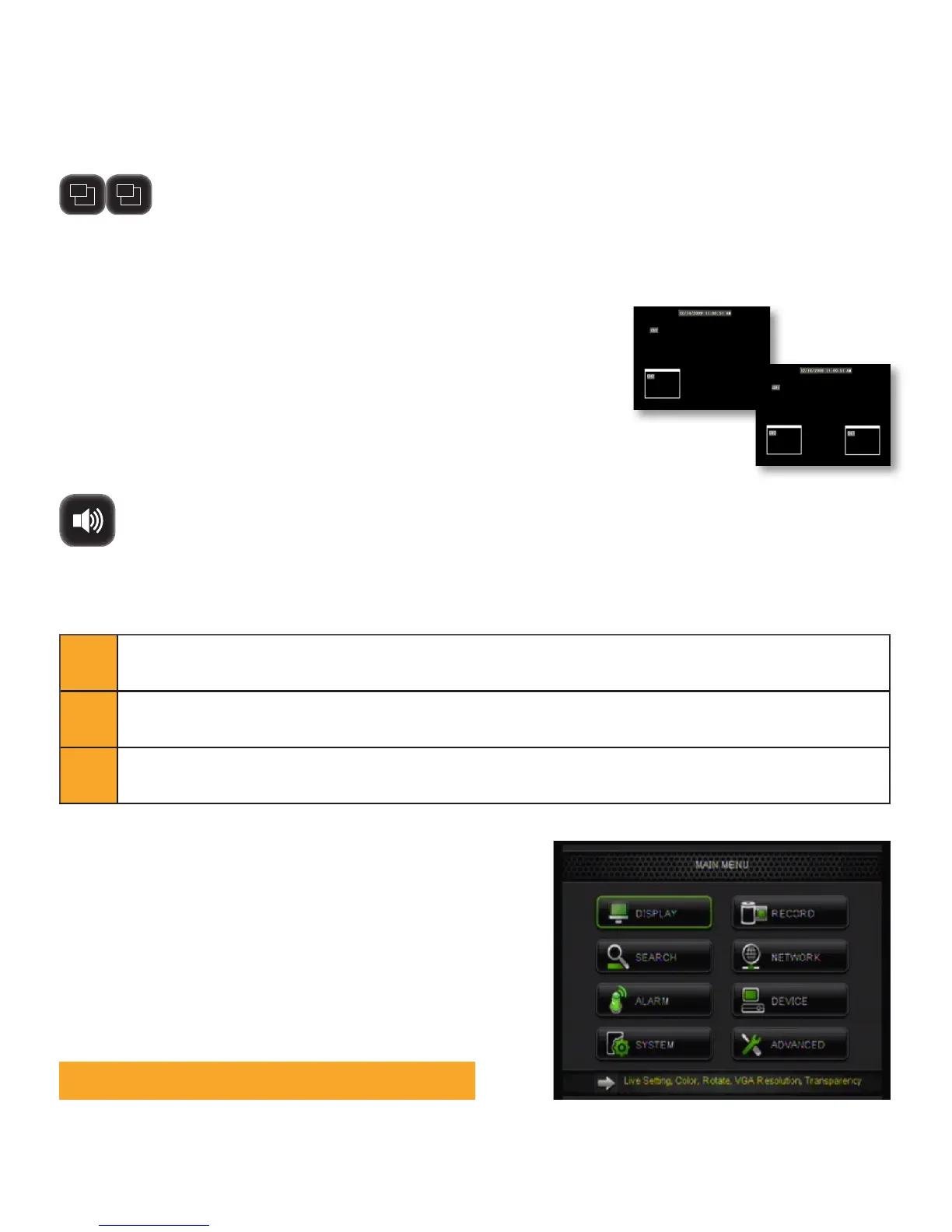
Picture In Picture (PIP) mode allows you to view camera 1 in full screen and up to two other camera
channels (of your choice) as smaller screens in each corner of the screen. You must have at least 2
cameras connected to your DVR for PIP mode to function properly.
P1 P2
Function Toolbar
Using PIP mode:
1. Right click the mouse and select the PIP Mode 1x1 or PIP Mode 1x2
from the Function Toolbar.
2. 1x1 allows you to view camera 1 in full screen and another camera in
the lower left corner of the screen. 1x2 allows you to view camera 1 in
full screen and two other cameras in the bottom left and right corners
of the screen.
3. To exit PIP mode, right click the mouse anwhere on the screen.
PIP Mode 1x1
PIP Mode 1x2
Volume
Allows you to mute the sound being recorded if you are using audio-enabled cameras. Right click
the mouse and select the Mute icon from the Function Toolbar.
Main Menu
1 Right click the mouse anywhere on the screen, then left click the Main Menu icon.
2 Move mouse to the bottom of the screen and Function Toolbar will appear. Left click the Main Menu icon.
3
Press Select/Enter on the remote control and the Function Toolbar will appear at the bottom of the screen.
Use Directional Arrows to move cursor, press Select/Enter to select the Main Menu icon.
Note: All sub menus have some or all of the above options.
When accessing sub-menus, there are three options available
at the bottom of the screen:
Default: Restores all of the settings on the current page
to the default settings.
Apply: Applies and saves changes made to the current
menu page.
Exit: Exits the current menu.
Getting Started!



 To Next Page