33
Main Menu
Format USB
Formatting the USB erases anything you have stored on your USB device. Before formatting, be sure to connect your
USB device to a USB port.
1. Click the FORMAT USB button.
2. An alert screen will appear indicating "FORMAT WILL REMOVE ALL DATA FROM USB". Select OK to format the USB
or CANCEL to prevent formatting.
3. Formatting the USB may take a few minutes. Do NOT remove the USB while formatting. Formatting cannot be
stopped once it has started.
4. Once formatting is complete, a screen will open to let you know that the USB has formatted successfully.
5. Select OK and you will have successfully formatted the attached USB drive.
PTZ Tab
PTZ setup allows you to input information for a PTZ camera (PTZ cameras not included). The information must be
entered manually into the DVR so that the DVR recognizes your PTZ camera and all its functions.
Connecting a PTZ Camera
The DVR supports a 2-wire RS-485 connection for a PTZ camera to be connected (PTZ camera not included). Please
consult your PTZ camera manual for further instructions on required connections and settings.
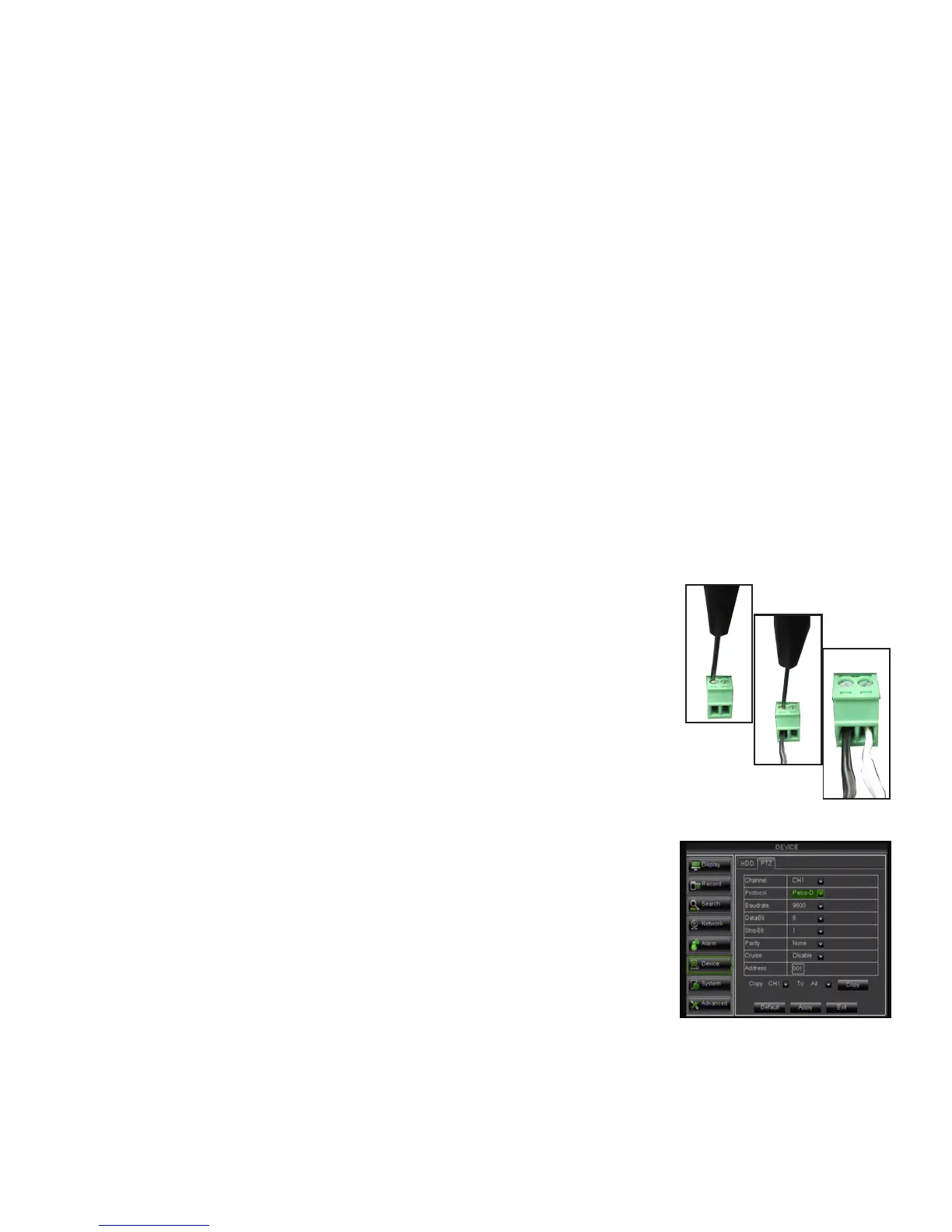
Connecting a two-wire PTZ camera:
1. With a small flat head screwdriver, unscrew the screw on the top of the opening.
2. Insert the wire into the hole below the top screw while it is still unscrewed.
3. Re-tighten the top screw, to lock the wire into place. Pull lightly on the wire to
make sure it is secure.
4. For further instruction on connecting your PTZ camera, please consult the PTZ
camera’s instruction manual.
Entering PTZ information:
1. Find which camera channel the PTZ camera(s) are connected to on the PTZ
setup menu. On that corresponding channel's row, enter the proper PTZ
camera information.
2. The required information will be specified in the PTZ manufacturer's manual.
3. Choose to enable/disable CRUISE MODE for the PTZ camera.
4. Click APPLY at the bottom of the screen to save your changes.
COPY settings from one camera to other cameras:
1. Select the COPY drop down list and choose a camera number.
2. Select the TO drop down list to select a camera number or ALL cameras.
3. Click the COPY button. The settings will now be copied to your
specified camera(s).
4. Click APPLY at the bottom of the screen to save your changes.
1.
2.
3.



 To Next Page