30
Main Menu
DDNS Tab
The DDNS (Dynamic Domain Name Service) menu option allows you to set up a common name for the DVR instead
of typing in an IP address. This feature is used if you have a Dynamic IP address from your ISP (Internet Service
Provider) and the IP address is constantly changing.
Setting up your DDNS on the DVR:
1. Select the DDNS drop down list and choose ENABLE.
2. Select the SERVER drop down list and choose your DDNS provider from the list.
3. Left click in the HOST NAME field, the keyboard will open.
4. Enter your Host Name then click the ENTER key .
5. Left click in the USER NAME field, the keyboard will open.
6. Enter your User Name then click the ENTER key .
7. Left click in the PASSWORD field, the keyboard will open.
8. Enter your Password then click the ENTER key .
9. Once all of the information is correctly entered, click APPLY at the bottom of the screen to save your changes.
Alarm
The alarm menu allows you to adjust which alarms you would like set and adjust the length of time that the internal
buzzer will sound. This DVR gives you the option to have email alerts sent when motion is detected. To set up email
notifications for motion, please see NETWORKING SETUP- EMAIL TAB.
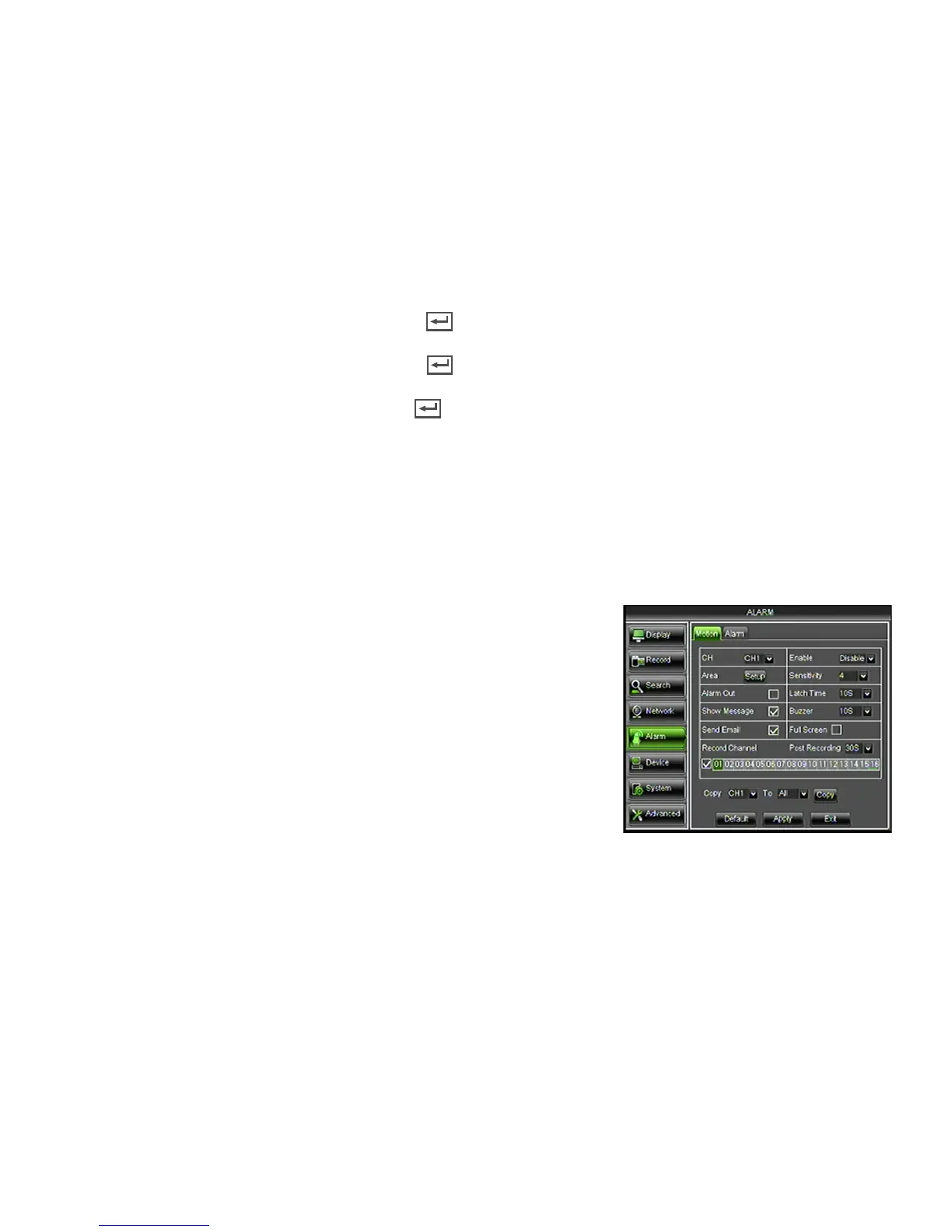
Motion Tab
• CH: The channel you want motion detection.
• Enable: Enable or disable motion detection.
• Area: Set up the area to be detected by motion.
• Sensitivity: Use a range from (1-8) to detect object. 1 being the
least sensitive and 8 being the most sensitive.
• Alarm Out: This DVR does not support this function.
• Latch Time: This DVR does not support this function.
• Show Message: DVR will display an "M" on-screen when motion
is detected.
• Buzzer: Set the length of the buzzer sounding when
motion is detected (Off,10s, 20s, 40s, 60s).
• Send Email: Send an email when motion is detected.
• Full Screen: When motion is detected on a specific channel, that channel will switch to full screen mode.
• Record Channel: The channel will begin recording when motion is detected.
• Post Recording: Set the record length after motion stops (30s, 1 minute, 2 minutes, 5 minutes).
• Copy: Copy your current channel settings to other channels on the DVR.
Changing the status of motion detection for each camera:
1. Select the CH drop down list and select a channel.
2. Select the ENABLE drop down list and choose ENABLE.
3. Click the SETUP button next to Area. A screen will open allowing you
to select the motion detection area. (See Area Setup in next section).
4. Click the boxes next to Show Message and Send Email if you would like these notifications enabled.



 To Next Page