32
Main Menu
Device
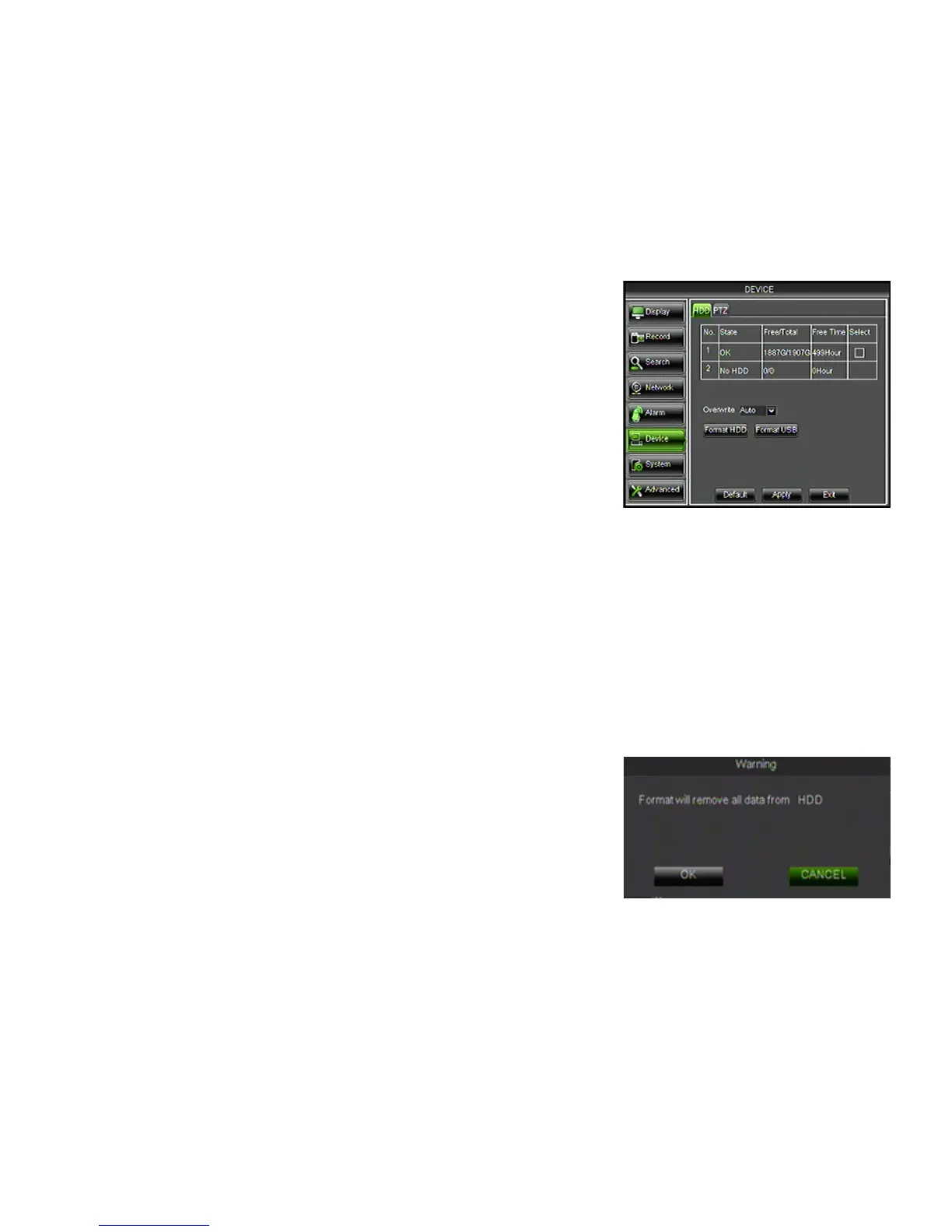
This menu allows you to select and configure the HDD and PTZ camera (not included).
HDD Tab
This menu option gives you information about your HDD (Hard Disk Drive), allows you to enable overwrite mode, and
format the hard drive and/or USB drive.
• State: Displays the current operating status of the hard drive. If
the hard drive is functioning normally it will display OK.
• Free/Total: Tells you how much HDD space that you have in total and
is still available to record.
• Free Time: Amount of remaining time available to record.
• Select : Select which HDD to modify.
Overwrite
The overwrite mode is automatically set to AUTO, therefore the DVR will record over the oldest footage once the HDD
is full instead of stopping the recording once it is full (Disable). Overwriting allows the DVR to never stop recording.
You can also set the DVR to start overwriting after 1hr, 3hrs, 1 day, 7 days, 30 days or 90 days.
1. Select the OVERWRITE drop down list and choose an option.
2. Click APPLY at the bottom of the screen to save your changes.
Format HDD
Formatting the HDD erases all recorded video and audio on your HDD.
1. Select the box next to the HDD that you want to format.
2. Click the FORMAT HDD button.
3. An alert screen will appear indicating "FORMAT WILL REMOVE ALL
DATA FROM HDD". Select OK to format the HDD or CANCEL to prevent
formatting.
4. Formatting the HDD may take a few minutes. Formatting cannot be
stopped once it has started.
5. Once formatting is complete, a screen will appear letting you know that
the HDD is formatted successfully.
6. Click OK, exit the menu completely and the DVR will restart automatically.



 To Next Page