55
Online Software
Playing Back Footage (continued)
Stop All Playback: Stops playing all channels that have recordings.
Stop All Menu: Stops all playback, stops all downloads, and stops all windows.
Single CH View: Select to view one channel.
Quad Screen View: Select to view 4 channels at once.
Widescreen View: Switches the footage to widescreen format.
Remote Settings - Online Setup
The REMOTE SETTINGS tab allows you to make some adjustments to certain DVR settings. The menu options that can
be adjusted include:
• Alarm Parameters
• PTZ Parameters
• Network Parameters
• Device Parameters
• Device Management
• Local Settings
Each function works much like the MAIN MENU options on the DVR.
Display
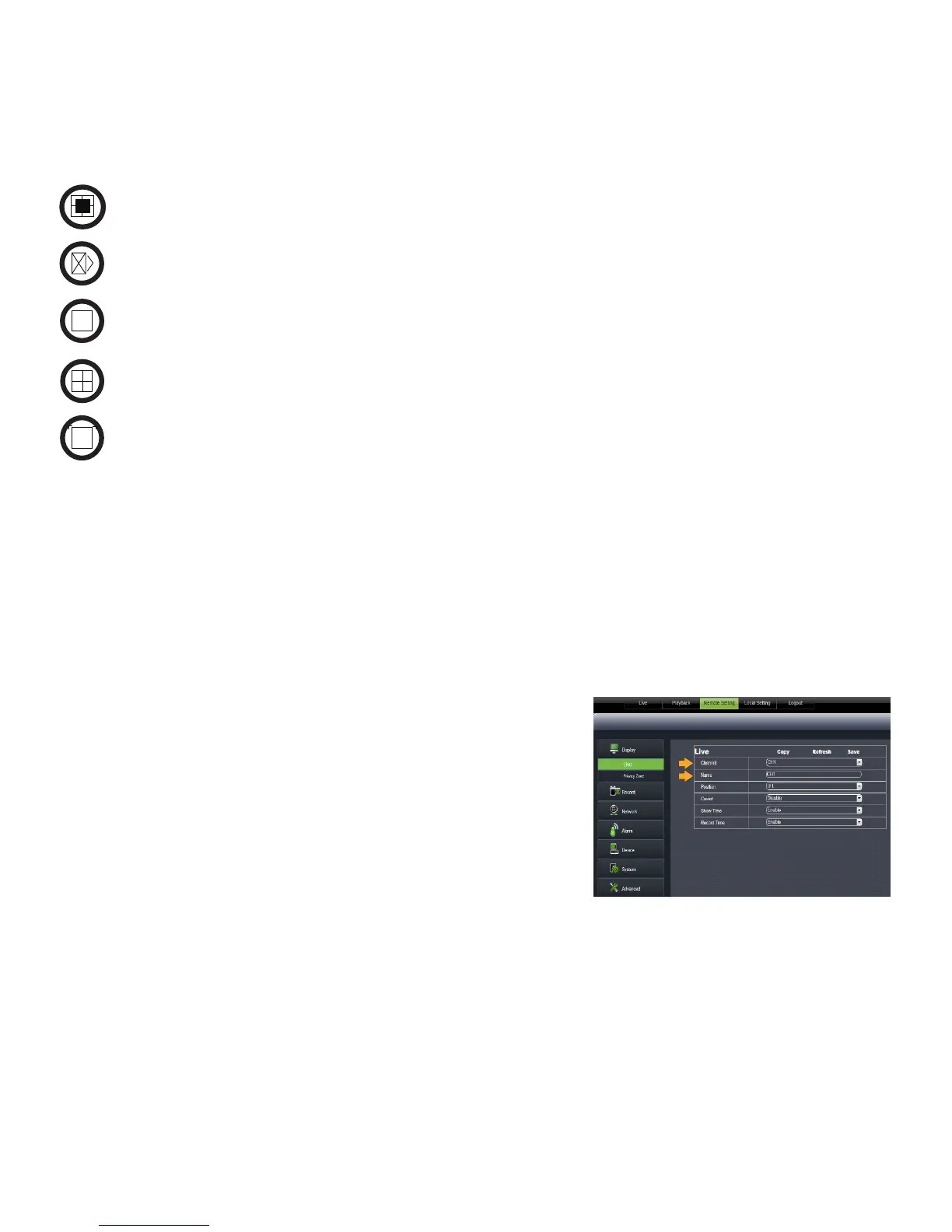
You can adjust the display name, the position, as well as the record
time. You can also enable and set up a privacy zone
Live
Name
This will be the name of the camera that is displayed on screen. It is a good idea to name the camera something
that reflects what the camera is monitoring, i.e. Garage or Driveway. (Maximum of 8 characters).
1. Select the camera channel.
2. Left click in the NAME field, the keyboard will open.
3. Enter the name of the camera, then click the ENTER key.
4. Click SAVE in the upper right corner to save your changes.
5. Repeat steps 1-4 for each camera.



 To Next Page