54
Online Software
Narrowing your Video Search:
1. Using the drop down list below the calendar, select the camera and type of footage you would like to search.
2. Select SEARCH and only the type of footage from the camera selected will be displayed in the list.
Playing Back Footage
When you press play, it may take a few minutes to load. The footage will begin playing automatically. The playback
options are located at the bottom of the screen.
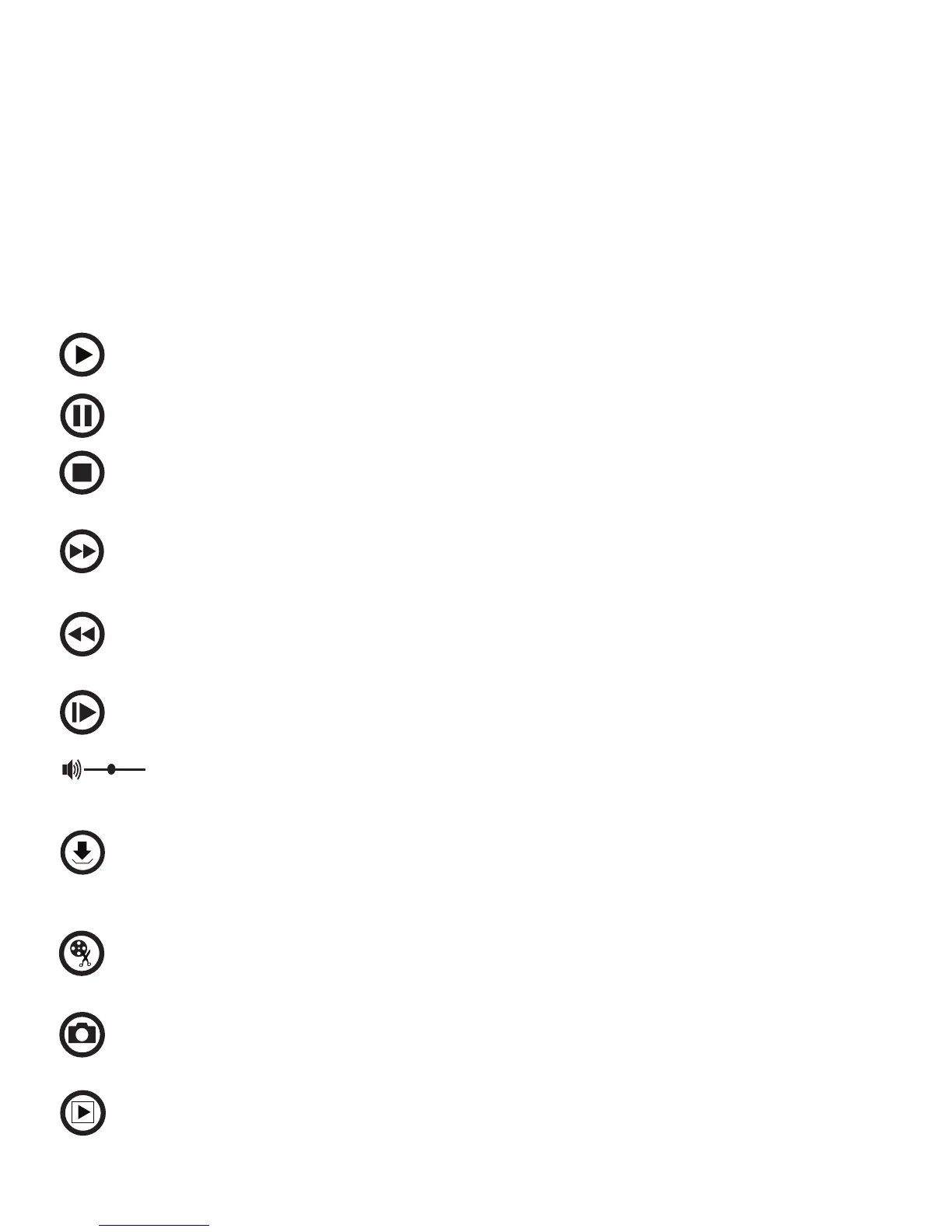
Play: Pauses playback.
Pause: Prompt the video to begin playing.
Stop: Stops the footage and a blank screen will appear. Press PLAY to play the
selected footage from the beginning.
F.F: Fast forwards through the footage. The more times you select this,
the faster the footage will move forward (2x, 4x, 8x, 16x).
Rewind: Rewinds the footage backwards. The more times you select this, the faster the
footage will move backward (2x, 4x, 8x, 16x).
Next Frame: Moves the footage forward a single frame.
Volume: For audio-supported camera (not included). Click and drag this will increase
or decrease the volume of the playback footage.
Download: Downloads selected video to your computer. Backed up footage
will automatically save to selected location on your computer. To select a
location see SETTINGS information in this manual.
Video Clips: Displays specific portions of a file. Click the icon to begin. Select again to stop.
The file will be saved in the location that you set.
Capture: Takes pictures of specific portions of a file. Select the save location in local
settings.
Start All Playback: Starts playing all channels that have recordings.



 To Next Page