16
Main Menu
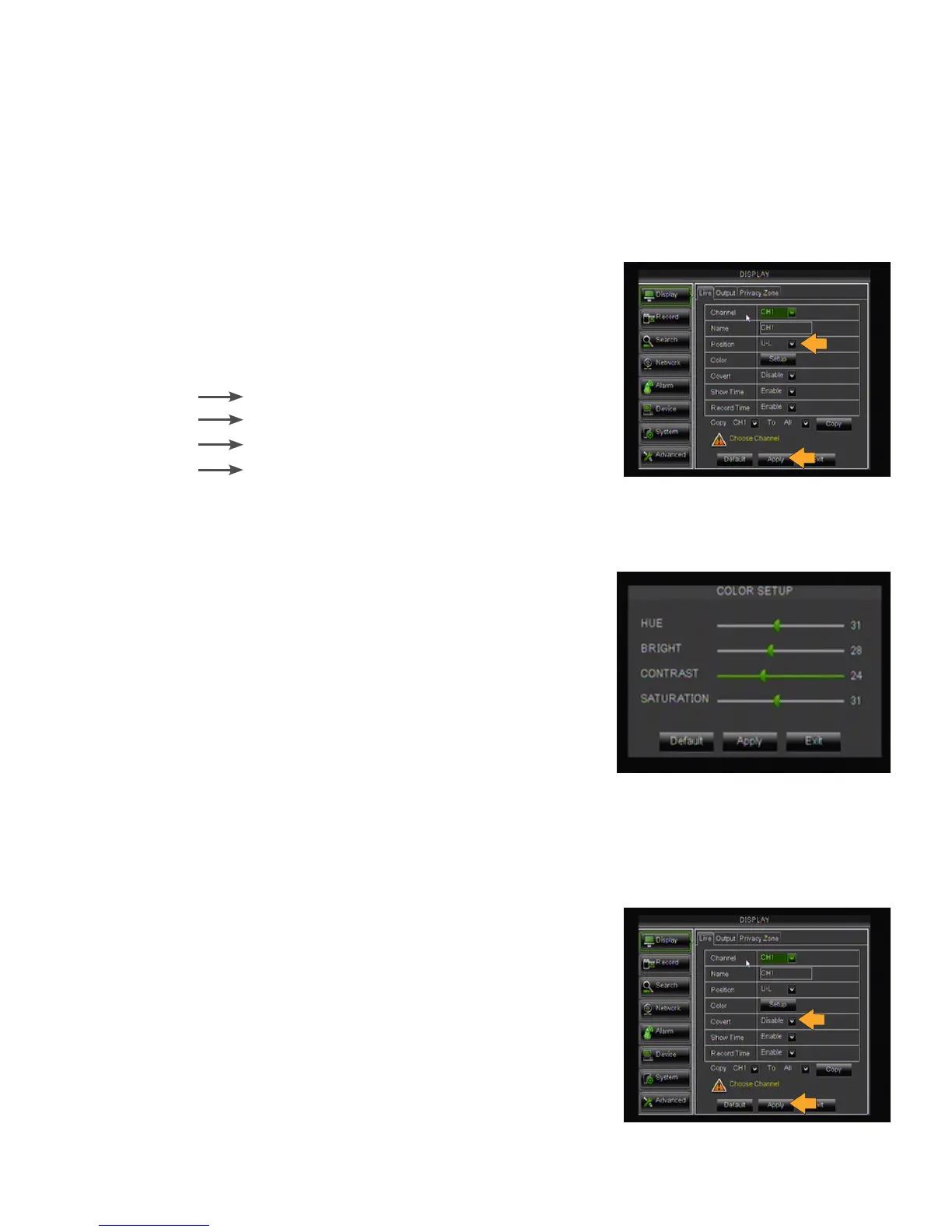
Position
This will determine where the camera name will be displayed when viewing your cameras.
Changing the POSITION of the title:
1. Left click the POSITION drop down list.
2. Select the position where you would like the title to appear when
viewing your cameras. If you do NOT want to display the name, set
the position to DISABLE.
3. Click APPLY at the bottom of the screen to save your changes
4. Repeat steps 1-3 for all desired cameras.
U-L
D-L
U-R
D-R
Upper-Left
Down-Left
Upper-Right
Down-Right
Color
Clicking the SETUP button will allow you to adjust the image settings for an individual camera..
Adjusting the camera COLOR:
1. Left click the SETUP button. A Color Setup menu will open.
2. A full screen view of the selected camera will appear along with
scroll bars to adjust Hue, Brightness, Contrast and Saturation.
3. Click and drag the bar in the center to turn the settings up and down.
4. Click APPLY at the bottom of the Color Setup screen to save your
changes, then EXIT to return to Display menu.
5. Click APPLY at the bottom of the Live screen to save your changes.
6. Repeat steps 1-4 for all desired cameras.
Covert
Choose whether or not to display a camera in LIVE VIEWING mode. The camera will record and playback normally,
but it will not appear on the LIVE VIEWING screen. This allows you to protect an entire channel from public or user
viewing so only authorized viewers can see the activity in that location.
Setting the Covert feature:
1. Left click the COVERT drop down list.
2. Select ENABLE or DISABLE from the drop down list to turn the camera
ON or OFF.
3. Repeat for all desired cameras.
4. Select APPLY to save the changes.



 To Next Page