18
Main Menu
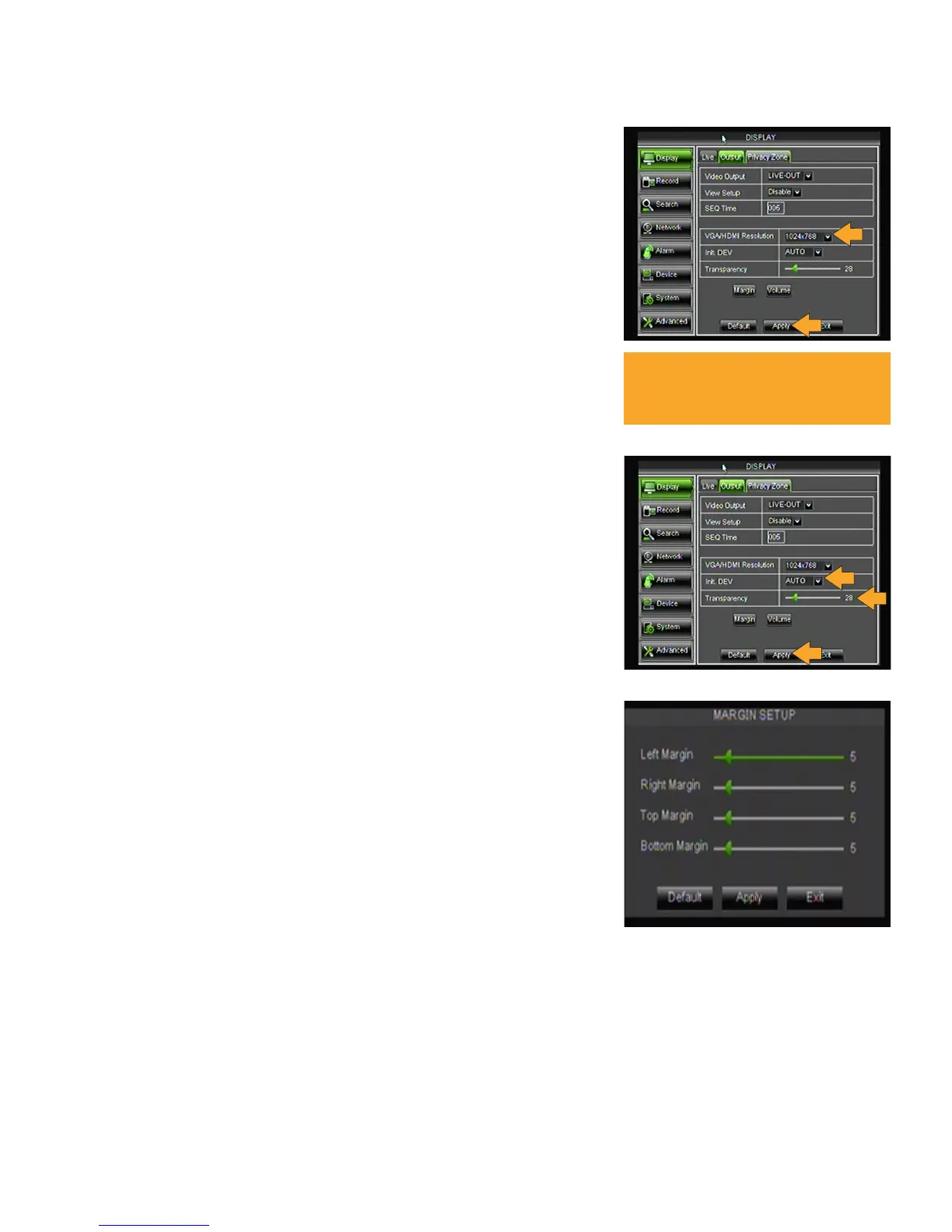
Output Tab
VGA/HDMI Resolution
Adjusting VGA/HDMI Resolution:
1. Select the VGA/HDMI Resolution drop down list.
2. Highlight the desired resolution. NOTE: The higher the resolution,
the more space it will use on your HDD.
3. Click APPLY at the bottom of the screen to save your changes.
Initial Device (Init. DEV.)
To set the INIT. DEVICE type:
1. Select the INIT. DEV drop down list.
2. Highlight the device type you are using: VOUT, HDMI, or AUTO.
3. Click APPLY at the bottom of the screen to save your changes.
Transparency
Allows you to increase/decrease the transparency of the menu screen.
Adjusting the TRANSPARENCY:
1. Click and drag the bar in the center next to TRANSPARENCY.
2. Click APPLY at the bottom of the screen to save your changes.
Volume and Margin
These options let you customize the look and sound of your recordings.
*Features may not be available on your specific model.
Margin
Adjusting MARGINS:
1. Left click the MARGIN button. A Margin Setup menu will open.
2. Slide the cursor from 0 to 36 to set each margin, 0 being the
lowest, 36 being the highest.
3. Click APPLY at the bottom of the Margin Setup screen to save your
changes, then EXIT to return to Display menu.
4. Click APPLY at the bottom of the Output screen to save your changes.
Volume
Adjusting the VOLUME:
1. Left click the VOLUME button. A Volume Setup menu will open.
2. Slide the cursor from 1 to 63 to set the volume, 1 being the
lowest, 63 being the highest.
3. Click APPLY at the bottom of the Margin Setup screen to save your
changes, then EXIT to return to Display menu.
4. Click APPLY at the bottom of the Output screen to save your changes.
Note: HDMI and VGA operate
simultaneously. When selecting HDMI,
both are active.



 To Next Page