Steps
1. Remove the two screws (M2x3.5) that secure the M.2 2280 thermal shield to the palm-rest and keyboard assembly.
2. Lift the M.2 2280 thermal shield off the solid-state drive.
3. Slide and remove the M.2 2280 solid-state drive from the solid-state drive slot (SSD1 or SSD2).
Installing the M.2 2280 solid-state drive in slot one and slot two
Prerequisites
If you are replacing a component, remove the existing component before performing the installation process.
About this task
NOTE: This procedure is applicable if you are installing a M.2 2280 solid-state drive into M.2 slot one (SSD1) and M.2 slot two
(SSD2).
NOTE: Supported card configurations on M.2 slot one (SSD1) and M.2 slot two (SSD2):
● M.2 2230 solid-state drive
● M.2 2280 solid-state drive
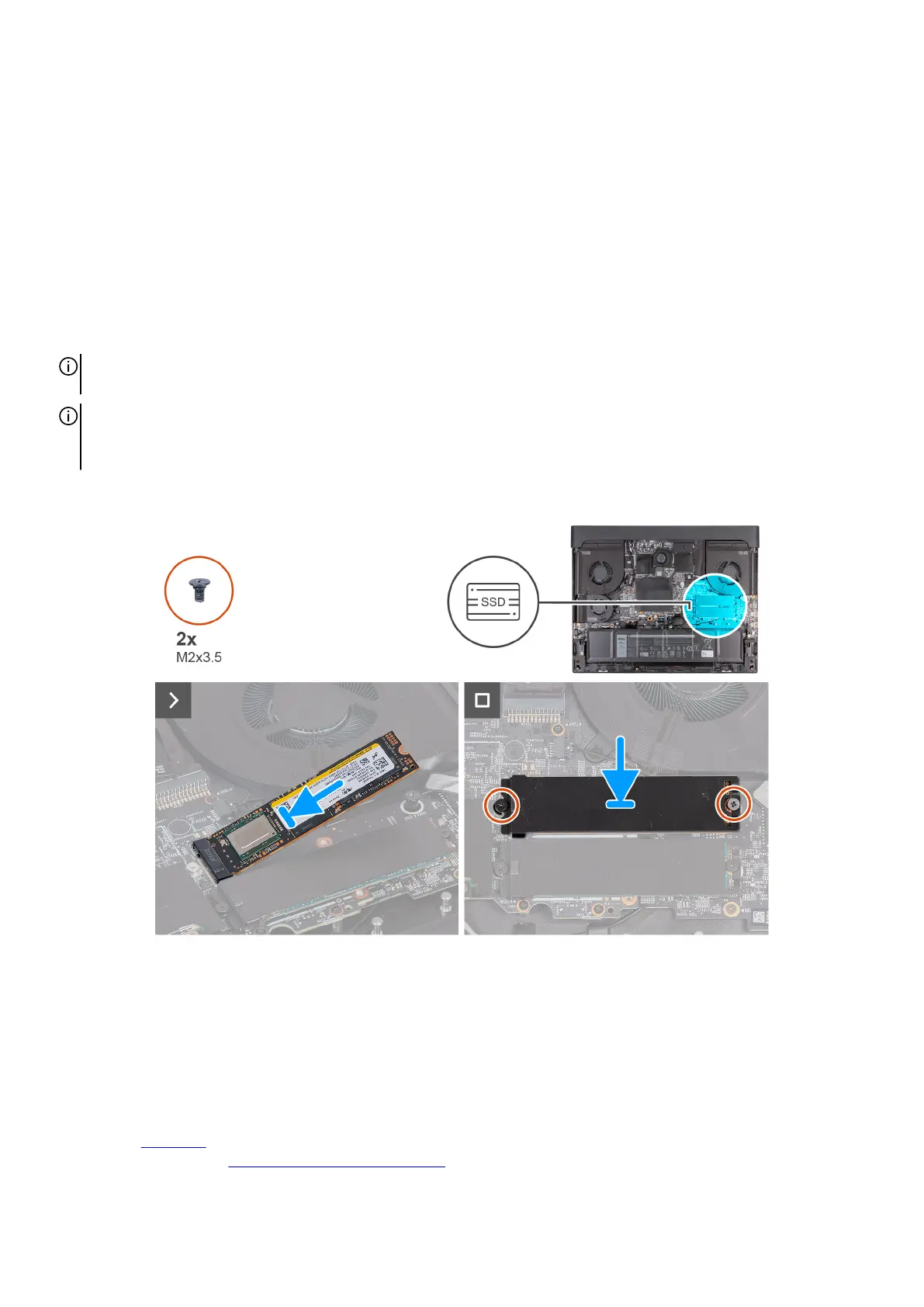
The following images indicate the location of the M.2 2280 solid-state drive in slot one and two and provide a visual representation
of the installation procedure.
Steps
1. Align the notch on the M.2 2280 solid-state drive with the tab on the M.2 card slot (SSD1 or SSD2) on the system board.
2. Insert the M.2 2280 solid-state drive into the M.2 card slot (SSD1 or SSD2) on the system board at an angle.
3. Slide the tab on the M.2 2280 thermal shield into the M.2 card (SSD1 or SSD2) slot and align the screw holes on the thermal
shield to the screw holes on the palm-rest and keyboard assembly.
4. Replace the two screws (M2x3.5) that secure the M.2 2280 thermal shield to the palm-rest and keyboard assembly.
Next steps
1. Install the base cover.
2. Follow the procedure in After working inside your computer.
43










 To Next Page