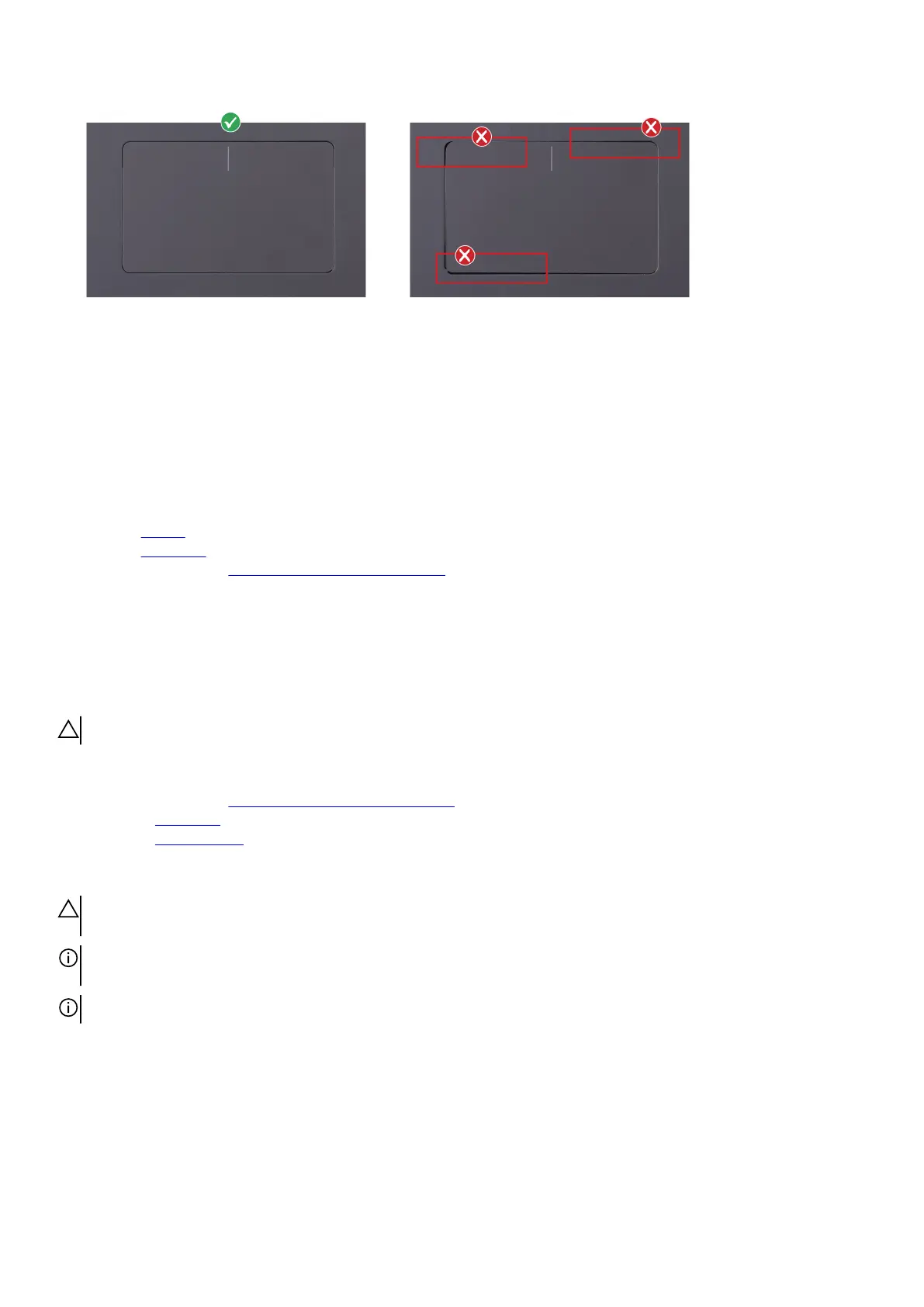
3. Close the display and turn the computer over.
4. Replace the four screws (M2x2) that secure the touchpad to the palm-rest and keyboard assembly.
5. Connect the keyboard-controller board cable to the connector on the keyboard-controller board and close the latch to secure
the cable.
6. Connect the touchpad cable to the connector on the touchpad and close the latch to secure the cable.
7. Align and place the touchpad bracket into slots on the palm-rest and keyboard assembly.
8. Replace the four screws (M2x2) that secure the touchpad bracket to the palm-rest and keyboard assembly.
9. Adhere the tape back on the touchpad bracket screw.
Next steps
1. Install the
battery.
2. Install the base cover.
3. Follow the procedure in After working inside your computer.
Top heat-sink
Removing the top heat-sink
CAUTION: The information in this removal section is intended for authorized service technicians only.
Prerequisites
1. Follow the procedure in Before working inside your computer.
2. Remove the base cover.
3. Remove the
rear I/O cover.
About this task
CAUTION: The heat sink may become hot during normal operation. Allow sufficient time for the heat sink to cool before
you touch it.
NOTE: For maximum cooling of the processor, do not touch the heat transfer areas on the heat sink. The oils in your skin can
reduce the heat transfer capability of the thermal grease.
NOTE: Only computers that are shipped with NVIDIA GeForce RTX 4080/4090 graphics card have the top hit sink.
The following image indicates the location of the top heat-sink and provides a visual representation of the removal procedure.
64



 To Next Page