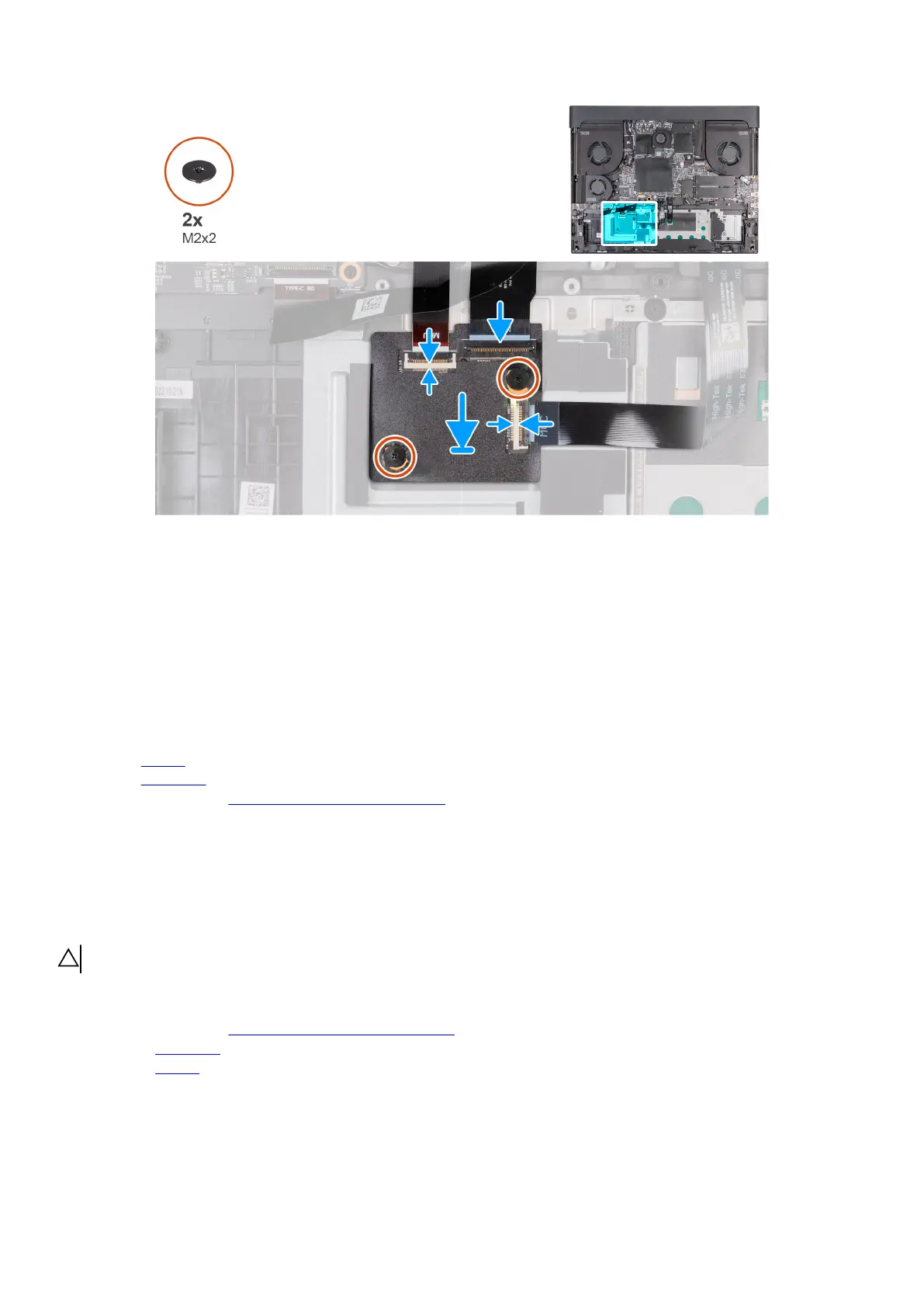
Steps
1. Using the alignment posts, place the keyboard-controller board into the slot on the palm-rest and keyboard assembly.
2. Replace the two screws (M2x2) that secure the keyboard-controller board to the palm-rest and keyboard assembly.
3. Connect the keyboard cable to the connector on the keyboard-controller board and close the latch to secure the cable.
4. Connect the keyboard-backlight cable to the connector on the keyboard-controller board and close the latch to secure the
cable.
5. Connect the keyboard-controller board cable to the connector on the keyboard-controller board and close the latch to secure
the cable.
Next steps
1. Install the
battery.
2. Install the base cover.
3. Follow the procedure in
After working inside your computer.
USB Type-C board
Removing the USB Type-C board
CAUTION: The information in this removal section is intended for authorized service technicians only.
Prerequisites
1. Follow the procedure in
Before working inside your computer.
2. Remove the base cover.
3. Remove the
battery.
About this task
The following images indicate the location of the USB Type-C board and provide a visual representation of the removal procedure.
59



 To Next Page