248 Scanning
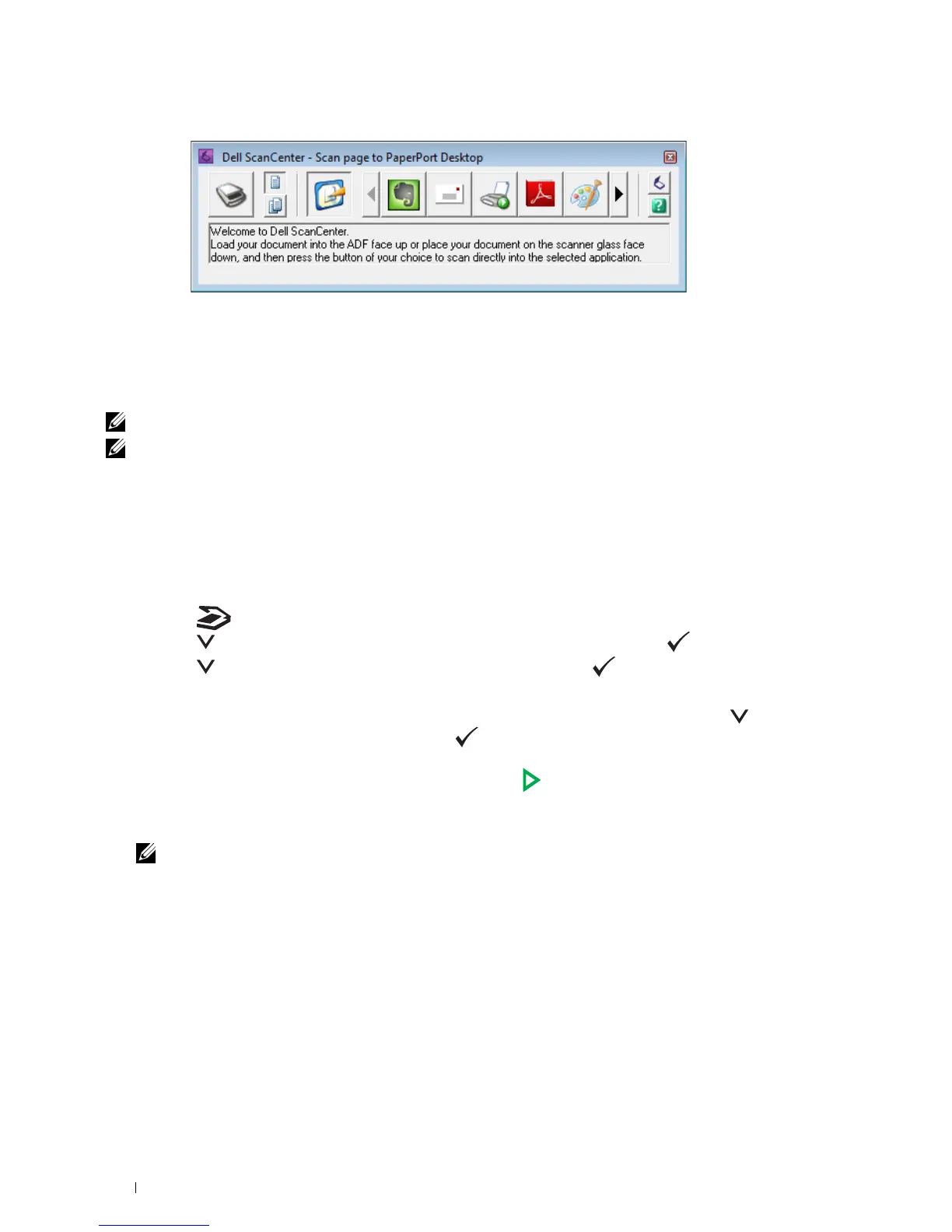
Icons on the Dell ScanCenter bar represent the programs that are limited to PaperPort and to Dell ScanCenter. To
scan and send an item to a program, click the program icon and then scan the item. Dell ScanCenter automatically
starts the selected program when the scan is complete.
Scanning From the Operator Panel - Using an Application
NOTE: Ensure that the printer is connected to the computer using the USB cable.
NOTE: You must use ScanButton Manager on your computer to configure the output destination of the scanned file and to
select whether to open the file using the related application. For details, see "ScanButton Manager" on page 301.
1
Load the document(s) face up with top edge in first into the ADF.
OR
Place a single document face down on the document glass, and close the document cover.
For details about loading a document, see "Making Copies From the ADF" on page 235 or "Making Copies From
the Document Glass" on page 233.
2
Press the
(Scan)
button.
3
Press the button until
Scan to Computer
is highlighted, and then press the (
Set
) button.
4
Press the button until
Computer
is highlighted, and then press the (
Set
) button.
5
Configure the scan settings as necessary.
Settings such as file format and color mode are available. To configure these settings, press the button until
Preferences
is highlighted, and then press the (
Set
) button. For details about setting items, see "Scan
Defaults" on page 168.
6
Ensure that
Start Scan
is highlighted, and then press the
(Start)
button.
The scanned file image is displayed on the screen of your computer and is saved in the destination specified with
ScanButton Manager
.
NOTE: If the following dialog box appears on your computer, select Dell C1765 MFP Scan Button Manager, and then click
OK.



 To Next Page
 Loading...









