Maintaining Your Printer 325
3
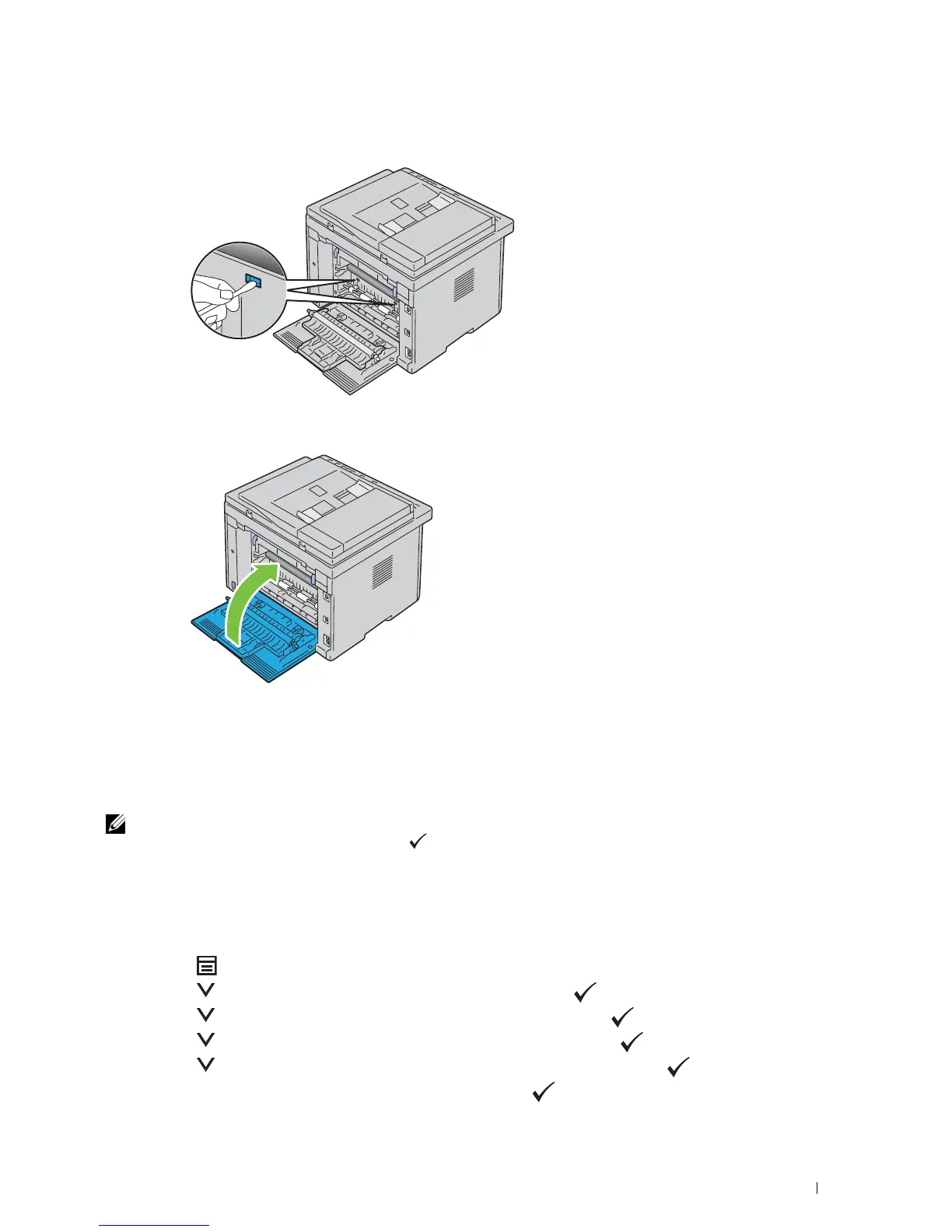
Clean the CTD sensor inside the printer with a clean dry cotton swab.
4
Close the rear cover.
5
Turn on the printer.
Adjusting Color Registration
This section describes how to adjust the color registration when you first install the printer or after moving it to a
new location.
NOTE: A password is required to enter the Admin Menu menu when Panel Lock Set is set to Enable. In this case,
enter the password you specified, and press the (Set) button.
Performing Auto Adjust
Auto Adjust allows you to correct the color registration automatically.
The Operator Panel
1
Press the
(Menu)
button.
2
Press the button until
System
is highlighted, and then press the
(Set)
button.
3
Press the button until
Admin Menu
is highlighted, and then press the
(Set)
button.
4
Press the button until
Maintenance
is highlighted, and then press the
(Set)
button.
5
Press the button until
Adjust ColorRegi
is highlighted, and then press the
(Set)
button.
6
Ensure that
Auto Adjust
is highlighted, and then press the
(Set)
button.



 To Next Page
 Loading...









