10
About your monitor
Operating system compatibility
• Windows 10 and later*
• macOS 13* and macOS 14*
*The operating system compatibility on Dell branded monitors may vary based on factors such as:
• Specific release date(s) when operating system versions, patches, or updates are available.
• Specific release date(s) when Dell branded monitor firmware, software application, or driver updates are available on the Dell
support website.
Identifying parts and controls
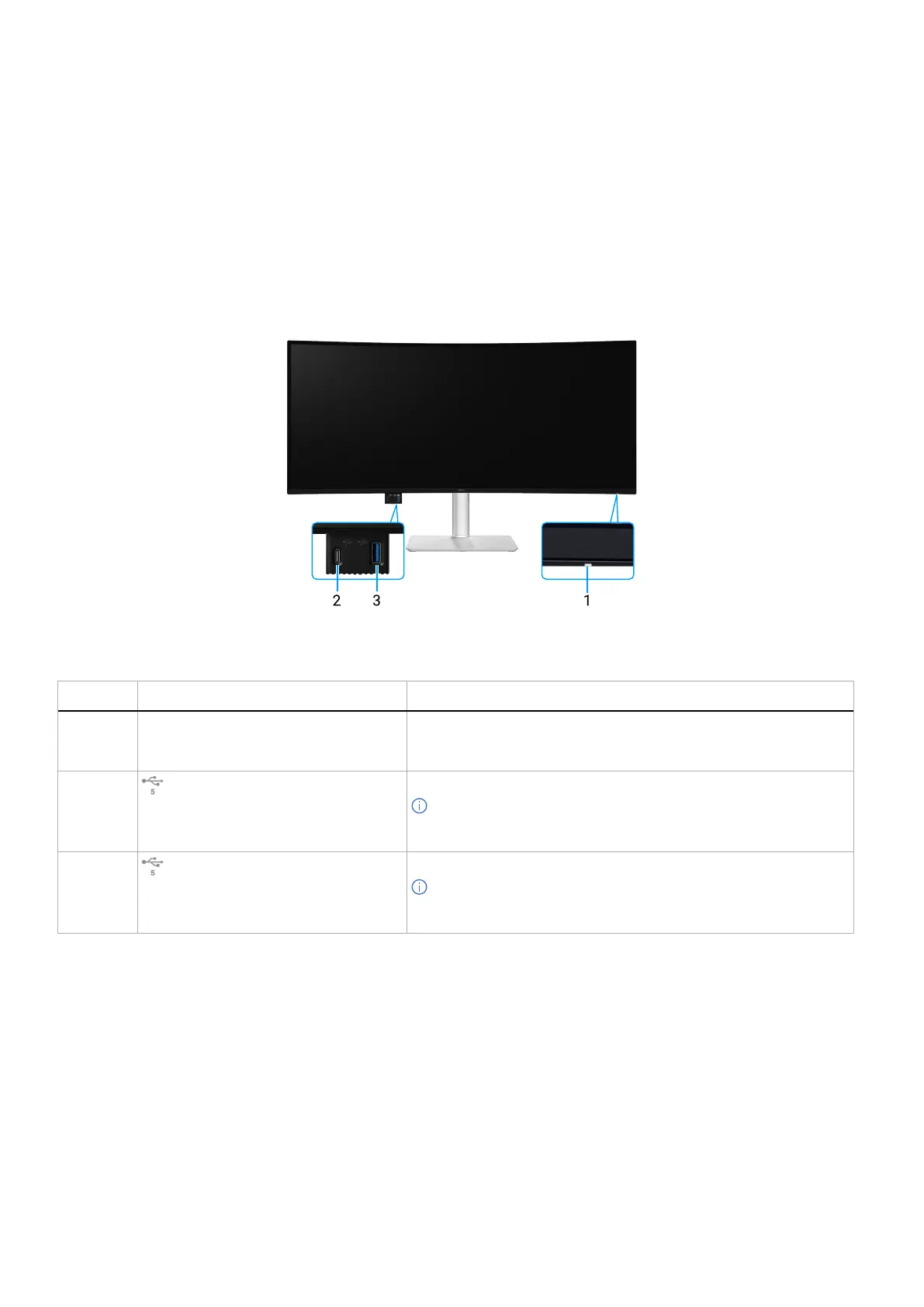
Front view
Figure 1. Front view of the monitor
Table 4. Components and descriptions.
Label Description Use
1 Power LED indicator Solid white light indicates that the monitor is turned on and functioning
normally. Blinking white light indicates that the monitor is in Standby
Mode.
2
Quick Access Port: USB-C 5Gbps
downstream port (data only)
Connect your USB device* or charge your device.
NOTE: To use these ports, you must connect the USB-C cable
(shipped with your monitor) to the USB-C upstream port on the
monitor and to your computer.
3
Quick Access Port: USB 5Gbps Type-A
downstream port
Connect your USB device* or charge your device.
NOTE: To use these ports, you must connect the USB-C cable
(shipped with your monitor) to the USB-C upstream port on the
monitor and to your computer.
* To avoid signal interference, when a wireless USB device has been connected to a USB downstream port, it is NOT recommended
to connect any other USB devices to the adjacent port(s).



 To Next Page