12
About your monitor
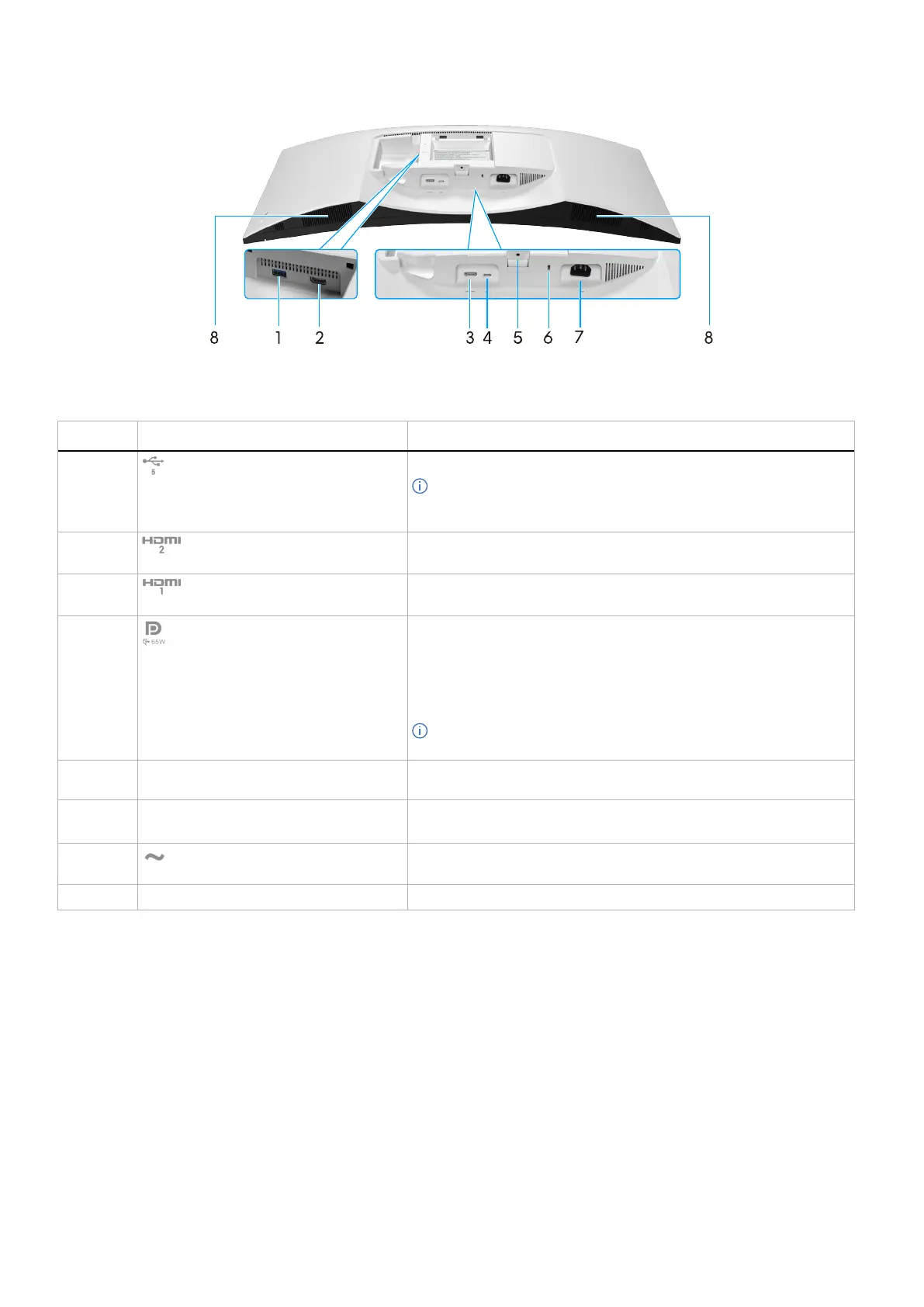
Bottom view
Figure 3. Bottom view of the monitor
Table 6. Components and descriptions.
Label Description Use
1
USB 5Gbps Type-A downstream port
Connect your USB device or charge your device.
NOTE: To use these ports, you must connect the USB-C cable
(shipped with your monitor) to the USB-C upstream port on the
monitor and to your computer.
2
HDMI 2 port
Connect your computer with the HDMI cable (purchased separately).
3
HDMI 1 port
Connect your computer with the HDMI cable (purchased separately).
4
USB-C 5Gbps upstream port (Power
Delivery up to 65 W)
Connect the USB-C cable that came with your monitor to the computer
or mobile device. This port supports Video, Power, and Data.
The USB-C 5Gbps upstream port supports DisplayPort 1.4 Alternate
Mode with a maximum resolution of 3440 x 1440 at 120 Hz, PD 20 V/
3.25 A, 15 V/3 A, 9 V/3 A, 5 V/3 A.
NOTE: USB-C is not supported on versions of Windows prior to
Windows 10.
5
Stand-lock feature Lock the stand to the monitor using a M3 x 6 mm screw (screw not
included).
6
Security-lock slot
(based on Kensington Security Slot)
Secure your monitor using a security lock (purchased separately) to
prevent unauthorized movement of your monitor.
7
Power connector
Connect the power cable (shipped with your monitor).
8
Built-in speakers Provides audio output.



 To Next Page