50
Operating the monitor
Icon Menu and submenu Description
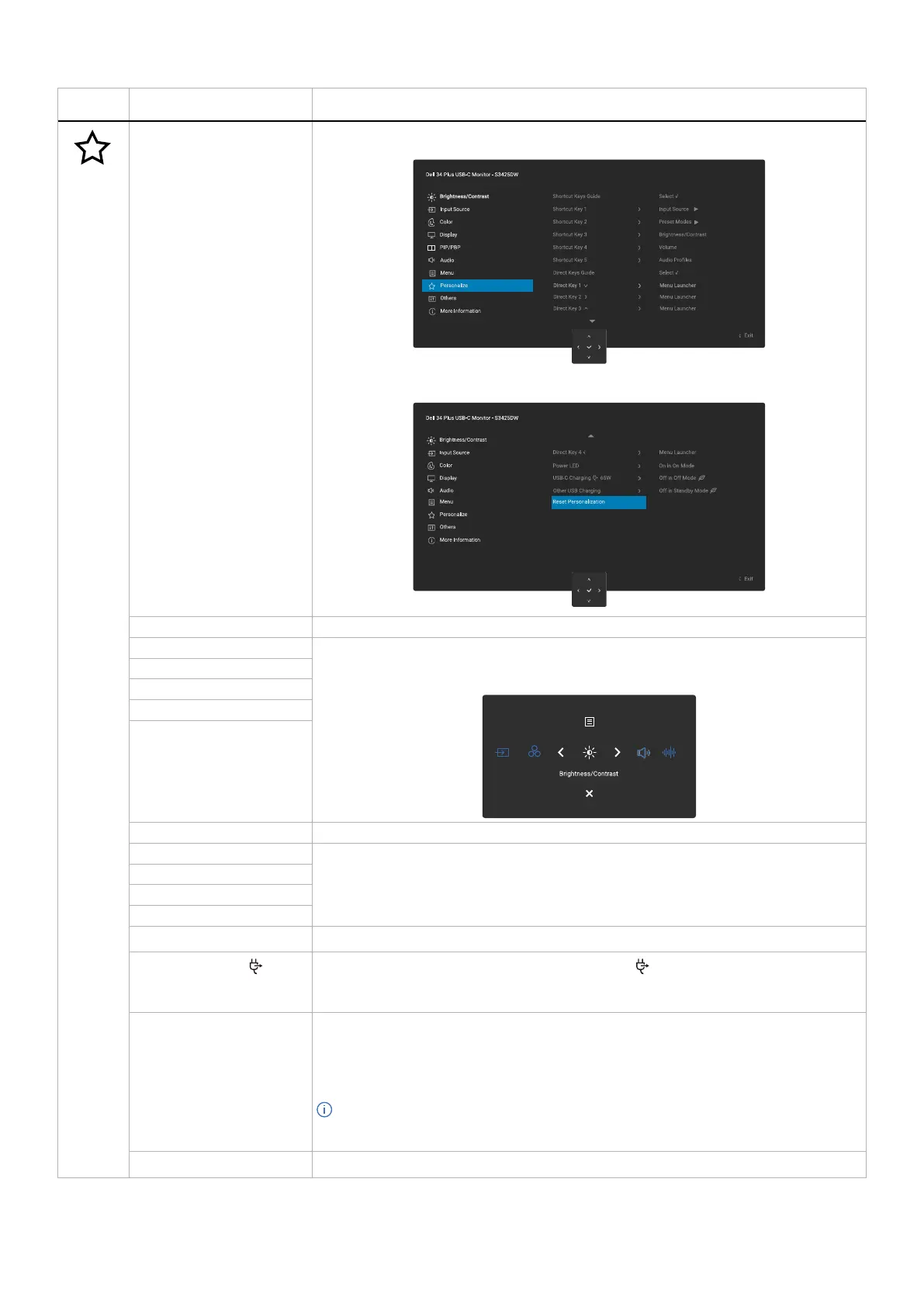
Personalize Select this option to adjust the settings of the personalization.
Shortcut Keys Guide Select this option for entering Shortcut Keys Guide.
Shortcut Key 1 Select a function from Preset Modes, Brightness/Contrast, Input Source, Aspect Ratio,
Volume, Audio Profiles, Smart HDR, Display Info, PIP/PBP Mode or Video Swap and set
it as a shortcut key in the menu launcher.
Shortcut Key 2
Shortcut Key 3
Shortcut Key 4
Shortcut Key 5
Direct Keys Guide Select this option for entering Direct Keys Guide.
Direct Key 1
Allows you to choose a feature from Off, Menu Launcher, Preset Modes, Brightness,
Contrast, Input Source, Aspect Ratio, Volume, Audio Profiles, Smart HDR, Display Info,
PIP/PBP Mode or Video Swap and set it as a Direct Key.
Direct Key 2
Direct Key 3
Direct Key 4
Power LED
Allows you to set the state of the power light to save energy.
USB-C Charging 65W Allows you to enable or disable the USB-C Charging 65W function during monitor
off mode. If On in Off Mode is selected, you can charge your laptop or mobile devices
through the USB-C cable even when the monitor is powered Off.
Other USB Charging Allows you to enable or disable the USB Type-A and USB-C downstream Ports charging
function when the monitor is in standby mode.
When this function is enabled, you can charge your mobile devices even when the
monitor is in standby mode.
NOTE: This function is available when the USB-C cable is unplugged from the
upstream port. If the USB-C cable is connected, Other USB Charging follows the USB
host power status and the function is not accessible.
Reset Personalization
Resets Personalize to the default settings.



 To Next Page