Select the respective mixer and use the up/down buttons to move the order of the selected
mixer. Note that the mixer name represents its position when the reorder dialog was
opened. If the dialog is closed and reopened, all mixers will be shown as numbered se-
quentially.
The reorder page can add new mixers or delete existing ones using the ‘Insert’ and ‘Re-
move’ buttons respectively. A mixer can also be copied to an existing mixer (overwriting
it in the process) by using the ‘Copy To’ functionality
Available Curves
The following curve functions are supported:
1-to-1: Output is equal to the input (not editable).
Fixed: Output is constant regardless of input (not editable).
Min/Max: Output is -100 if input is < 0 and 100 if input is >= 0 (not editable)
Zero/Max: Output is 0 if input is < 0 and 100 if input is >= 0 (not editable)
>0: Output is 0 if input is < 0 and matches the input when >= 0 (not editable)
<0: Output matches the input when < 0 and is 0 if input >= 0 (not editable)
ABSVAL: Output is the absolute-value of the input (not editable)
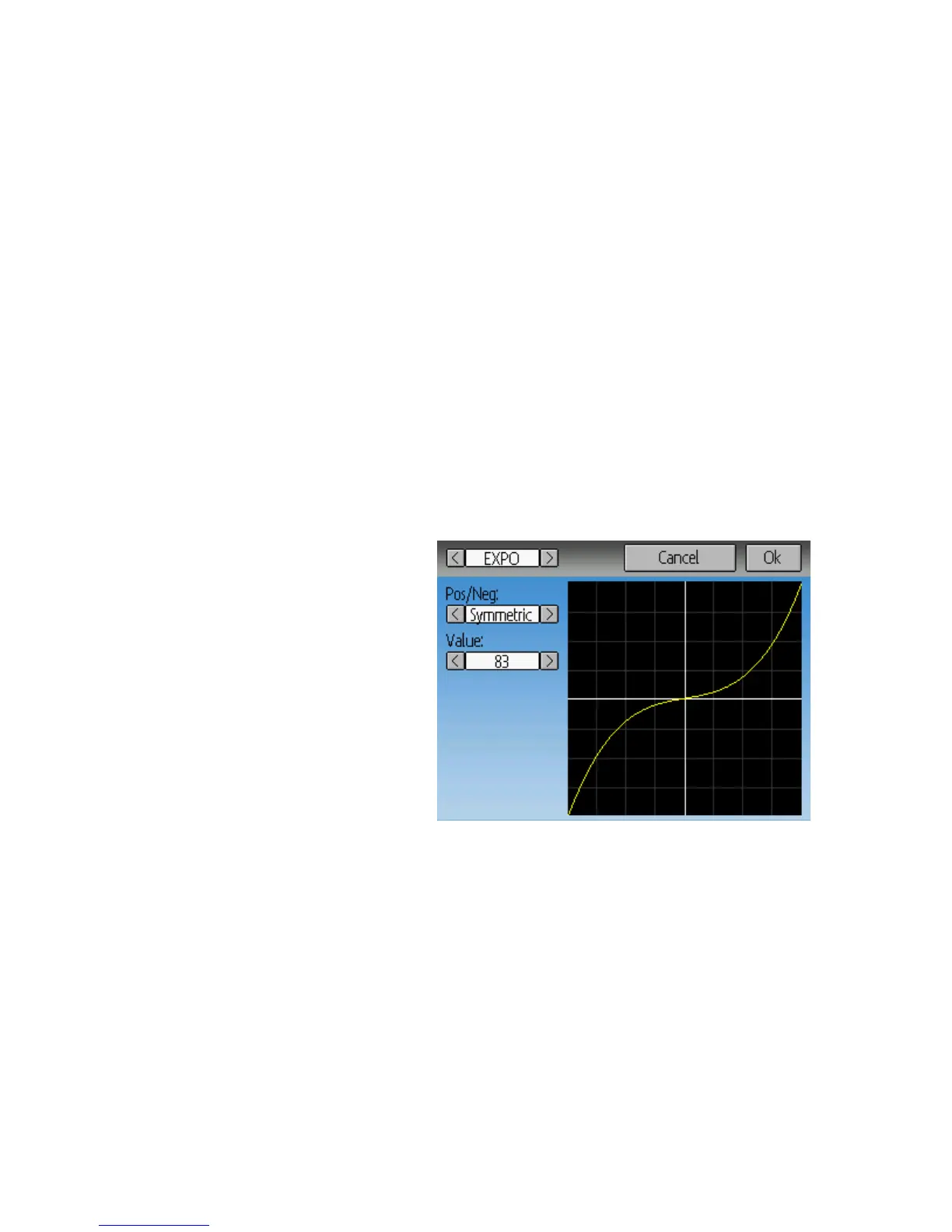
EXPO: Apply exponential curve to the input for non-linear response (editable)
Deadband: Output will not respond to input values near zero (editable)
Multi-point: Curve is based on 3 to 13user-defined points
Curve Editing
The Curve Editor is accessed by
pressing a graph or by pressing the
curve spin-box when it is selectable.
Some curve types may not be edited
(any of the curves preceding the
‘Expo’ curve), and the curve-box will
not be selectable if one of these
curves is currently active.
The Curve editor page will be difference depending on which curve is selected. It is not
possible to change the curve type from the curve editor (except when a multi-point curve
is selected)
For the Expo curve, the controls allow independently configuring the shape of the curve
for values greater-than or less-than zero.
For the Deadband curve, the controls allow independently configuring the deadband
width for values greater-than or less-than zero.
For the Multi-point curves, Each point can be individually set. Points are set by choosing
the point number and then choosing a value. Touching the graph will allow quickly
setting the value to the touched y-coordinate.
Page | 20


 To Next Page