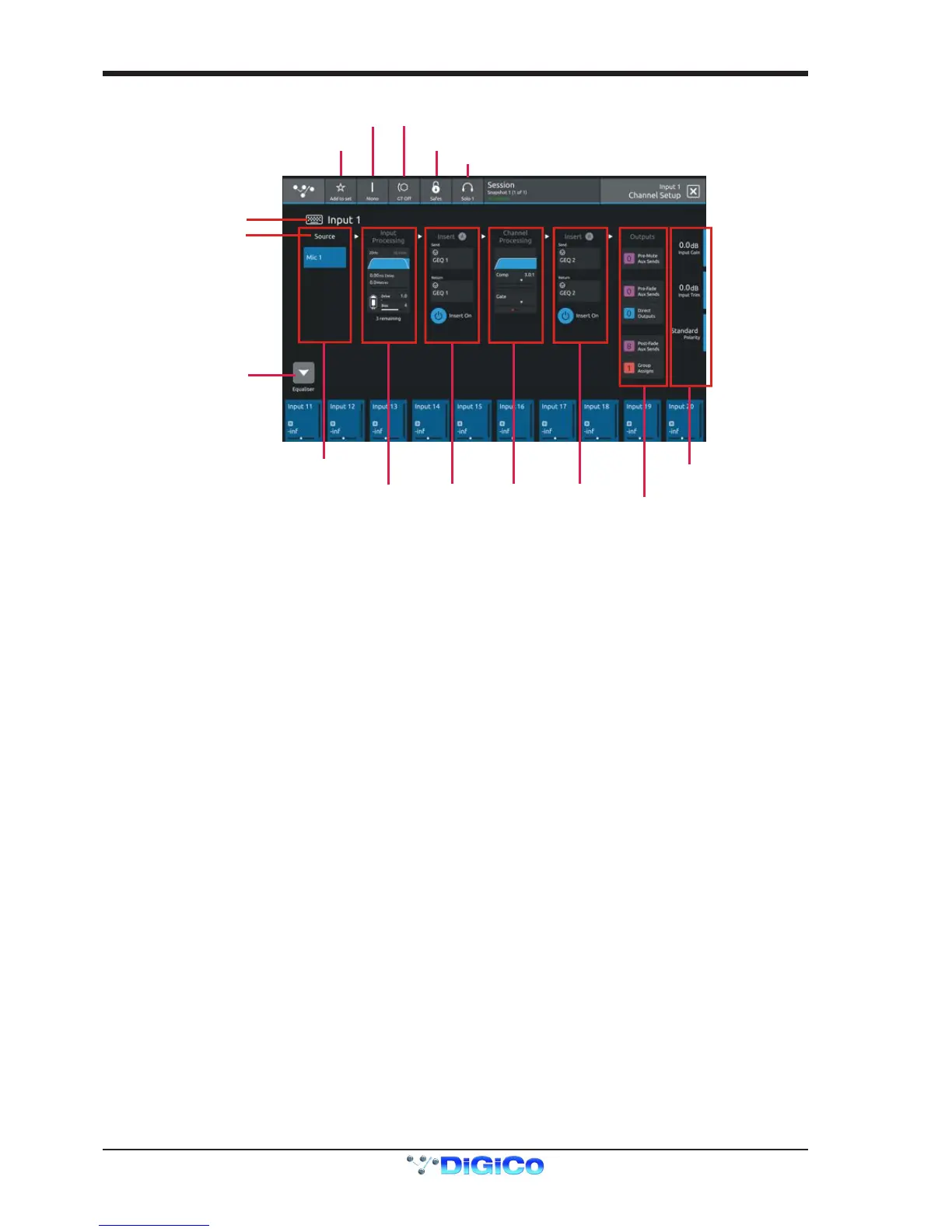
Touching the input block at the top of the channel opens the Channel Setup view
Each column represents a section of the channel processing strip and these columns can be selected by touching their title label.
Once a column is selected, the parameters available in that section are assigned to the worksurface Master Rotaries to the right of the
screen.
Some columns are subdivided into blocks eg Input processing consists of Filters, Delays and Tubes.
Touching any of these blocks will assign the Master Rotaries to the settings for that block.
Note that touching the Filter block or the EQ block will both display the EQ view but with different bands selected.
Note: When any expanded view is open on the Master screen, the Master Rotaries no longer have their standard de-
fault assignment and are instead assigned to the parameters in the expanded view which is currently displayed.
The buttons in the top bar provide the following functions:
Switching the channel from Mono to Stereo mode
Adding the channel to a Spill Set (see Spill Set section later in this document)
Switching Gain Tracking On/Off for the channel
Opening the Safes View which allows channel parameters to be protected from Snapshot Recall
Selecting which Solo Busses the channels are assigned to
Touch the keyboard icon at the top left of the screen to enter a channel name.
Touch the Equaliser button at the bottom left of the screen to switch to the EQ view for the currently selected channel.
To select an Input Route touch the block below the Source label and the Input routing view will open.
To select an Output Route touch the Direct Output block in the Outputs column and the output routing view will open.
To assign the channel to a Group buss touch the Group Assigns button in the Outputs column
To view and adjust Aux Send Options for the channel touch the relevant Aux Sends button in the Outputs column


 To Next Page