1-5
DiGiCo S21
1-5
These controls give access to the channel pans in standard operation and the surrounding coloured LED rings are blue.
Touching and holding on the rows of controls on screen assign these encoders to different parameters, the screen row changes colour
and the LED rings change to a similar colour.
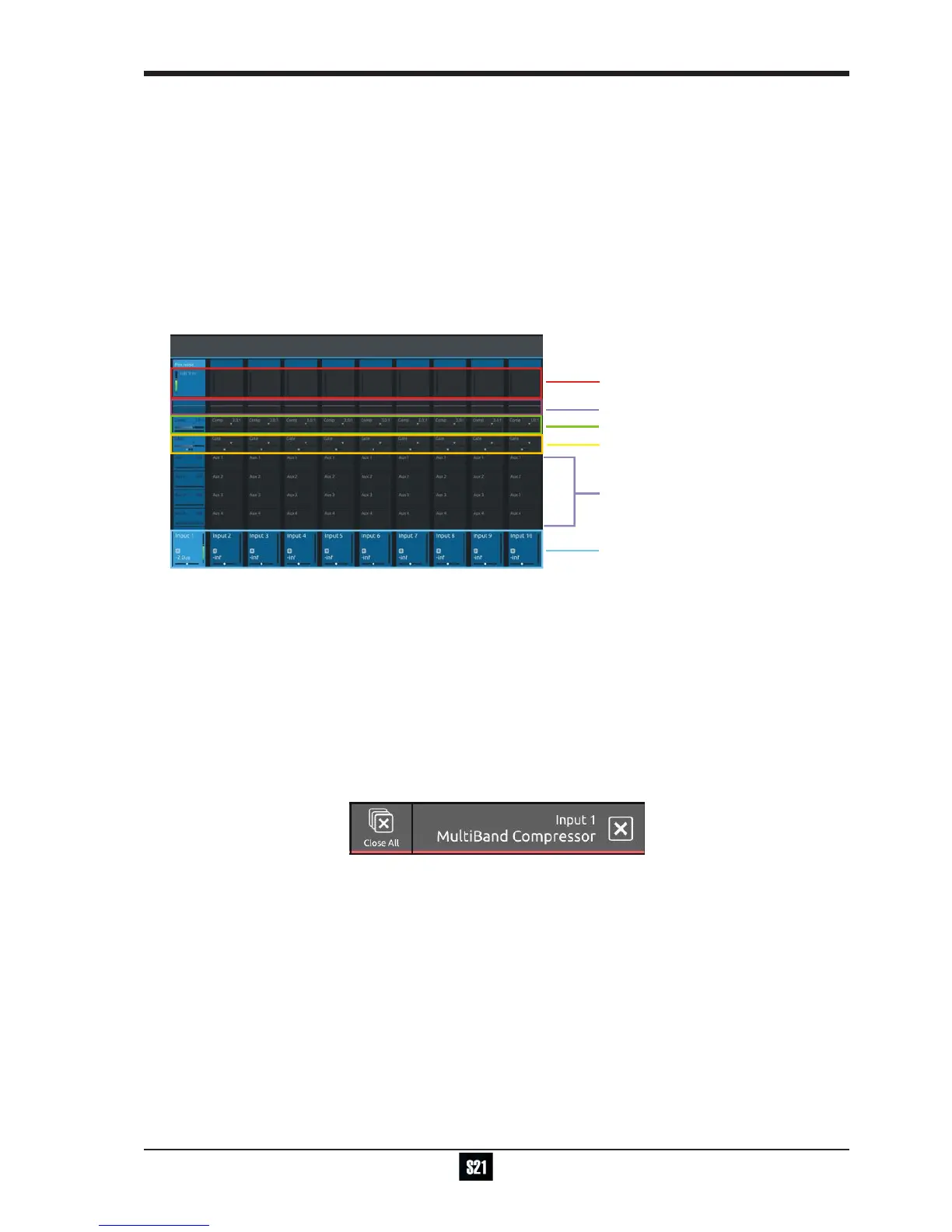
In the above example the Gain/Trim row at the top of the Channel View has been touched, the row is highlighted in red and the under-
screen controls are assigned to the Gain/Trim function.
Other possible assignments are:
HPF Frequency & On/Off - Row and LED ring highlighted in Mauve
Dynamics 1 Threshold & On/Off - Row and LED ring highlighted in Green
Dynamics 2 Threshold & On/Off - Row and LED ring highlighted in Yellow
Selected Aux row Send level & On/Off - Row and LED ring highlighted in Purple
1.3 The Expanded Views
1.3.1 Display Expanded Views .......................................................
A single touch (rather than a touch and hold) will open a number of different expanded views according to where the touch is made.
Opens Channel Setup view
Opens EQ view
Touch any Aux Send to select the channel
and assign the selected Aux Send to the
6th Master Rotary & Aux Pan to the 5th
(with Aux To Faders option OFF)
Swipe vertically to display more Auxes
Opens Dynamics 1 view
Opens Dynamics 2 view
Touch here to select a channel
The image above shows the various touch areas in the Channel view and the expanded view will be displayed on the Master screen.
Note: When an expanded view is already open, selecting a different channel by touching the Output block area at the
bottom of the screen will change the expanded view to display the newly selected channel.
If an expanded view is already open and a different expanded view is selected, the last view selected will be displayed
on the Master screen with the previously expanded view behind it.
Any combination of expanded views can be "layered" in this way.
The Close All button on the Master screen can be touched at any time to close all active expanded views.
The Close button on the Master screen can be touched at any time to close the currently active expanded view and display the view
beneath it.


 To Next Page