1-13
DiGiCo S21
1-13
1.4 Customising the Layout
1.4.1 The Console Overview ..........................................................
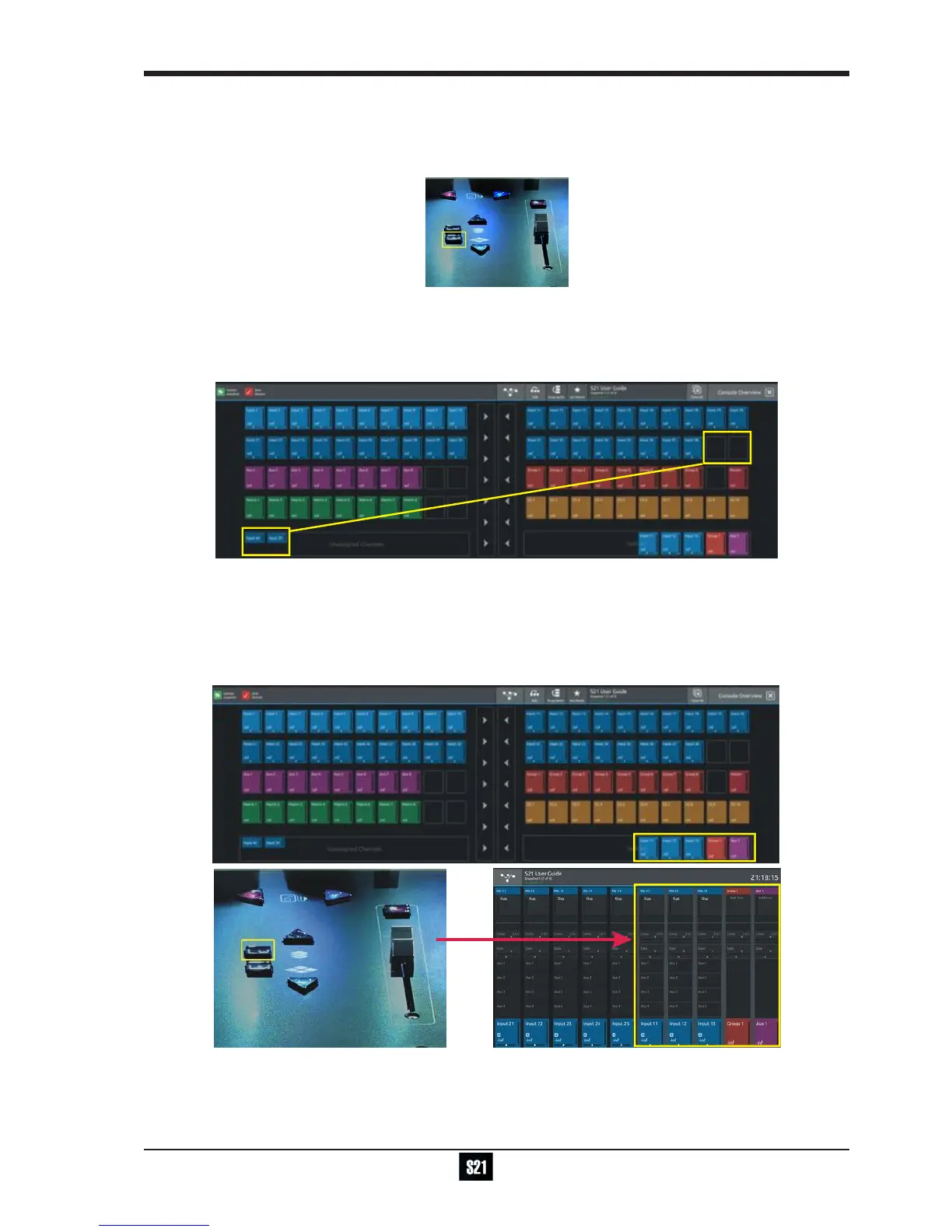
Pressing the white Overview button, located near the layer up and down buttons displays an on screen representation of all console
channels. This view can be used to change the layout of the console channels and banks.
Touching the Edit button in the top bar changes the appearance of the display and activates drag and drop capability.
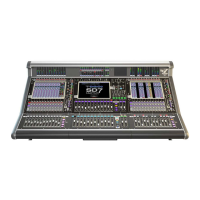
Any block that represents a channel can be dragged to another position and dropped there. This will overwrite the channel in that posi-
tion and the overwritten channel will reappear in the Unassigned Channels section at the bottom of the left screen.
Channel blocks can also be dragged directly to the Unassigned Channels section to remove them from the worksurface
Note: Channel blocks can be dragged between the 2 console screens
1.4.2 The Spill Set ...........................................................................
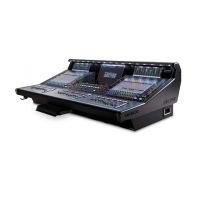
In Edit mode, a selection of up to 10 channels can be dragged to the Spill Set section at the bottom of the right hand overview screen to
create a Spill Set.
Typically, these would be channels to which the user needs to have quick access at all times.
When a Spill Set has been created, the worksurface button located above the overview button will become blue and pressing this button
will display the Spill Set channels on the right hand screen. pressing again hides the Spill Set.


 To Next Page