1-15
DiGiCo S21
1-15
1.5 The Main Menu
The right hand Master Screen has a DiGiCo logo icon at the top which is used to open the Main Menu
The Main Menu contains a number of buttons which are used to access various console functions
1.5.1 Session Management .............................................................
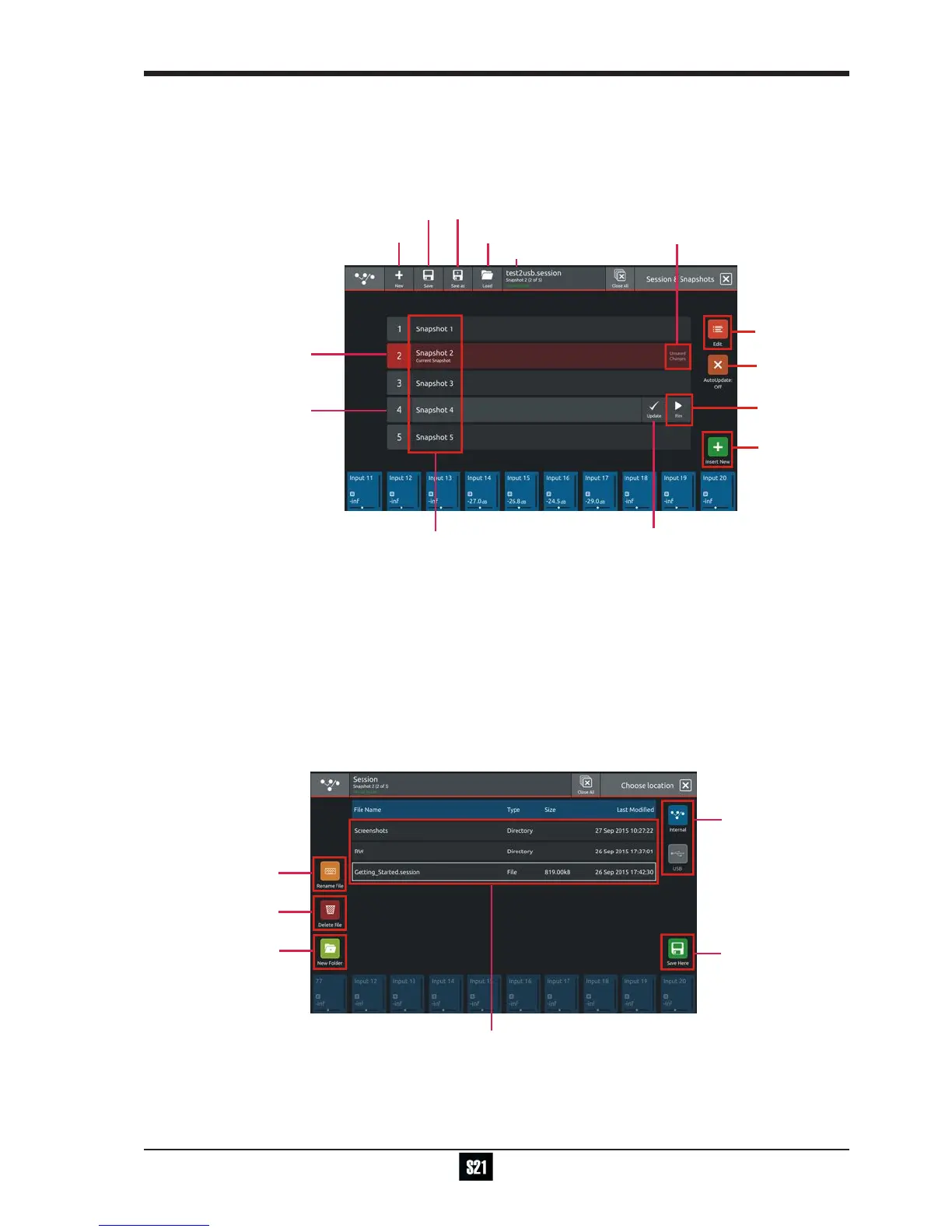
Touching the Sessions & Snapshots button opens a display which contains le management functions in the top bar and Snapshot
control in the main area of the screen.
To create a new session, touch the New button in the top bar and a progress bar will be displayed.
When the process is complete, touch the Save As button, select the internal drive (labelled Home) or the USB port (with a USB key
inserted into the console USB port) and touch the Save Here button.
Then type a new session name using the on-screen keyboard and touch the Done button.
To update the session after the initial Save As process, just touch the Save button and the current session will be updated automatically.
To load an existing session, touch the Load button, select the internal or USB drive and then select the required session from the list
and touch the OK button.
NOTE: The Auto-Update button on the left of the screen relates to Snapshots and not to Sessions
When active, this function will automatically update the current Snapshot as changes are made on the console.
Please read the Snapshot section and only activate this function if you denitely require it.


 To Next Page